![1512632091642-p-500.png]](https://help.consignorconnect.com/hs-fs/hubfs/1512632091642-p-500.png?width=131&height=50&name=1512632091642-p-500.png)
Still on Classic Rose? See the Classic Rose steps.
Add a small fee on top of the consignor's price - one rate, or by price range. The buyer pays it, the store keeps it, and it never changes what the consignor earns.
How item fees work
- A fee is added on top of the price the consignor sets. An item priced $20.00 with a $1.00 fee has a label price of $21.00.
- The buyer pays the fee at the register. When the sale comes in, Rose takes the fee off first and splits the rest, so the consignor’s share is the same as without a fee.
- Fees are set per location, in two kinds: STORE FEE - ONE RATE (a flat amount or a percentage on every item) and STORE FEE - BY PRICE RANGE (up to 5 price ranges, each with its own fee).
Set up the fee
- Open Menu → Fees/Taxes and press CREATE.
- Type a NAME (SHOWN IN LISTS AND REPORTS), for example Store fee.
- Under WHAT ARE YOU ADDING? pick STORE FEE - ONE RATE or STORE FEE - BY PRICE RANGE, then pick the LOCATION and tick ON (ENABLED).
- One rate: choose FLAT $ PER ITEM or % OF THE CONSIGNOR’S PRICE under HOW IS THE FEE CHARGED? and type the fee. By price range: fill one row per range (FROM $ (ITEM PRICE), TO $, then a FLAT FEE $ or OR FEE %).
- Press SAVE CHANGES. The example under the fee shows what it does to a $20 item.
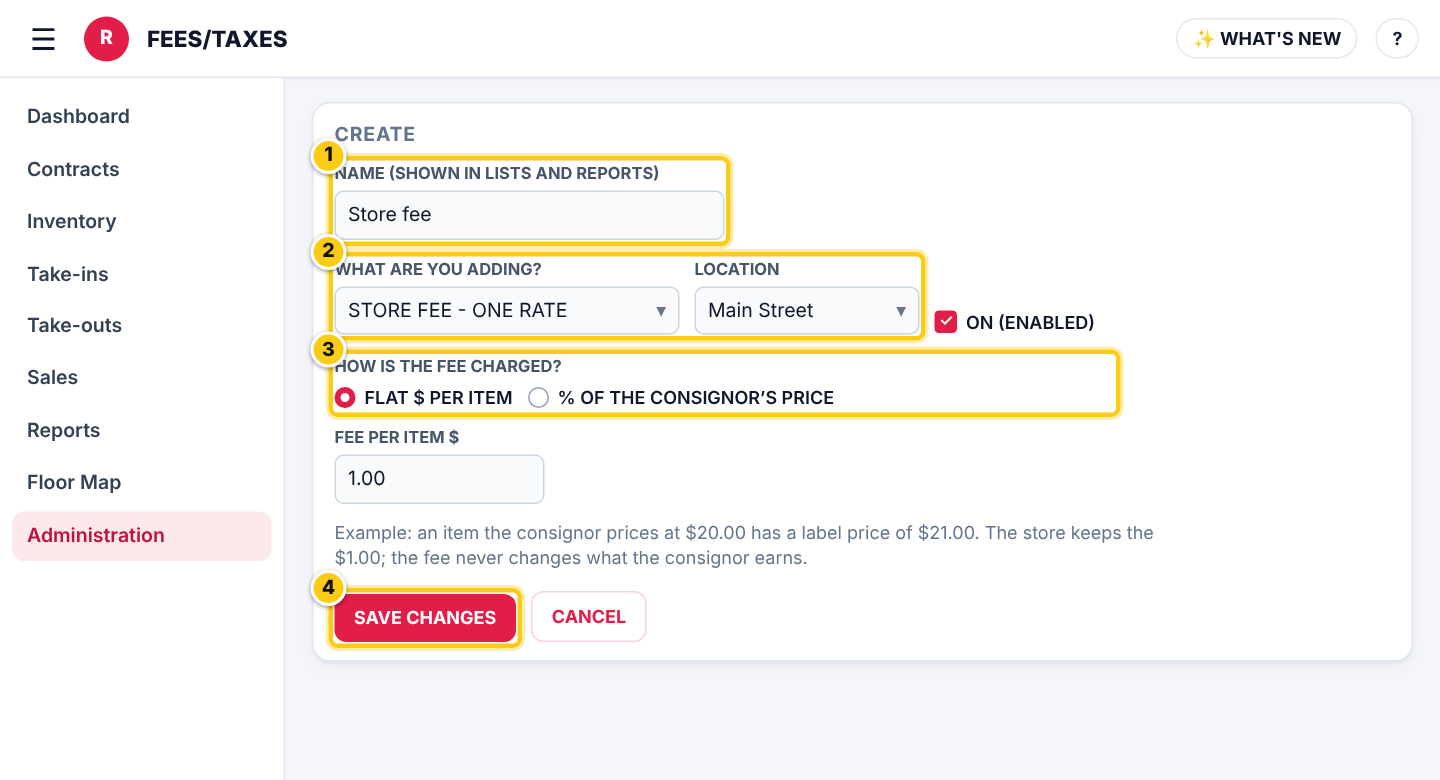
(1) the name, (2) what you are adding and the location, (3) how the fee is charged, (4) SAVE CHANGES.
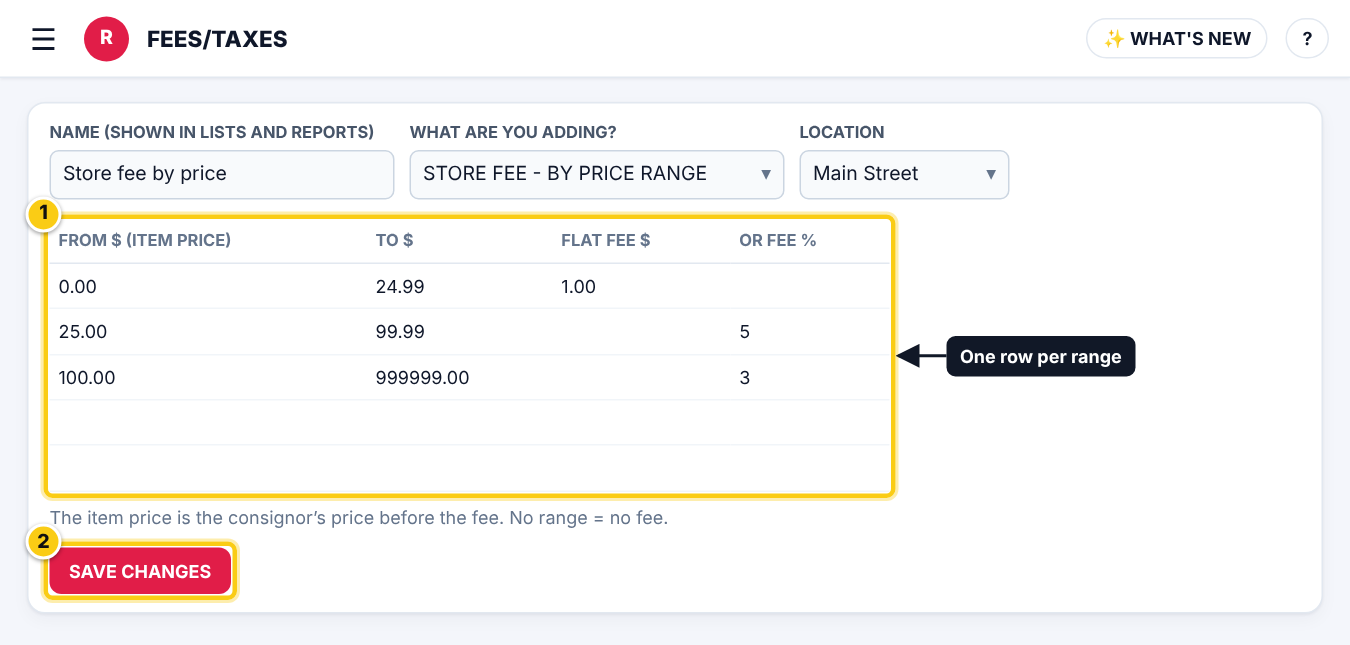
A fee by price range: one row per range, with a flat fee or a percentage.
Tip: An item whose price is in no range gets no fee. When ranges overlap, the lower one in the list wins - Rose warns about gaps and overlaps under the rows.
Put the fee on items
- On a take-in or in the item editor, tick AUTOMATIC ITEM FEES. Rose works out the fee from the location’s fee table and shows it in EA.FEE.
- To charge one item a different fee, untick AUTOMATIC ITEM FEES and type the fee in EA.FEE yourself (a fee per item).
- To have new items start with automatic fees, set AUTOMATIC ITEM FEES in Administration → SETTINGS → ITEM DEFAULTS (see Item defaults).
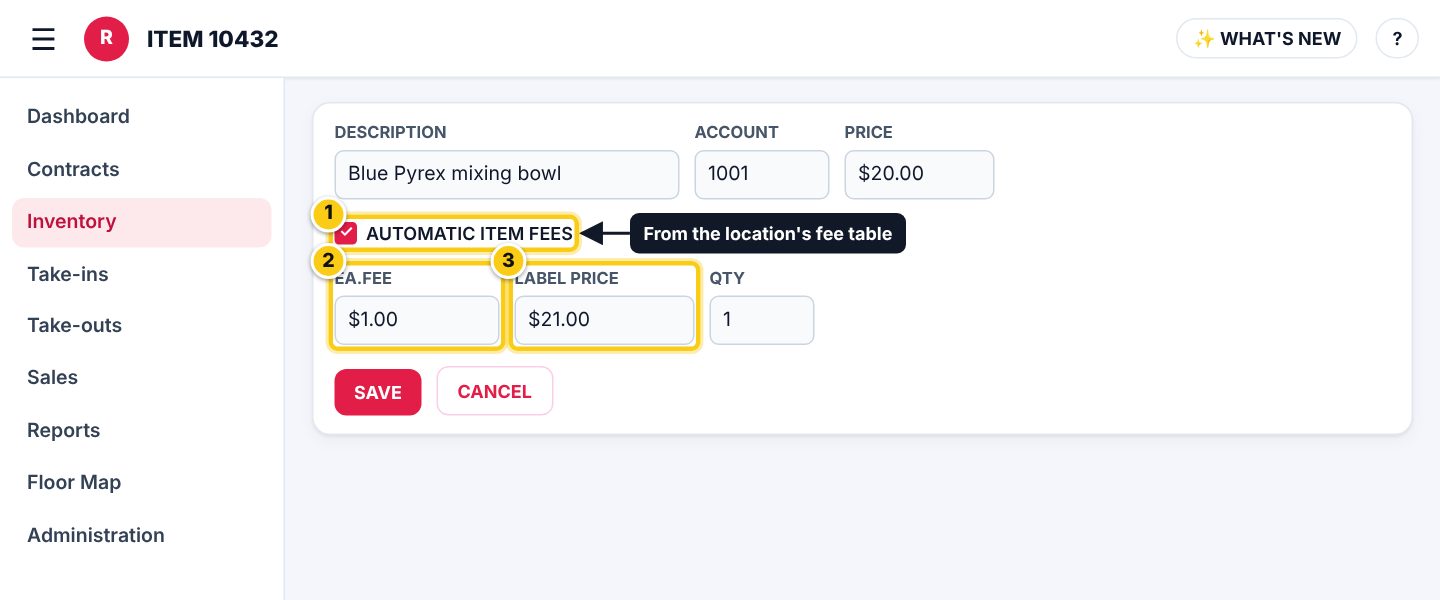
(1) AUTOMATIC ITEM FEES, (2) the fee it worked out in EA.FEE, (3) the label price includes it.
- A VARIABLE price item works its fee out from the price rung up at the register (the tick then reads AUTOMATIC ITEM FEES (INCLUDED IN THE PRICE RUNG UP)).
- Moving a take-in to another location recalculates its automatic fees from that location’s fee table.
See the fees
- Each sale line in the sales batch shows its FEE; the batch list shows the day’s FEES total.
- Reports → PERIOD REPORTS → Fees lists the fees charged in a date range, and the Sales report shows the fee of every item sold.
Who can do this (user rights)
| Right in User Maintenance | What it allows | Who has it at first |
|---|---|---|
| Fees/Taxes | Opens Menu → Fees/Taxes to create and change fees and taxes. | Users with Fees/Taxes ticked in User Maintenance |
Questions
Does the consignor pay the fee?
No. The buyer pays it as part of the price, and Rose takes it off before the split, so the consignor earns the same as without a fee.
Will a new fee change items already on the floor?
No. Items get the fee when they are created or saved with AUTOMATIC ITEM FEES ticked. Open an item and save it to recalculate its fee.
Can I have a different fee at each location?
Yes. Every fee belongs to one location, and an item uses the fees of its own location.
Still stuck? Ask Rosebot (the bubble at the bottom right of Rose and myPortal) or contact Consignor Connect support.