![1512632091642-p-500.png]](https://help.consignorconnect.com/hs-fs/hubfs/1512632091642-p-500.png?width=131&height=50&name=1512632091642-p-500.png)
Still on Classic Rose? See the Classic Rose steps.
Tick ONLINE WEBSITE on items, then switch them on in Square Online - one at a time or all at once with an export and import.
Before you start
- Set up your website in Square first (Square Online). Your location must offer pickup or delivery on the site.
- An item shows online only when it has a fixed price (VARIABLE price items don’t show online) and, if its quantity is tracked, a quantity in stock.
Mark items for the website
- Open the item in Inventory (or a take-in line) and tick ONLINE WEBSITE.
- Type the SHIPPING WEIGHT (LB) if you ship (for example 1.5). With Rose Pro, add a photo too - it goes to Square and your website.
- Press SAVE. The item goes to Square as usual; Rose reminds you that the last step happens in Square.
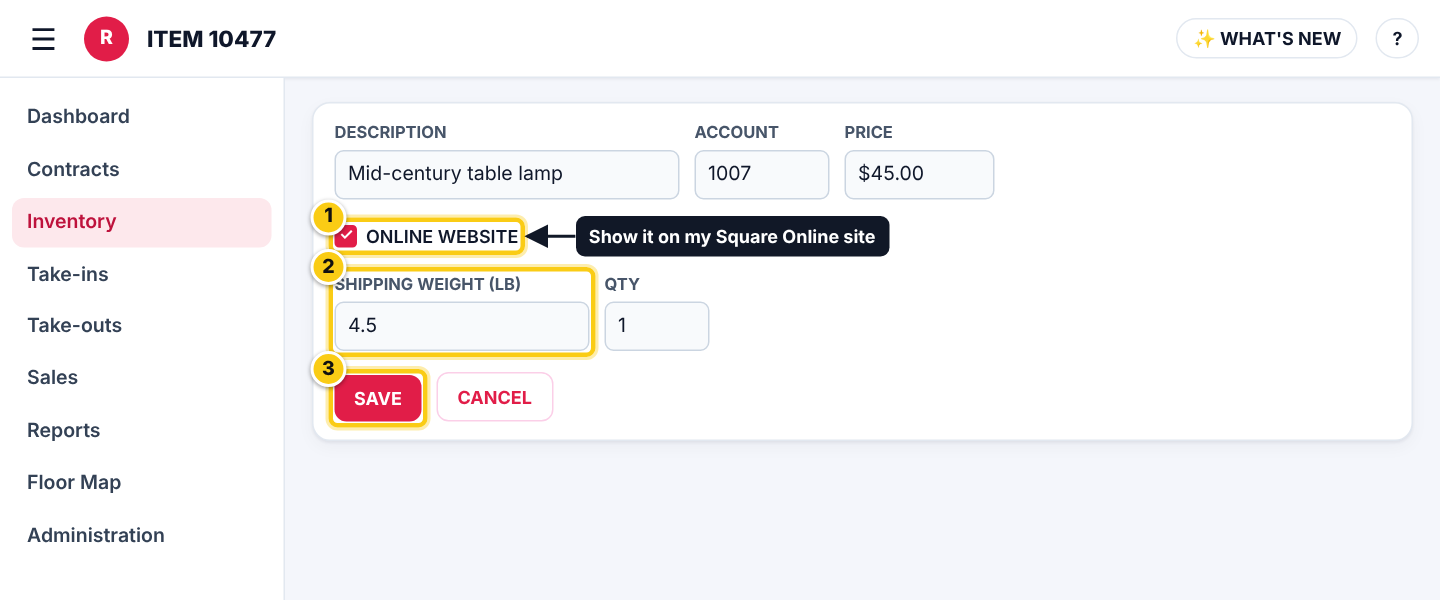
(1) ONLINE WEBSITE, (2) SHIPPING WEIGHT (LB), (3) SAVE.
Switch them on in Square
Square doesn’t let other apps put items on your website or set their shipping weight, so this last step is done in Square. Open Inventory → ONLINE WEBSITE ITEMS: it lists every item marked ONLINE WEBSITE and what each still needs.
- One item (Rose Pro): press EDIT IN SQUARE on its row. Square opens the item (sign in there); turn on Square Online under Sales channels, add a weight or photos, and save. On Rose Retail the button shows a PRO badge and offers the Rose Pro Upgrade.
- All at once: in Square, go to Items → Item library → Actions → Export library (CSV). In Rose press UPLOAD SQUARE EXPORT (CSV) and pick that file.
- Tick ALSO SET THEM TO SHOW ON MY WEBSITE if you want them visible, then press DOWNLOAD THE FILLED FILE - THEN IMPORT IT IN SQUARE.
- In Square: Items → Item library → Actions → Import library → Modify existing items, and pick the filled file. Square matches the items by their Token, so nothing else changes.
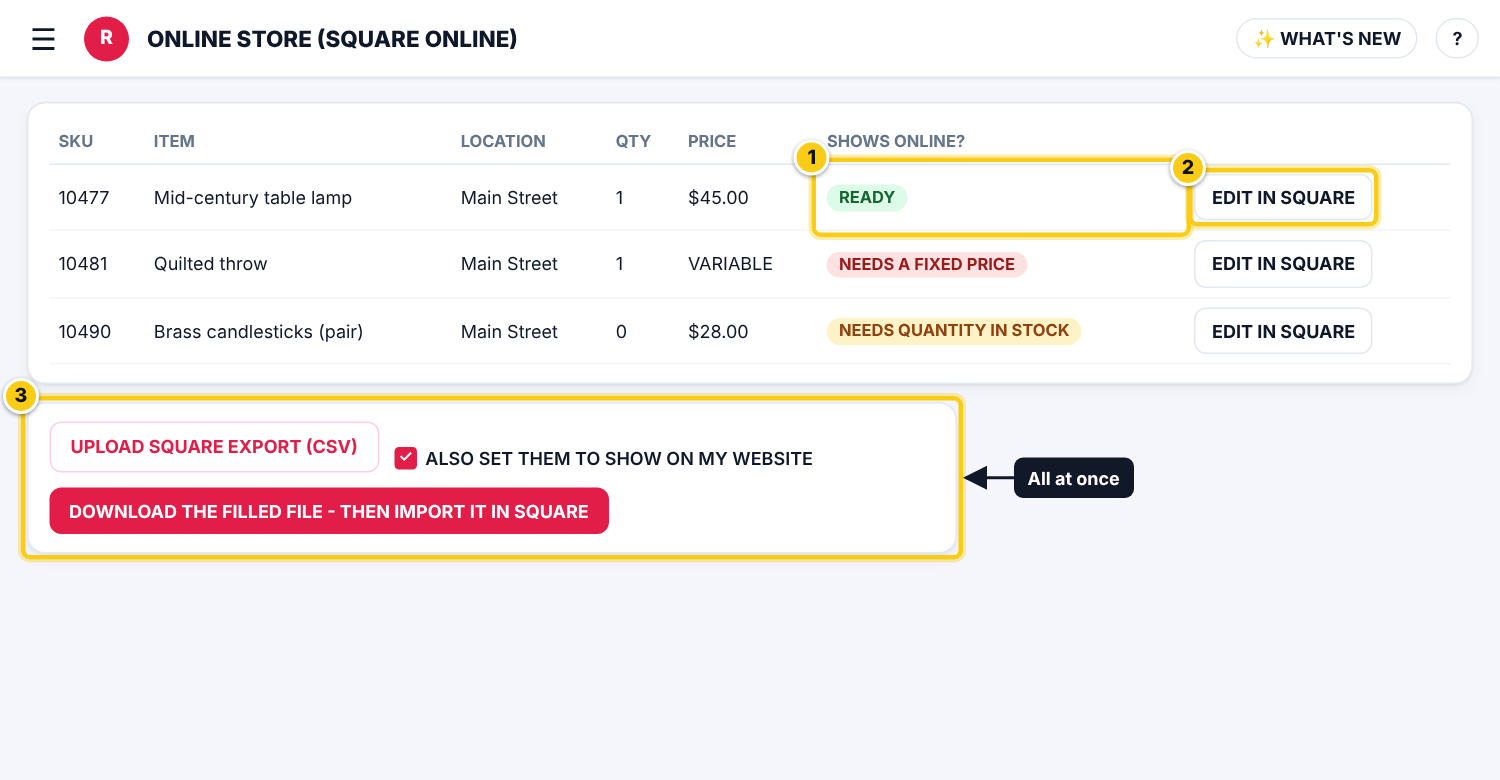
(1) SHOWS ONLINE? says READY or what is missing, (2) EDIT IN SQUARE for one item, (3) the export / import for all at once.
Good to know
- When an item sells online, the sale comes into Rose with the day’s sales like any other and is paid to the consignor as usual.
- REMOVE FROM ONLINE WEBSITE takes the tick off items you no longer want online; REBUILD ONLINE WEBSITE FROM SQUARE ONLINE ticks the items Square already shows online.
- Item photos and EDIT IN SQUARE come with Rose Pro. A Rose Retail store can add them with the Rose Pro Upgrade - press any PRO button and choose ADD THE ROSE PRO UPGRADE; your Retail subscription stays as it is.
Who can do this (user rights)
| Right in User Maintenance | What it allows | Who has it at first |
|---|---|---|
| Inventory | Opens Inventory, the ONLINE WEBSITE tick and ONLINE WEBSITE ITEMS. | Users with Inventory ticked in User Maintenance |
| Rose Pro | Item photos and EDIT IN SQUARE. | Rose Pro and Rose Enterprise stores, and Rose Retail stores with the Rose Pro Upgrade |
Questions
Why doesn't an item show on my website?
Open ONLINE WEBSITE ITEMS: the SHOWS ONLINE? column says what is missing, such as a fixed price or a quantity in stock, or that it still needs Square Online turned on in Square.
Can I get the list into a spreadsheet?
Yes. DOWNLOAD THE LIST (CSV) in ONLINE WEBSITE ITEMS saves every marked item with what it still needs.
Do I need Rose Pro to sell online?
No. Every store can tick ONLINE WEBSITE and use the Square export / import. Rose Pro adds item photos and EDIT IN SQUARE for one item at a time.
Still stuck? Ask Rosebot (the bubble at the bottom right of Rose and myPortal) or contact Consignor Connect support.