![1512632091642-p-500.png]](https://help.consignorconnect.com/hs-fs/hubfs/1512632091642-p-500.png?width=131&height=50&name=1512632091642-p-500.png)
Still on Classic Rose? See the Classic Rose steps.
In each screenshot, the yellow boxes show what to click. Numbers give the order.
Overview
Once an item is in your inventory, you can change it from the Inventory screen: its price, quantity on hand, name, consignor, category, brand, label, taxes and which locations it sells at.
Where to find it: Dashboard › menu (☰) › Inventory.
Find the item
1. Open the menu (☰) and click Inventory.
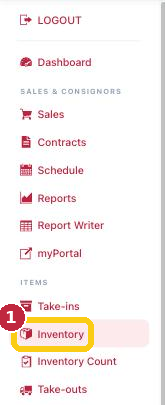
Click Inventory in the menu (1).
2. In SEARCH, type the SKU, or the consignor, brand, description, size, color, location or date, and press ENTER. Every word must match, so smith dress finds dresses from consignor Smith.
3. Click the ALTER pencil at the left of the item. You can also click the item's row, then ALTER at the top.
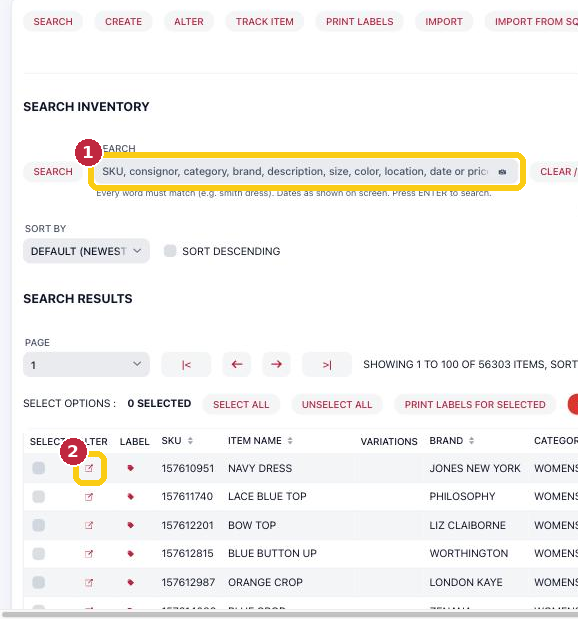
Search for the item (1), then click its ALTER pencil (2).
Change the item
4. The ALTER INVENTORY ITEM screen opens with everything about the item.
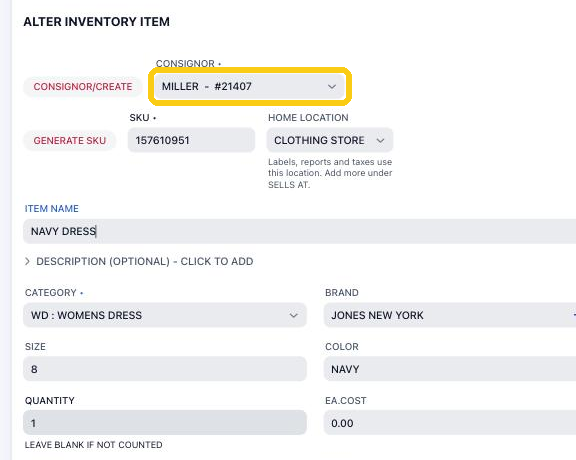
To move the item to another consignor, pick them in CONSIGNOR.
5. Change what you need:
| To change… | Use |
|---|---|
| The price | EA.PRICE |
| How many you have | QUANTITY (leave it blank if you don't count this item) |
| The name or description | ITEM NAME, DESCRIPTION |
| Who the item belongs to | CONSIGNOR |
| Category, brand, size or color | CATEGORY, BRAND, SIZE, COLOR |
| The consignor's share | SPLIT % |
| When it expires | EXPIRY DATE |
| Discounts | CARDCOLOR (color tag discounts), NO DISCOUNTING |
| The label size | LABEL. Picking a jewelry label gives the item a new 6-character SKU. |
| The photo | UPLOAD IMAGE (JPEG or PNG, up to 10 MB) or DELETE IMAGE |
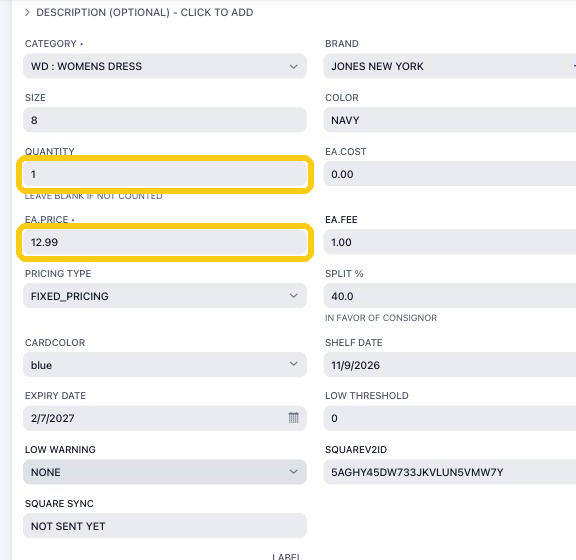
QUANTITY and EA.PRICE are the changes stores make most.
Selling at more than one location? Under SELLS AT, switch on each location the item is for sale at and enter how many are there. QUANTITY is the total of all of them.
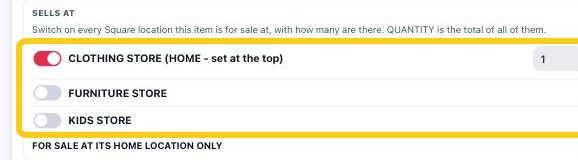
SELLS AT: the locations this item is for sale at.
Save
6. At the bottom, click SAVE ITEM CHANGES to save and stay on the item, or SAVE AND CLOSE to save and go back to the list. CLOSE WITHOUT SAVING leaves everything as it was.

SAVE ITEM CHANGES (1) or SAVE AND CLOSE (2).
Changed the price? Print a new label: click the red tag in the item's LABEL column. See Print a Label.
Questions
An item is missing from my inventory. Where did it go?
Check Reports › DELETED ITEMS. It shows every item that left inventory and who removed it, and PUT BACK returns it.
Need more help? Visit the Help Center on our website, consignorconnect.com, ask your Rosebot, or email support@consignorconnect.com.