![1512632091642-p-500.png]](https://help.consignorconnect.com/hs-fs/hubfs/1512632091642-p-500.png?width=131&height=50&name=1512632091642-p-500.png)
In each screenshot, the yellow boxes show what to click. Numbers give the order.
Overview
Use this guide when a payout or a posted sale on a consignor's account needs correcting. Everything happens in the consignor's ACCOUNT ACTIVITY, on the payout screen.
| You want to… | Do this |
|---|---|
| Change the date of a payout | Edit the payout line and pick a new date (Part 1). |
| Change the amount of a payout | Undo the payout, then pay again with the right amount (Part 2). |
| Fix the price or payout on one sold item | Edit that SOLD line (Part 3). |
Where to find it: Dashboard › menu (☰) › Contracts › select the contract › PAYOUT. Scroll down to ACCOUNT ACTIVITY. Payouts show as PARTIAL lines and sales as SOLD lines. The pencil at the left of a line opens it for editing.
Part 1: Change the date of a payout
1. In ACCOUNT ACTIVITY, find the payout. It's the orange PARTIAL line with the payout amount in red. Click the pencil at the left of that line.
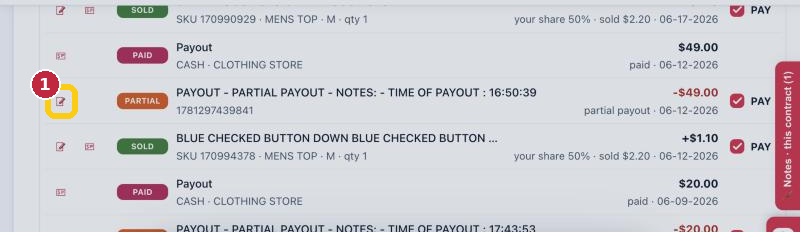
Click the pencil on the payout's PARTIAL line (1).
2. The ALTER ACTIVITY window opens. Click PICK A SOLD DATE and choose the new date.
3. Click SAVE AND UPDATE.
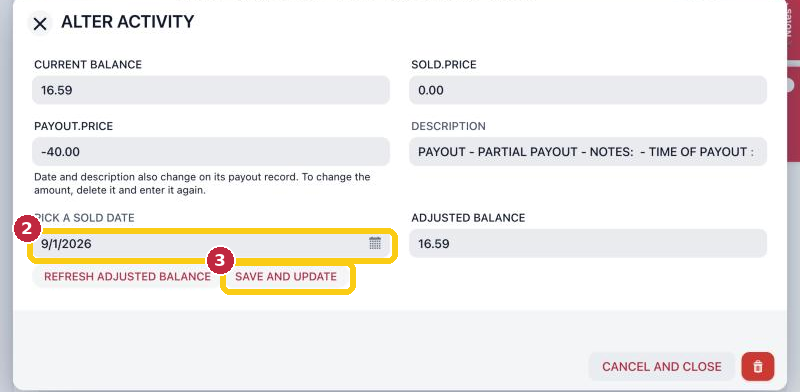
Pick the new date (2), then click SAVE AND UPDATE (3).
The new date also changes on the payout's receipt record. The payout form itself has no date field, so this is the way to backdate a payout.
Don't change the amount here. PAYOUT.PRICE is the payout amount. To change it, use Part 2.
Part 2: Undo a payout (or change its amount)
A payout's amount can't be edited. Undo it, then make the payout again with the right amount.
1. On the same payout screen, scroll down to PAYOUT RECEIPTS.
2. Find the payout by its date and amount, and click UNDO on that row.
3. Rose asks you to confirm. Read the date and amount, then click YES.
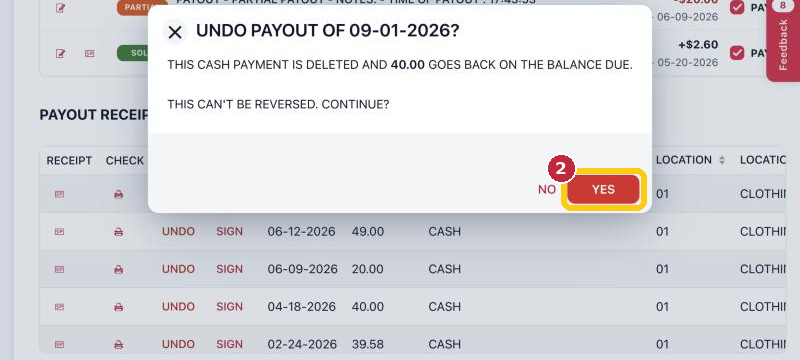
Check the date and amount in the question, then click YES (2). NO leaves it as it was.
This can't be reversed. YES deletes the payment and puts the amount back on the consignor's balance due. Make the payout again with the right amount: see How to Payout Consignors/Vendors.
You can also delete the payout line from ALTER ACTIVITY with the red trash button.
Part 3: Fix the price or payout on one sold item
Use this when one sale posted with the wrong price or the wrong split.
1. In ACCOUNT ACTIVITY, click the pencil on the green SOLD line.
2. In ALTER ACTIVITY, change SOLD.PRICE (what the item sold for) and/or PAYOUT.PRICE (the consignor's share).
3. Click REFRESH ADJUSTED BALANCE. ADJUSTED BALANCE shows what the consignor will be owed after the change.
4. If it looks right, click SAVE AND UPDATE. To leave without changing anything, click CANCEL AND CLOSE.
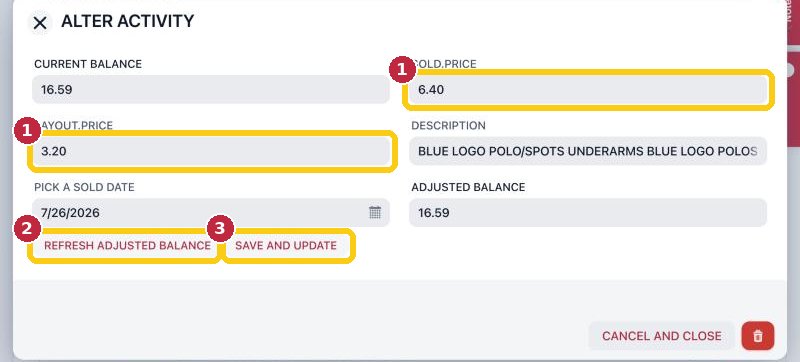
Change the price or payout (1), check the new balance (2), then save (3).
You can also change the description and the sold date here.
Questions
Will the consignor see the change?
Yes. Their balance and statements use the corrected amounts, including in myPortal.
I undid a payout by mistake. Can I get it back?
No. UNDO can't be reversed. Make the payout again from the PAYOUT screen.
Can I see who changed or undid a payout?
Yes. Administrators can check Reports › AUDIT LOG. It lists every change to contract activity and every undone payout, with the before and after amounts.
Need more help? Visit the Help Center on our website, consignorconnect.com, ask your Rosebot, or email support@consignorconnect.com.