![1512632091642-p-500.png]](https://help.consignorconnect.com/hs-fs/hubfs/1512632091642-p-500.png?width=131&height=50&name=1512632091642-p-500.png)
Count what is on your shelves at the store, see what doesn’t match and send the count to the store to check.
Count (myPortal)
- Open the menu → COUNT MY ITEMS and start a count for the location.
- Scan each label with a scanner or CAMERA, or tick the items you can see.
- Press REVIEW. Items short or over are listed, with Rosebot’s likely cause.
- Press SEND TO STORE. It says SENT - THE STORE WILL CHECK YOUR COUNT.
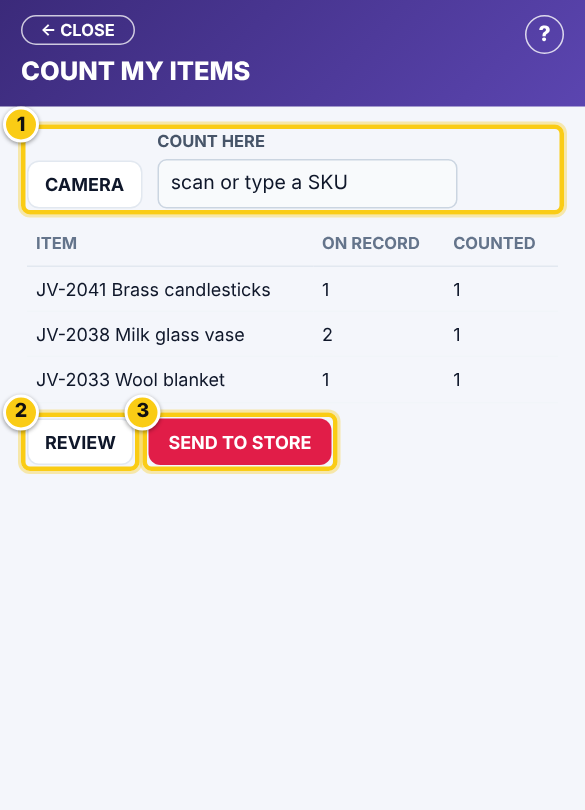
(1) scan or tick, (2) REVIEW, (3) SEND TO STORE.
- Nothing in the store’s records changes until the store checks your count.
- MY COUNTS shows each count and WHAT THE STORE DID.
Questions
Can I stop halfway?
Yes. Your count stays IN PROGRESS; carry on later or press CANCEL COUNT.
Still stuck? Ask Rosebot (the bubble at the bottom right of Rose and myPortal) or contact Consignor Connect support.