![1512632091642-p-500.png]](https://help.consignorconnect.com/hs-fs/hubfs/1512632091642-p-500.png?width=131&height=50&name=1512632091642-p-500.png)
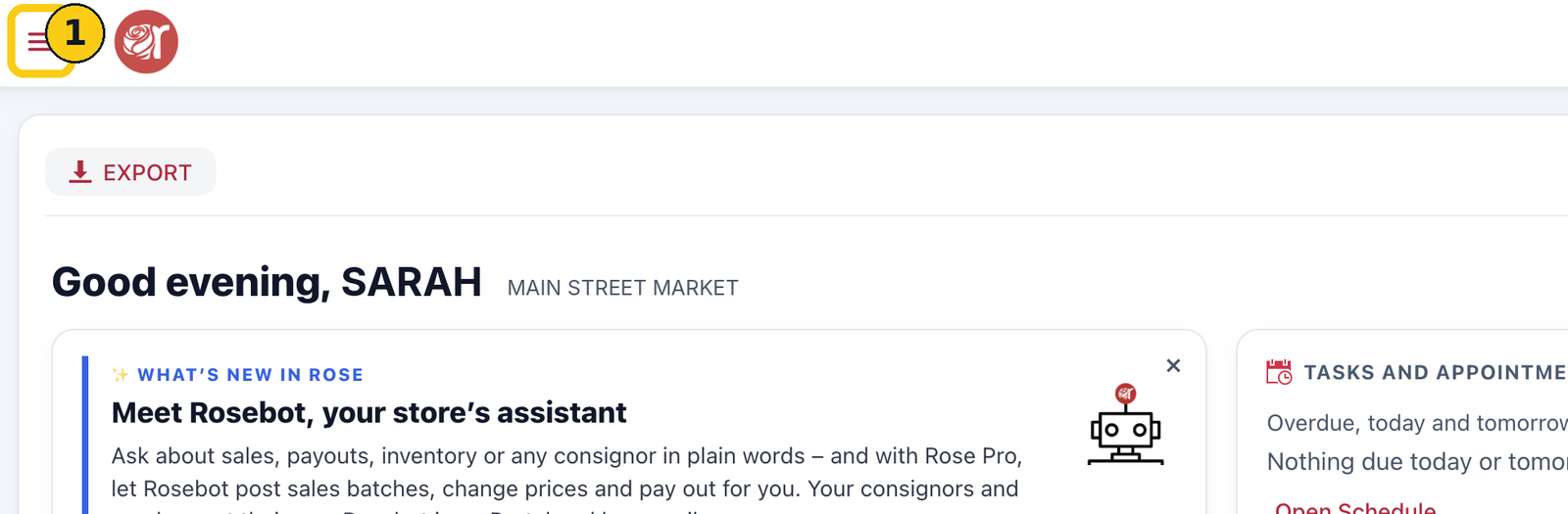
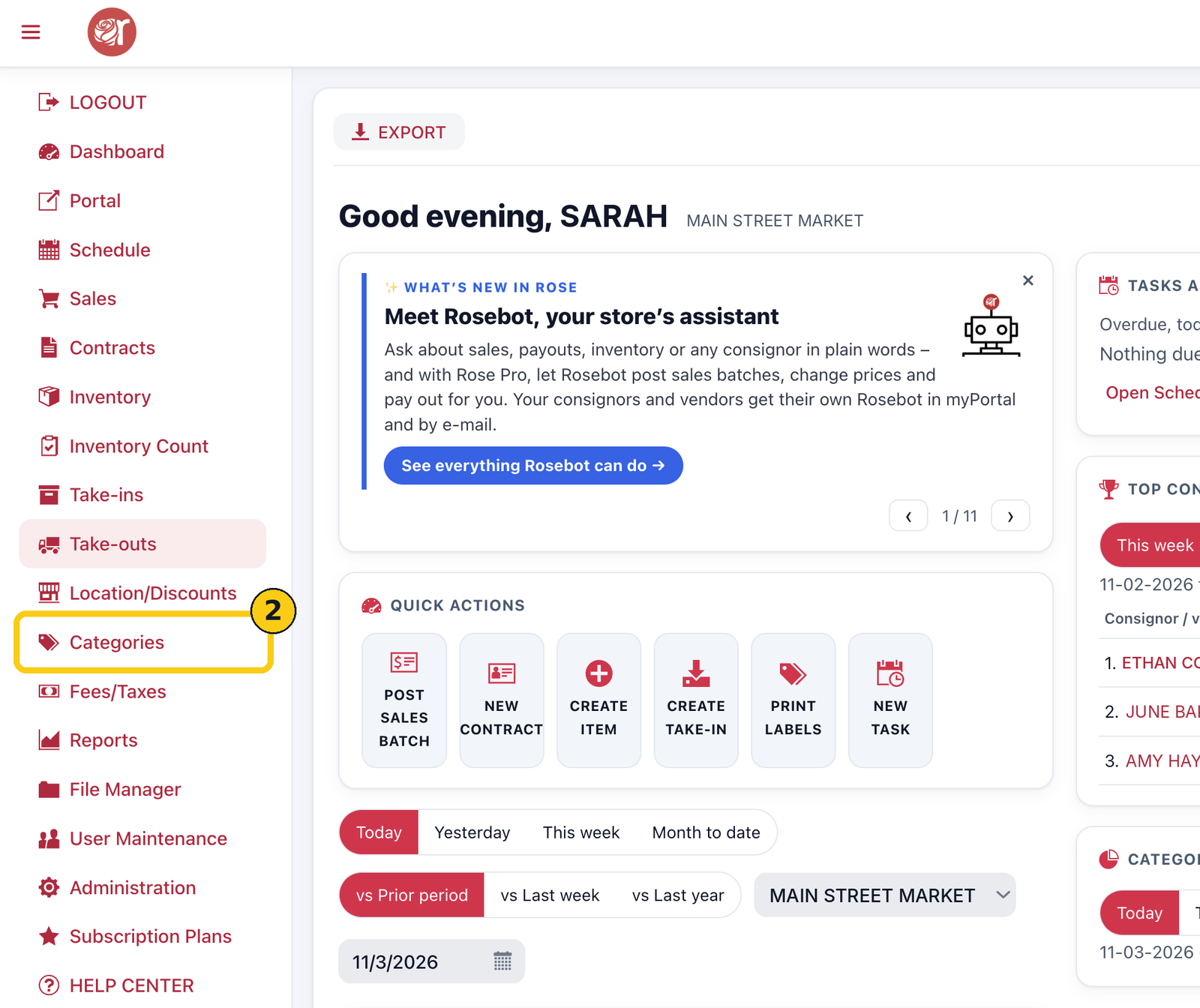
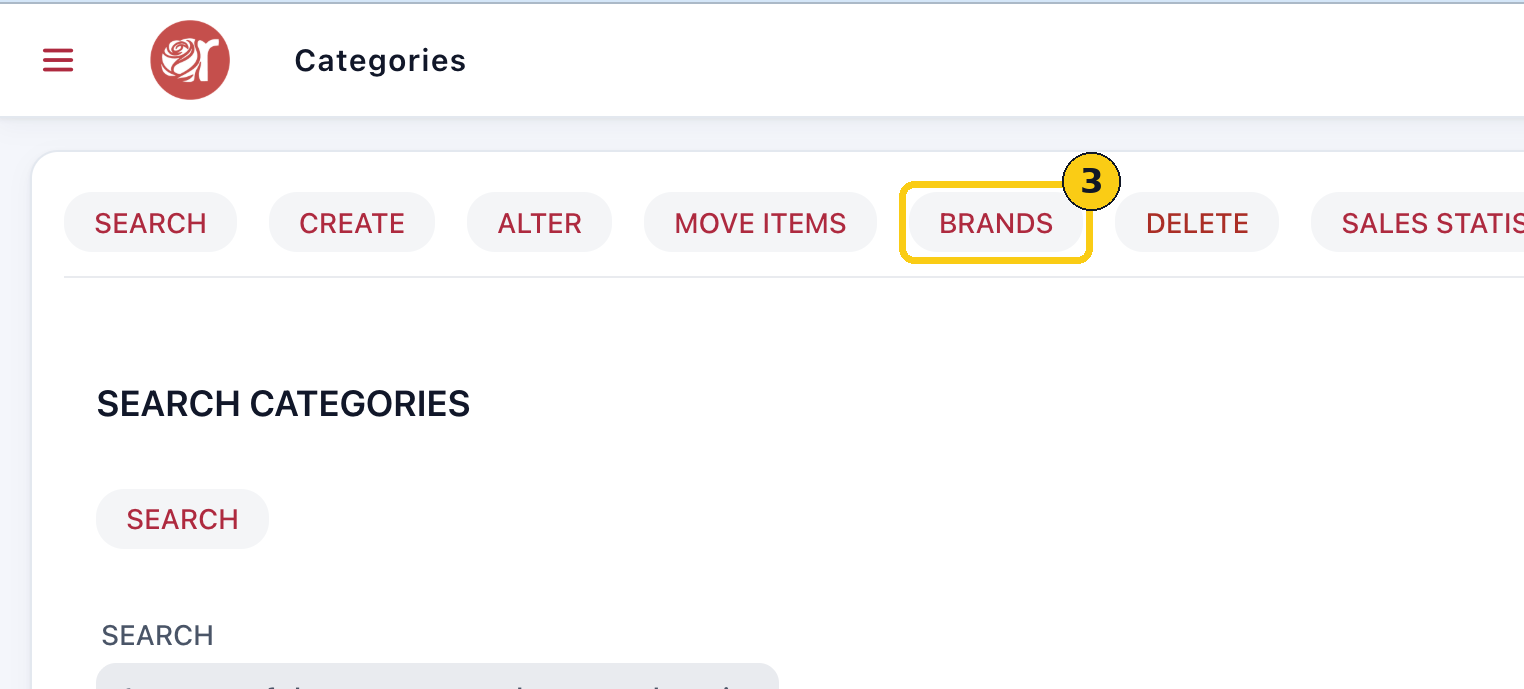
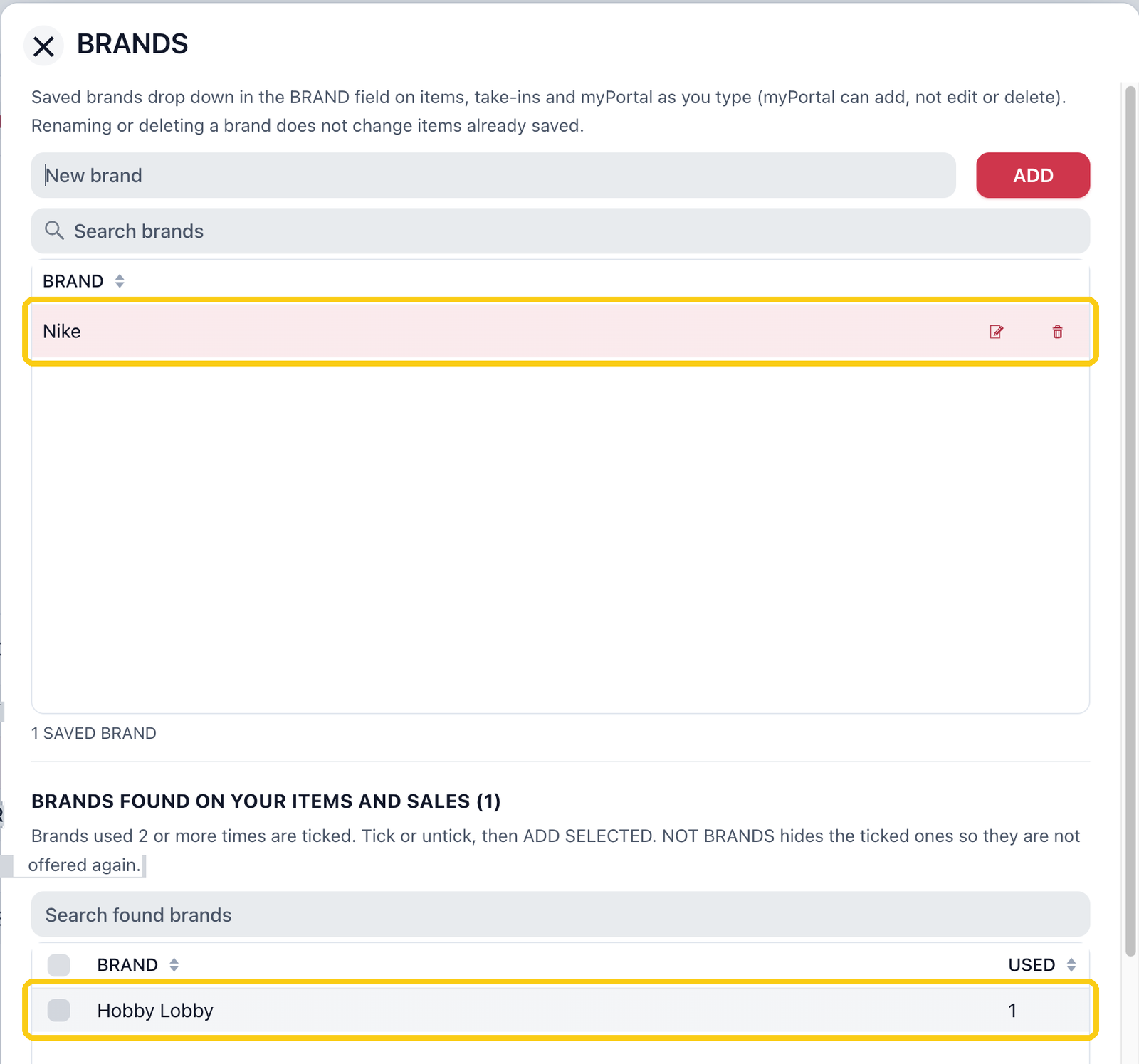
In each screenshot, the yellow boxes show what to click. Numbers give the order.
Overview
Saved brands appear as a drop-down in the BRAND field as you type, on items, take-ins and myPortal. Keeping one list means everyone spells a brand the same way, so brand reports and searches stay accurate.
Where to find it: Dashboard › menu (☰) › Categories › BRANDS. You need the Categories module right (User Maintenance).
Step 1: Open Brands
1. On your Dashboard, click the menu icon (☰) in the top-left corner.
2. Click Categories.
3. Click BRANDS in the Categories toolbar.
Step 2: Add a brand
1. Type the brand name in New brand.
2. Click ADD. The brand appears in the list below, and the count of saved brands goes up by one.
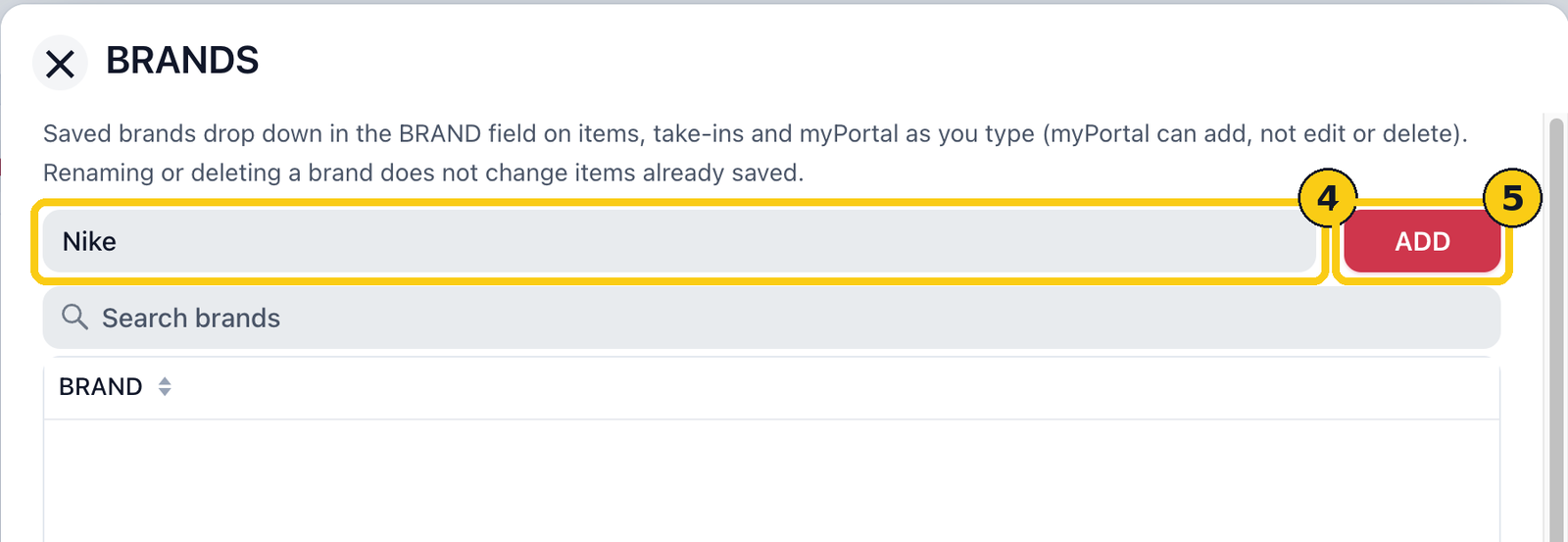
Use Search brands to find a brand in a long list. Click the edit icon on a row to rename a brand, or the trash icon to delete it. Renaming or deleting a brand doesn't change items that already have it saved.
Step 3: Add brands you already use (optional)
BRANDS FOUND ON YOUR ITEMS AND SALES lists brands already typed on your items and sales that aren't saved yet, with how many times each was USED. Brands used 2 or more times are ticked for you.
1. Tick the brands you want to save, and untick any you don't.
2. Click ADD SELECTED to save the ticked brands.
3. To stop a name being suggested again (a typo or a one-off, say), tick it and click NOT BRANDS.
Close the window with the X when you're done.
FAQ
Where do saved brands show up?
In the BRAND field on items, take-ins and myPortal. Start typing and matching brands drop down to pick from.
Can consignors add brands?
Yes, from myPortal they can add a brand, but they can't edit or delete one.
If I rename a brand, do my items change?
No. Items keep the brand they were saved with. Only new entries use the new name.