![1512632091642-p-500.png]](https://help.consignorconnect.com/hs-fs/hubfs/1512632091642-p-500.png?width=131&height=50&name=1512632091642-p-500.png)
Rose 3.0 · Inventory Count (Rose Pro). In each screenshot, the yellow boxes show what to click. Numbers give the order.
Overview
Inventory Count checks what's really on your floor against what Rose has on record. You count one area at a time by scanning items, then Rose shows what's missing, what turned up and why, and you give each gap a reason before anything changes.
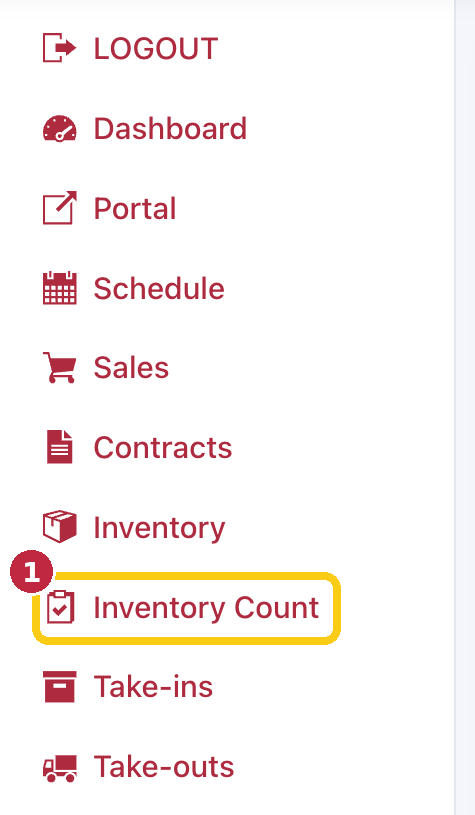
Where to find it: Dashboard › menu (☰) › Inventory Count.
Good to know: nothing in your inventory changes until you click APPLY AND CLOSE on the review screen. You can leave a count part-way and pick it up later.
Step 1: Open Inventory Count
1. On your Dashboard, open the menu (☰) and click Inventory Count.
Step 2: Start a count
2. Pick the LOCATION you're counting.
3. Pick an AREA, such as a rack, case, wall or the back room. This is optional: leave it on Whole location to count the whole store. Areas are kept in Rose only and are never sent to Square.
4. Leave BLIND COUNT ticked. Rose then hides what it expects to find, so you count what's really there.
5. Click START COUNT.
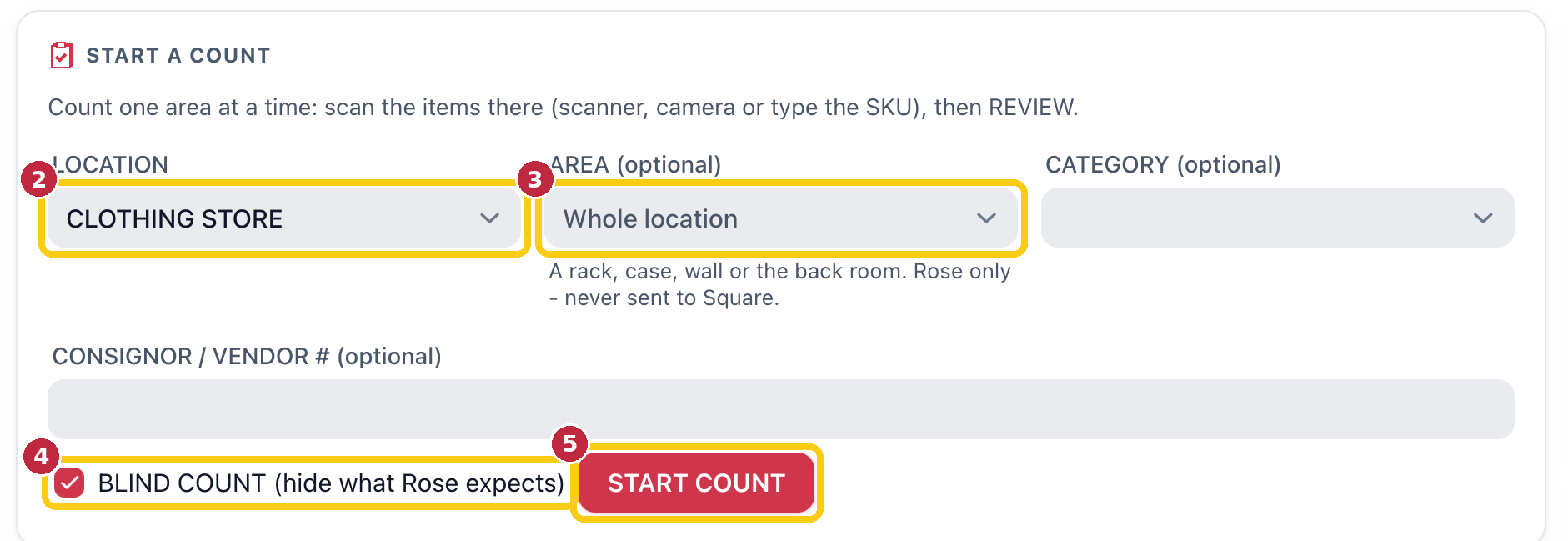
You can also narrow a count to one CATEGORY or one CONSIGNOR / VENDOR #. Both are optional.
Step 3: Scan the items
6. Scan each item's barcode into the SKU box with your scanner, or type the SKU and press Enter. Change QTY first if you're counting several of the same item.
7. No scanner? Click CAMERA to scan barcodes with your phone or tablet camera.
8. When you've scanned everything in the area, click REVIEW.
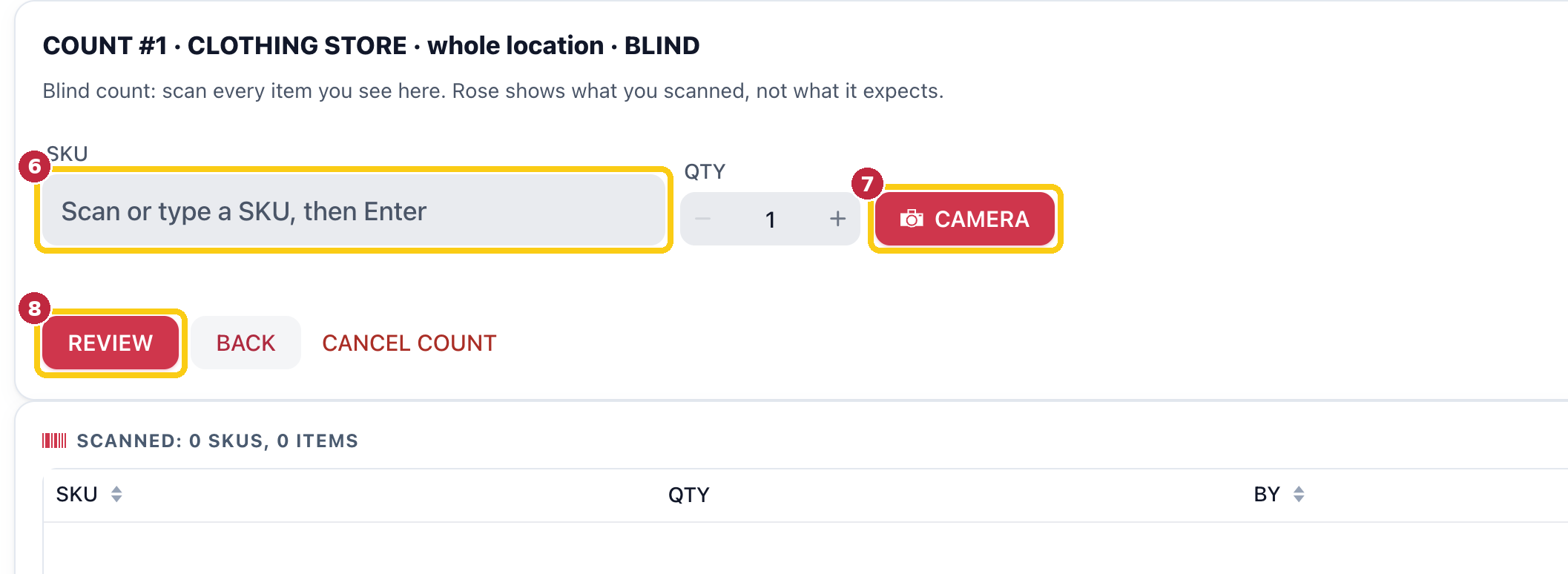
Each scan shows in the SCANNED list with who scanned it and when. BACK leaves the count to finish later; CANCEL COUNT throws it away.
Important: finish scanning the whole area before you click REVIEW. Anything Rose expects in that area but you haven't scanned shows as SHORT. If you review a whole store after scanning only a few items, nearly everything will show as short.
Step 4: Review and give each gap a reason
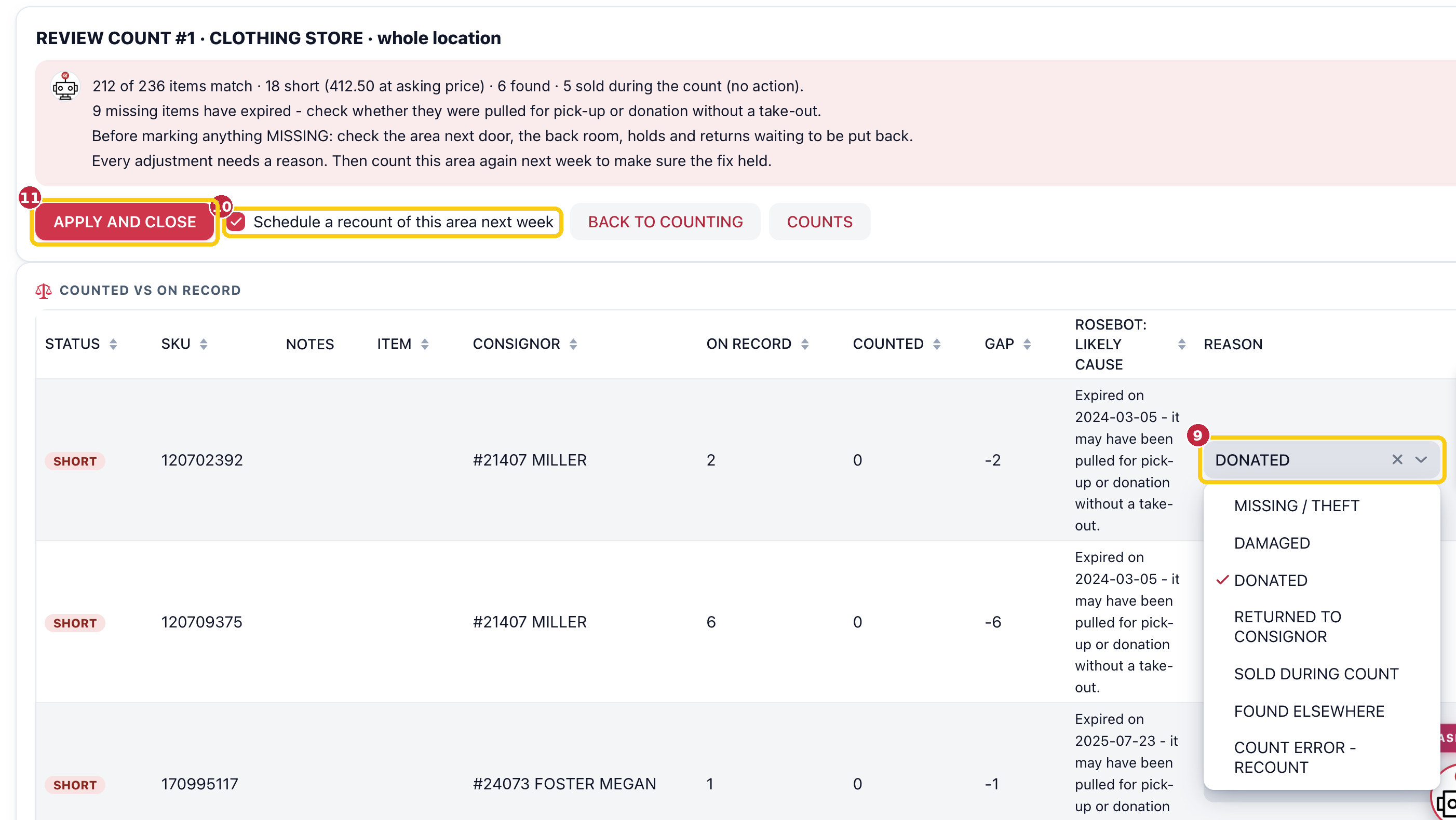
The review screen compares what you counted with what Rose has on record. Rosebot sums it up at the top: how many items match, how many are short and their value, what was found, and what sold during the count. Each row shows the gap and Rosebot's likely cause, for example an item that expired and may have been pulled for pick-up or donation.
9. For each row, pick a REASON.
10. Leave Schedule a recount of this area next week ticked to check the fix held.
11. Click APPLY AND CLOSE to update your inventory.
| Reason | Use it when |
|---|---|
| MISSING / THEFT | You've checked nearby and the item is gone. |
| DAMAGED | The item was damaged and taken off the floor. |
| DONATED | The item was donated without a take-out. |
| RETURNED TO CONSIGNOR | The consignor took it back without a take-out. |
| SOLD DURING COUNT | It sold while you were counting. |
| FOUND ELSEWHERE | It turned up in another area. |
| COUNT ERROR - RECOUNT | You think it was missed; count it again. |
Before you mark anything missing: check the area next door, the back room, holds, and returns waiting to be put back. BACK TO COUNTING takes you back to scan more.
Pick up a count later
Unfinished counts, and counts your vendors did in myPortal, wait under COUNTS IN PROGRESS AND VENDOR COUNTS TO REVIEW. Click CONTINUE to carry on.

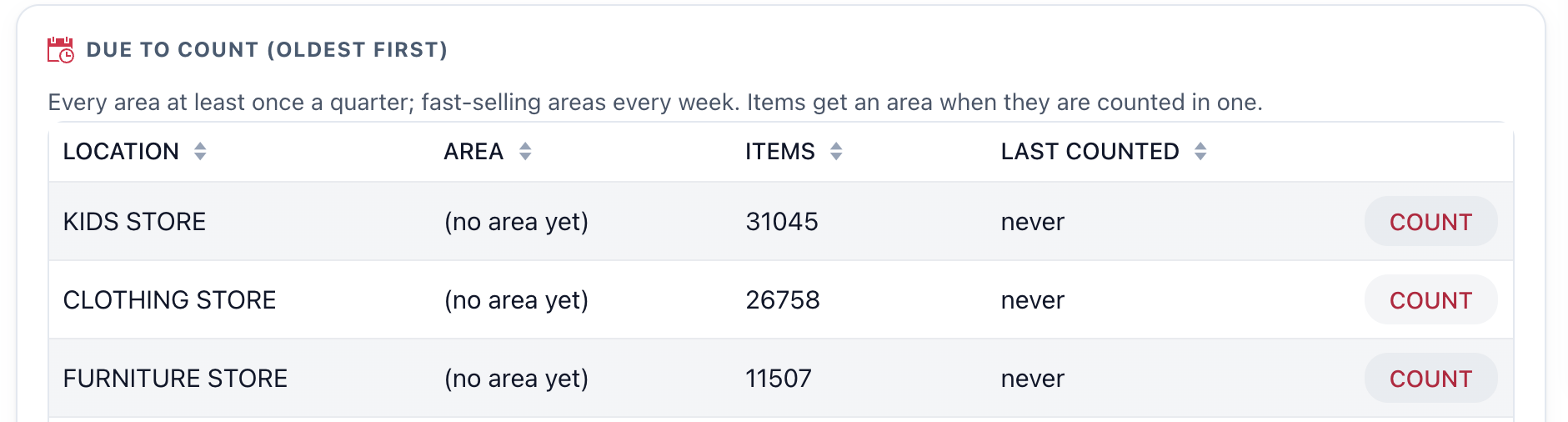
DUE TO COUNT lists each location and area with its item count and when it was last counted, oldest first. Aim to count every area at least once a quarter, and fast-selling areas every week. Click COUNT to start one.
FAQ
Does counting change my inventory?
Not until you click APPLY AND CLOSE on the review screen. Until then you can go back, scan more or cancel.
Can my vendors count their own items?
Yes. Vendors can count their items in myPortal. Their counts wait for you under COUNTS IN PROGRESS AND VENDOR COUNTS TO REVIEW.
Where do I see past adjustments?
The ADJUSTMENT LOG on the Inventory Count screen lists each change with its date, SKU, item, quantity, reason and who made it.
Which plan includes Inventory Count?
Inventory Count is part of Rose Pro.