![1512632091642-p-500.png]](https://help.consignorconnect.com/hs-fs/hubfs/1512632091642-p-500.png?width=131&height=50&name=1512632091642-p-500.png)
Getting Started
Creating Inventory and Printing Labels From Portal
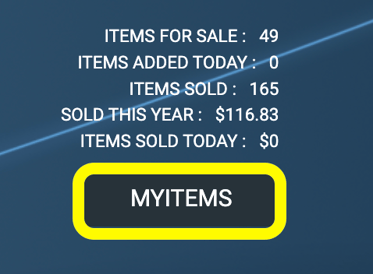
- Go to My Items.
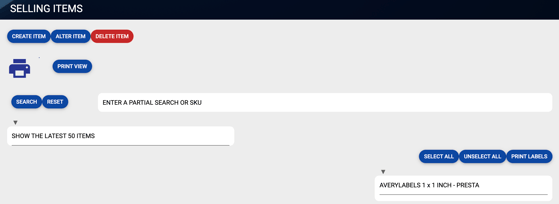
- The Selling Items screen is the default screen for creating inventory, managing quantities, and printing labels.
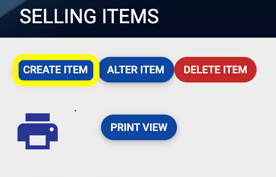
- Click on the Create Item button.
- Click Generate SKU button to create a NEW SKU for an item.
- If you have an EXISTING SKU you want to use, type it into the field.
- No 4 digit SKUs allowed.
- Avoid alphanumeric SKUs - barcode may not fit on small labels.
- Select your Location from the drop-down
- Enter Description (required)
- Select your Category from the drop-down or Enter your Category Code (provided from store owner/administrator)
- Enter a Brand (if necessary)
- Enter Quantity (required)
- Enter Size (if necessary)
- Enter Price (required)
- Fee (only applicable if store created fee structure)
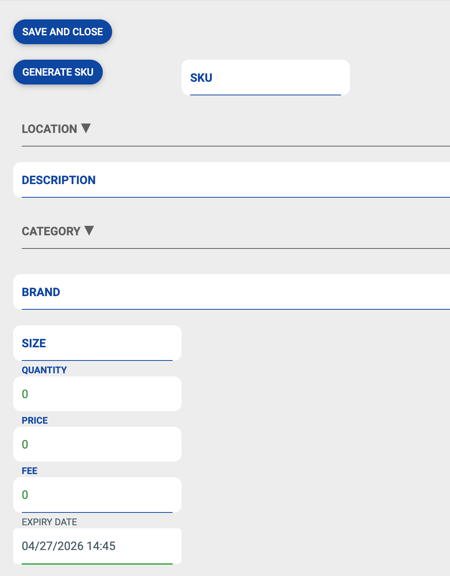
- Select an Expiry Date if your items have a shelf life
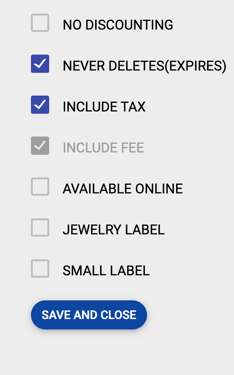
- ALWAYS check the box “Never Deletes” if you don’t want your SKU item to delete from Rose when quantity reaches 0.
- No Discounting is only for time-based discounts created by store in Rose software. Checking the box does not prevent discounts on items at Square POS level.
- Check Jewelry Label if you are printing to a Dymo jewelry label.
- Check Small Label if printing on a Dymo 1 x 1 label.
- Don’t check either Jewelry or Small label if printing on Avery Presta label.
- If you have an EXISTING SKU you want to use, type it into the field.
- Click Save and Close
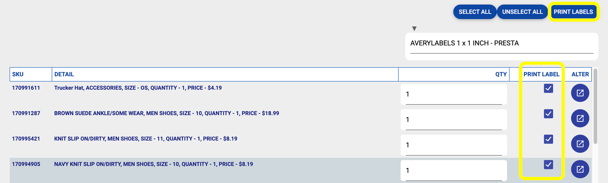
- Check the individual boxes of labels of items OR SELECT ALL if you want to print ALL labels of your inventory.
- Click PRINT LABELS.
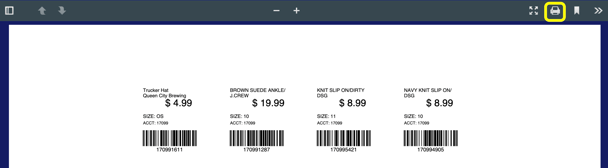
- Click the Printer Icon.

- Click the “More Settings” arrow to expand your Avery Presta 94103 label settings.
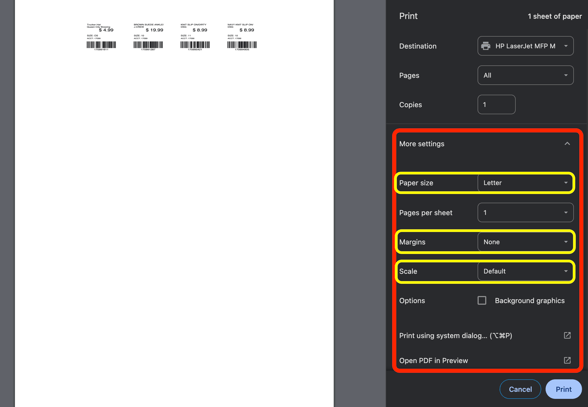
- Adjust Paper Size to “Letter”.
- Adjust Margins to “None”.
- Select “Custom” Scale to “100”.
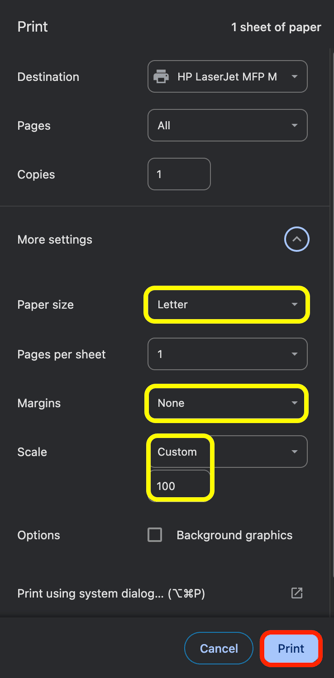
- Click Print.