![1512632091642-p-500.png]](https://help.consignorconnect.com/hs-fs/hubfs/1512632091642-p-500.png?width=131&height=50&name=1512632091642-p-500.png)
The Square Catalog Import brings the items already in your Square catalog into Rose in six steps, so you don't have to re-enter them. It reads your Square items, variations, categories, locations, stock counts and photos into a draft. Nothing is added to Rose until you click IMPORT in the last step, and the import never sends anything to Square.
Where to find it: Inventory › IMPORT FROM SQUARE, or Administration › Settings.
Who can use it: anyone with the SQUARE IMPORT permission. Every choice is saved as you make it, so another staff member with that permission can pick up the draft where you left off.
Before you start- Your Square account is connected to Rose.
- Every consignor and vendor whose items are in Square has an account and contract in Rose. Each imported item takes its split from its owner's contract.
- Your store account's split is set under Settings › STORE ACCOUNT. Store-owned items go on this account.
- You know how your store names items in Square (for example, account number at the start of the SKU or name). This decides which owner rules to turn on in Step 4.
Rose reads your Square catalog into a draft and shows what it found.
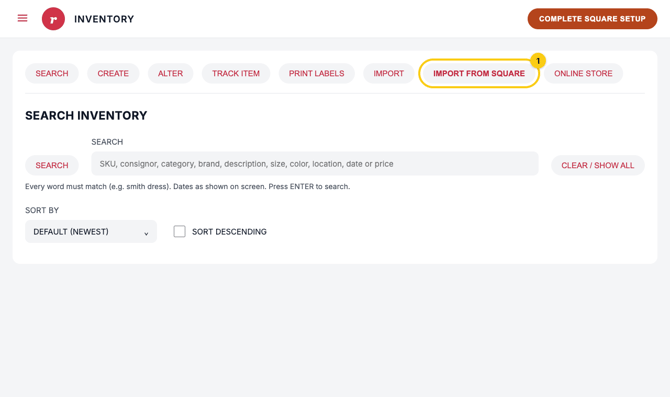
- Go to Inventory and click IMPORT FROM SQUARE.
- Check the counts across the top: Square items (and variations), categories, active locations, items already imported by this draft, and items gone from Square.
- Click NEXT: CATEGORIES.
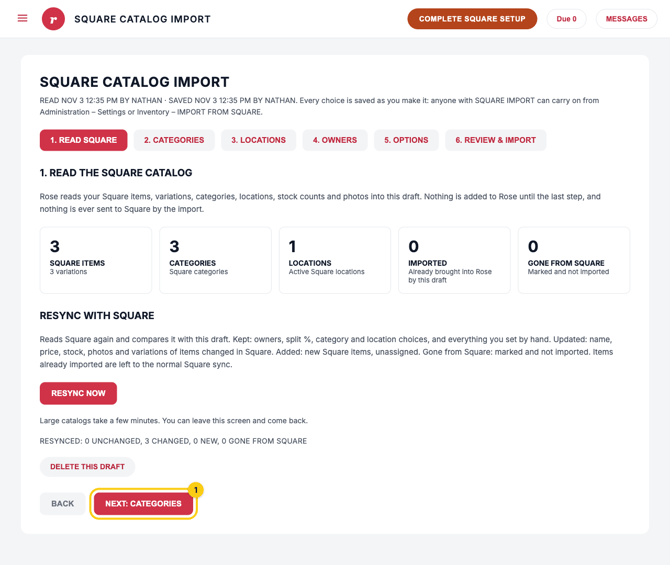
Resync with Square: if you've changed your Square catalog since the draft was read, click RESYNC NOW. Your owners, split %, category and location choices, and anything you set by hand are kept. Names, prices, stock, photos and variations are updated from Square, new Square items are added as unassigned, and items removed from Square are marked and not imported. Large catalogs take a few minutes; you can leave the screen and come back.
Start over: click DELETE THIS DRAFT to discard the draft and all choices in it.
Step 2: CategoriesEach Square category becomes a Rose category. Rose picks a match for you when a Rose category has the same name.
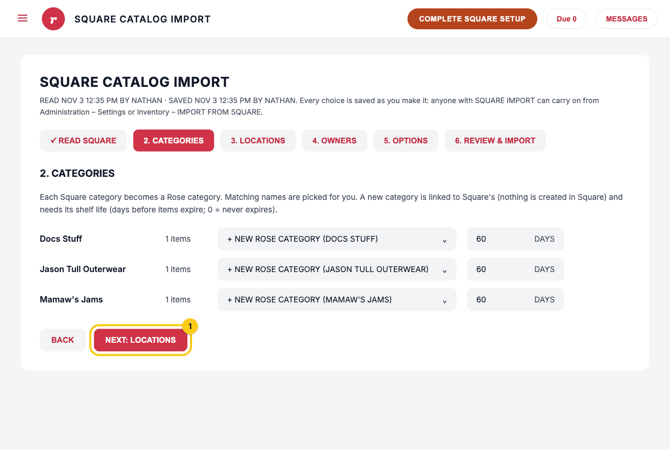
- For each Square category, check the Rose category in the dropdown. Choose an existing Rose category, or leave + NEW ROSE CATEGORY to create one. A new category is linked to Square's; nothing is created in Square.
- For each new category, enter its shelf life in DAYS (how long items stay before they expire). Enter 0 for items that never expire.
- Click NEXT: LOCATIONS.
Match each Square location to a Rose store. An item's home store is the first location in this list that it sells at; Rose reports the item there, using that location's price and stock.
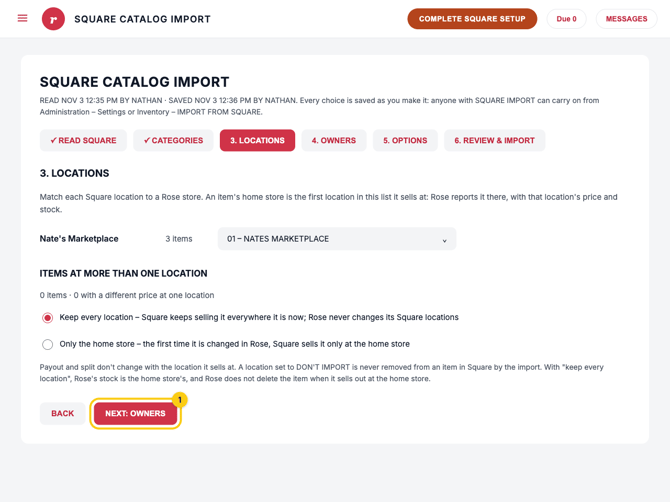
- For each Square location, pick the Rose store in the dropdown, or DON'T IMPORT to leave that location's items out.
- If items sell at more than one location, choose how Square handles them:
- Keep every location: Square keeps selling the item everywhere it sells now, and Rose never changes its Square locations.
- Only the home store: the first time the item is changed in Rose, Square sells it only at the home store.
- Click NEXT: OWNERS.
Payout and split don't change with the location an item sells at. With Keep every location, Rose tracks the home store's stock and does not delete the item when it sells out there.
Step 4: OwnersSquare doesn't know which consignor or vendor owns each item, so you tell Rose here. Items with no owner are not imported. Use rules to match most items automatically, then assign the rest by hand.
Apply owner rules
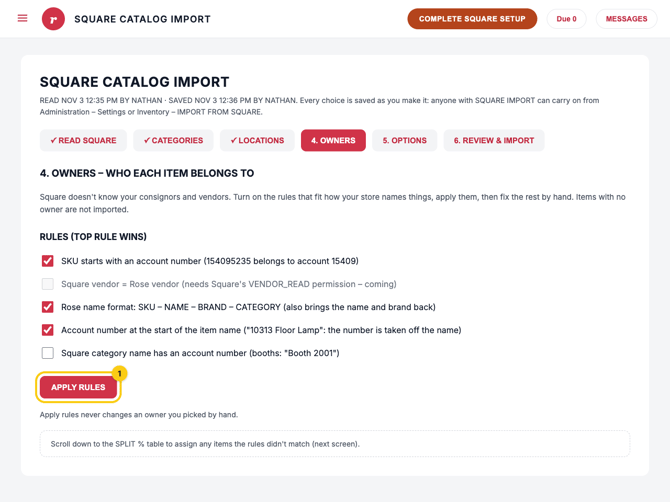
- Tick the rules that match how your store names items. When more than one rule matches, the top rule wins.
- Click APPLY RULES. Rules never change an owner you picked by hand.
| Rule | Example |
|---|---|
| SKU starts with an account number | SKU 154095235 belongs to account 15409 |
| Rose name format: SKU – NAME – BRAND – CATEGORY | Also brings the item's name and brand back into Rose |
| Account number at the start of the item name | "10313 Floor Lamp" belongs to account 10313; the number is removed from the name |
| Square category name has an account number | Booth categories such as "Booth 2001" |
| Square vendor = Rose vendor | Coming soon (needs Square's VENDOR_READ permission) |
Assign owners by hand
Scroll down to the SPLIT % table. The heading shows how many items have an owner (for example, 0 OF 3 ITEMS HAVE AN OWNER). Use UNASSIGNED to see only items still missing an owner, or search by SKU, name or account.
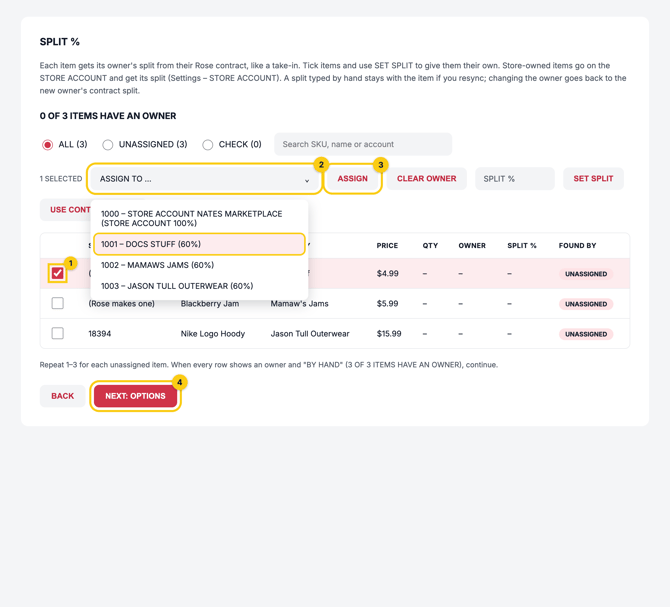
- Tick the box next to one or more items.
- Open ASSIGN TO … and pick the owner. The list shows each account with its contract split, plus your store account.
- Click ASSIGN. The row now shows the owner, its contract split, and BY HAND.
- Repeat until every item has an owner, then click NEXT: OPTIONS.
To undo an assignment, tick the item and click CLEAR OWNER.
Set a different split (optional)
Each item gets its owner's split from their Rose contract, just like a take-in. To give items their own split, tick them, type the percentage in SPLIT %, and click SET SPLIT. USE CONTRACT SPLIT puts ticked items back on their contract's split.
A split you type by hand stays with the item if you resync. Changing an item's owner resets it to the new owner's contract split.
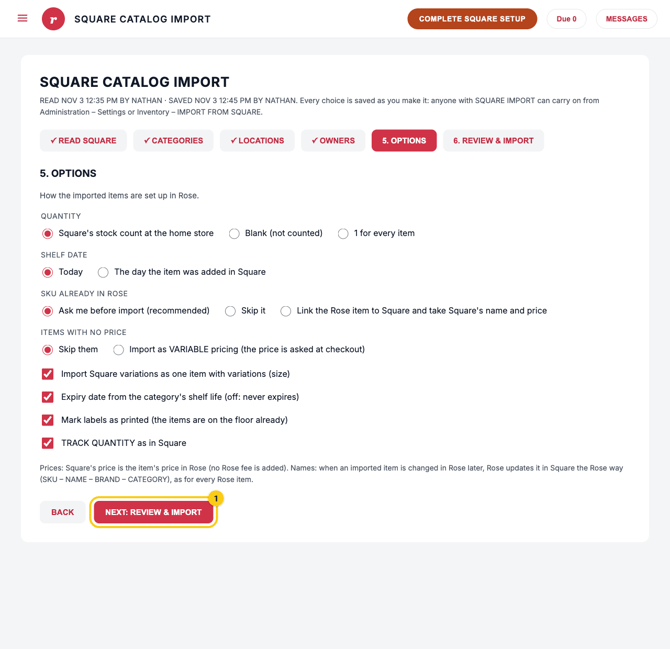
Step 5: OptionsChoose how the imported items are set up in Rose, then click NEXT: REVIEW & IMPORT.
| Setting | Choices | Default |
|---|---|---|
| Quantity | Square's stock count at the home store · Blank (not counted) · 1 for every item | Square's stock count |
| Shelf date | Today · The day the item was added in Square | Today |
| SKU already in Rose | Ask me before import · Skip it · Link the Rose item to Square and take Square's name and price | Ask me before import (recommended) |
| Items with no price | Skip them · Import as VARIABLE pricing (price is asked at checkout) | Skip them |
| Import Square variations as one item with variations (size) | On / off | On |
| Expiry date from the category's shelf life | On / off (off = never expires) | On |
| Mark labels as printed | On / off (use when items are already on the floor) | On |
| TRACK QUANTITY as in Square | On / off | On |
Prices: Square's price becomes the item's price in Rose; no Rose fee is added.
Names: when you later change an imported item in Rose, Rose updates it in Square in the Rose format (SKU – NAME – BRAND – CATEGORY), as it does for every Rose item.
Step 6: Review & ImportNothing has changed in Rose yet. Check the counts, then import.
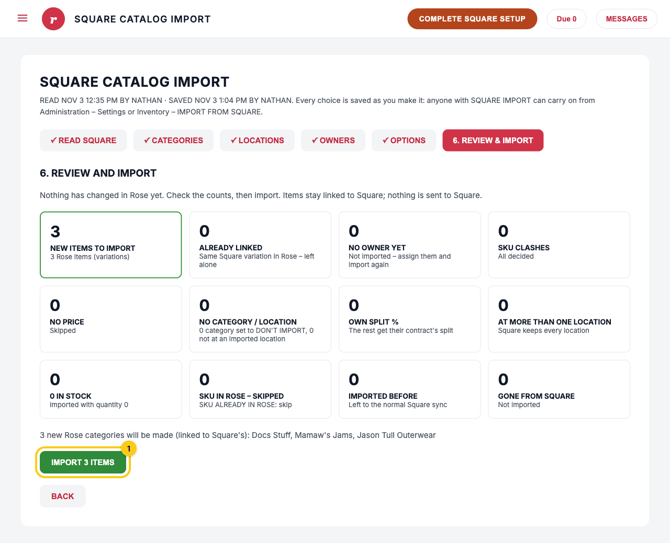
- Review the summary cards. The green card shows how many NEW ITEMS TO IMPORT. Any count other than zero on the cards below tells you what will be left out:
| Card | What it means |
|---|---|
| Already linked | The same Square variation is already in Rose and is left alone |
| No owner yet | Not imported; go back to Step 4, assign them, and import again |
| SKU clashes | SKUs that match an item already in Rose; all must be decided before importing |
| No price | Skipped (per your Step 5 choice) |
| No category / location | In a category or location set to DON'T IMPORT |
| Own split % | Items with a split you set by hand; the rest get their contract's split |
| At more than one location | Handled per your Step 3 choice |
| 0 in stock | Imported with quantity 0 |
| SKU in Rose – skipped | Skipped because of your SKU ALREADY IN ROSE choice |
| Imported before | Left to the normal Square sync |
| Gone from Square | Not imported |
- Check the list of new Rose categories that will be created.
- Click IMPORT [N] ITEMS.
- In the IMPORT INTO ROSE? box, click YES.
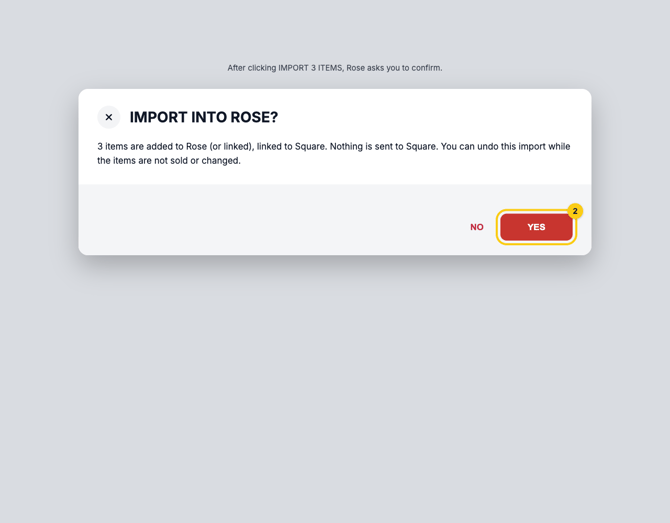
Your items are added to Rose and stay linked to Square. Nothing is sent to Square. You can undo the import as long as the imported items haven't been sold or changed.
FAQWill the import change anything in Square?
No. The import only reads from Square. Later, when you edit an imported item in Rose, the normal Square sync updates it in Square.
Can I stop partway and finish later?
Yes. Every choice saves as you go. You, or anyone with SQUARE IMPORT permission, can reopen the draft from Inventory › IMPORT FROM SQUARE or Administration › Settings.
Some items weren't imported. Why?
The most common reason is that they had no owner. Assign them in Step 4 and import again. Items already imported are skipped, so nothing is duplicated.
I added items in Square after starting. Do I need a new draft?
No. Click RESYNC NOW in Step 1. New items arrive unassigned, and your earlier choices are kept.
Can I undo an import?
Yes, as long as the imported items haven't been sold or changed.