![1512632091642-p-500.png]](https://help.consignorconnect.com/hs-fs/hubfs/1512632091642-p-500.png?width=131&height=50&name=1512632091642-p-500.png)
Still on Classic Rose? See the Classic Rose steps.
In each screenshot, the yellow boxes show what to click. Numbers give the order.
Overview
A payout pays a consignor what they're owed for items sold. Rose records the payment against the contract, updates the balance due, and gives you a receipt the consignor can sign.
Where to find it: Dashboard › menu (☰) › Contracts › select a contract › PAYOUT.
Tip: the Dashboard's MONEY panel shows what's owed to consignors and how many payouts are due.
Step 1: Open Contracts from the Dashboard
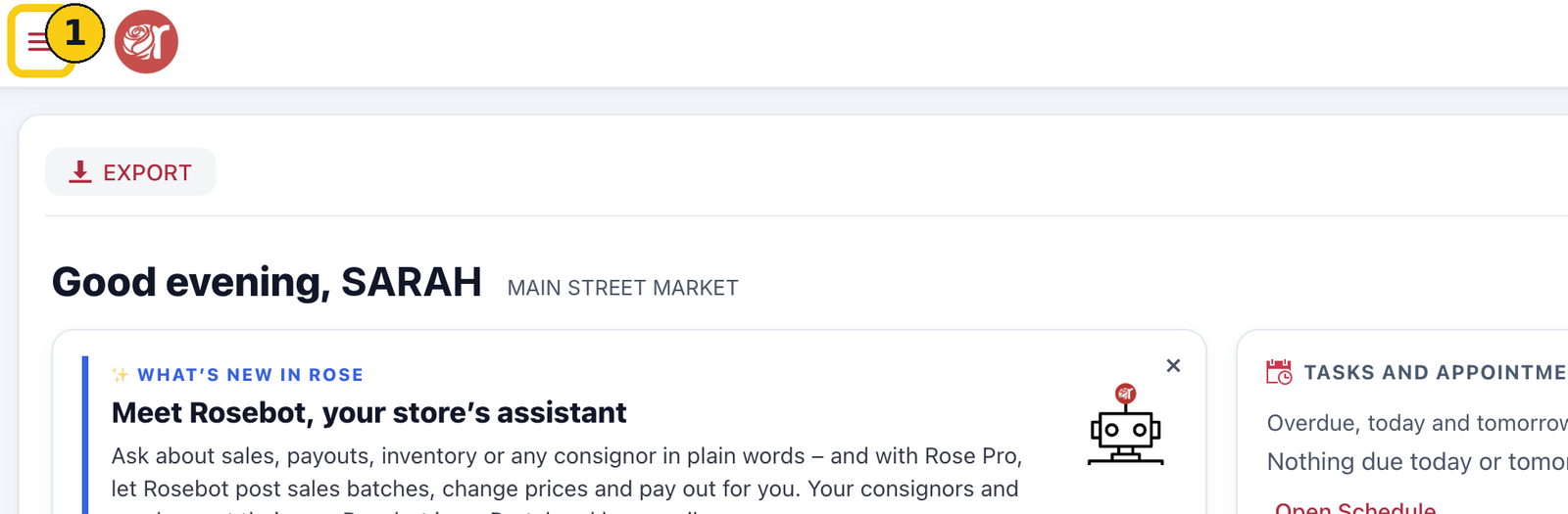
1. On your Dashboard, click the menu icon (☰) in the top-left corner.
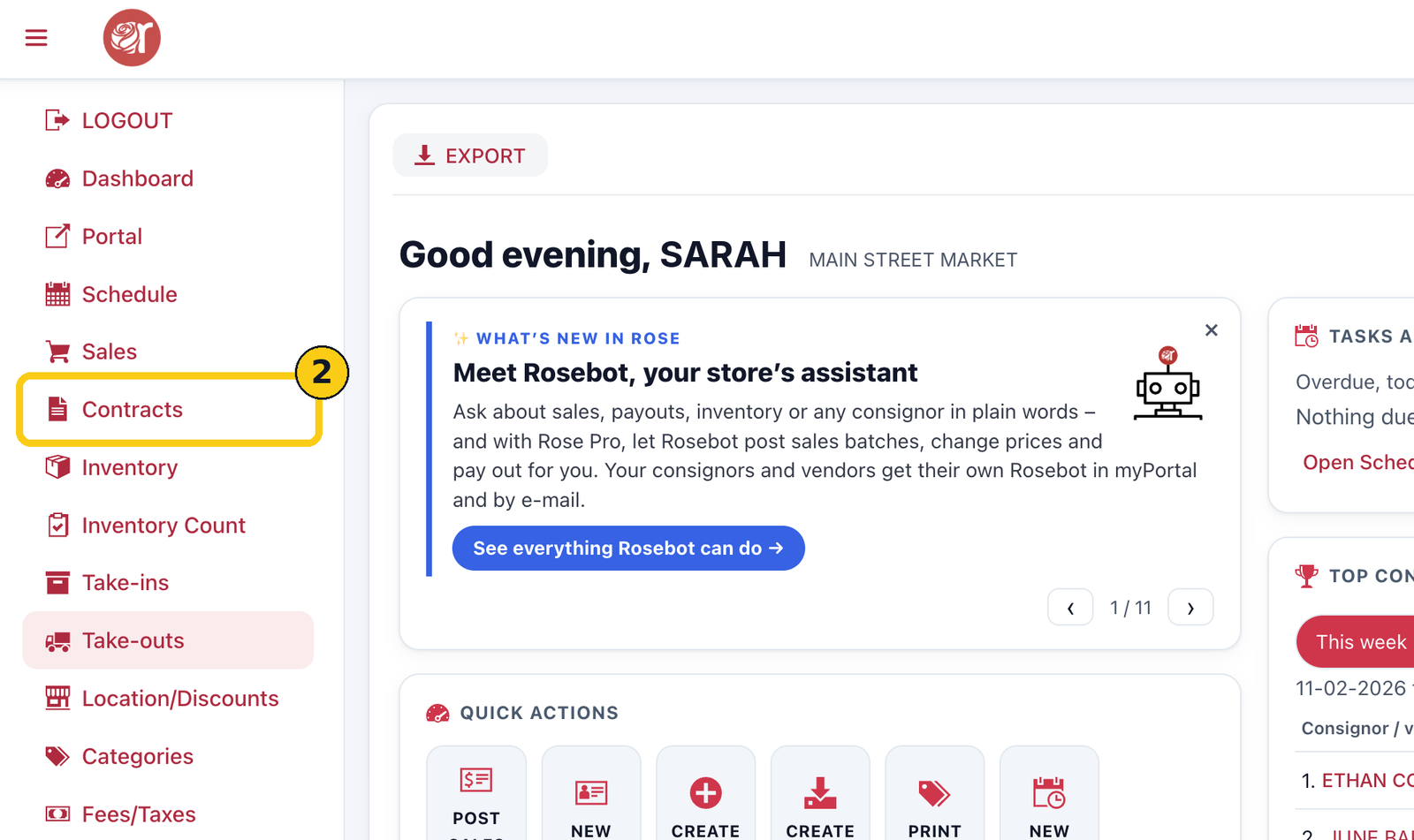
2. Click Contracts.
Step 2: Open the consignor's payout
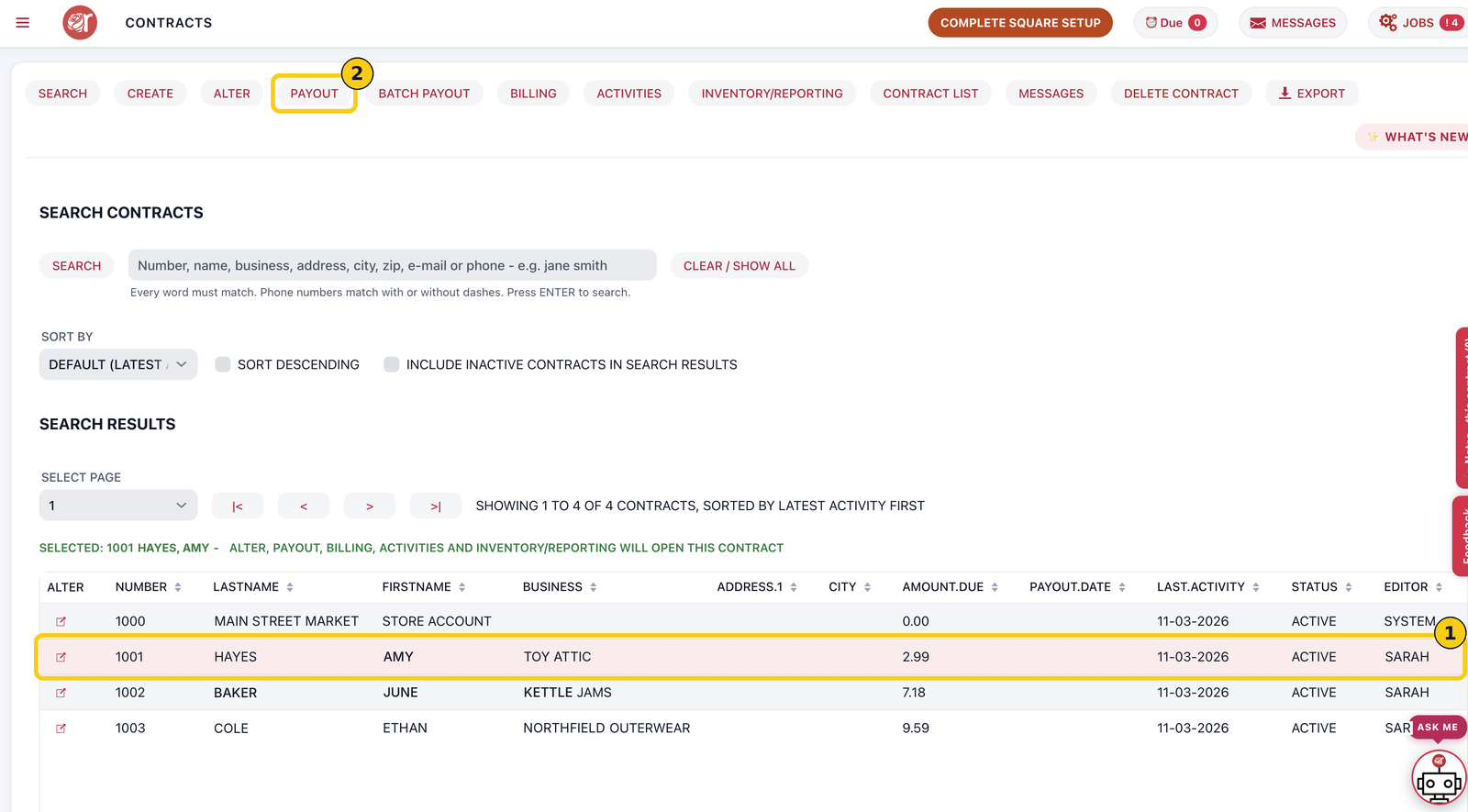
1. On the Contracts screen, search for the consignor or find them in the list. The AMOUNT.DUE column shows what each one is owed.
2. Click the consignor's row. A green line confirms the selected contract.
3. Click PAYOUT.
Step 3: Fill in the payment
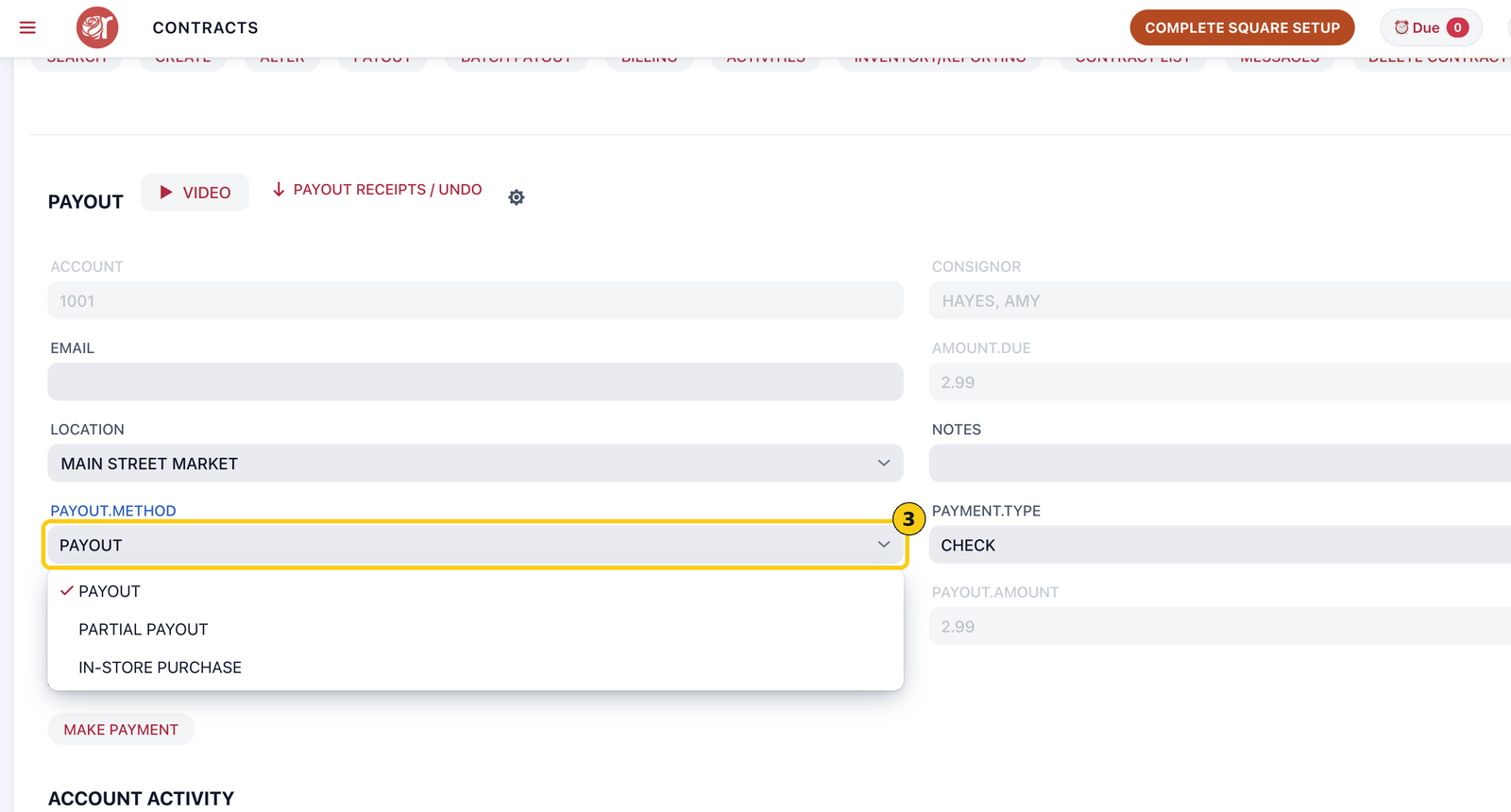
The payout screen shows the account, consignor and AMOUNT.DUE. Check that LOCATION is the store making the payment.
1. Choose the PAYOUT.METHOD: Payout, Partial Payout or In-Store Purchase.
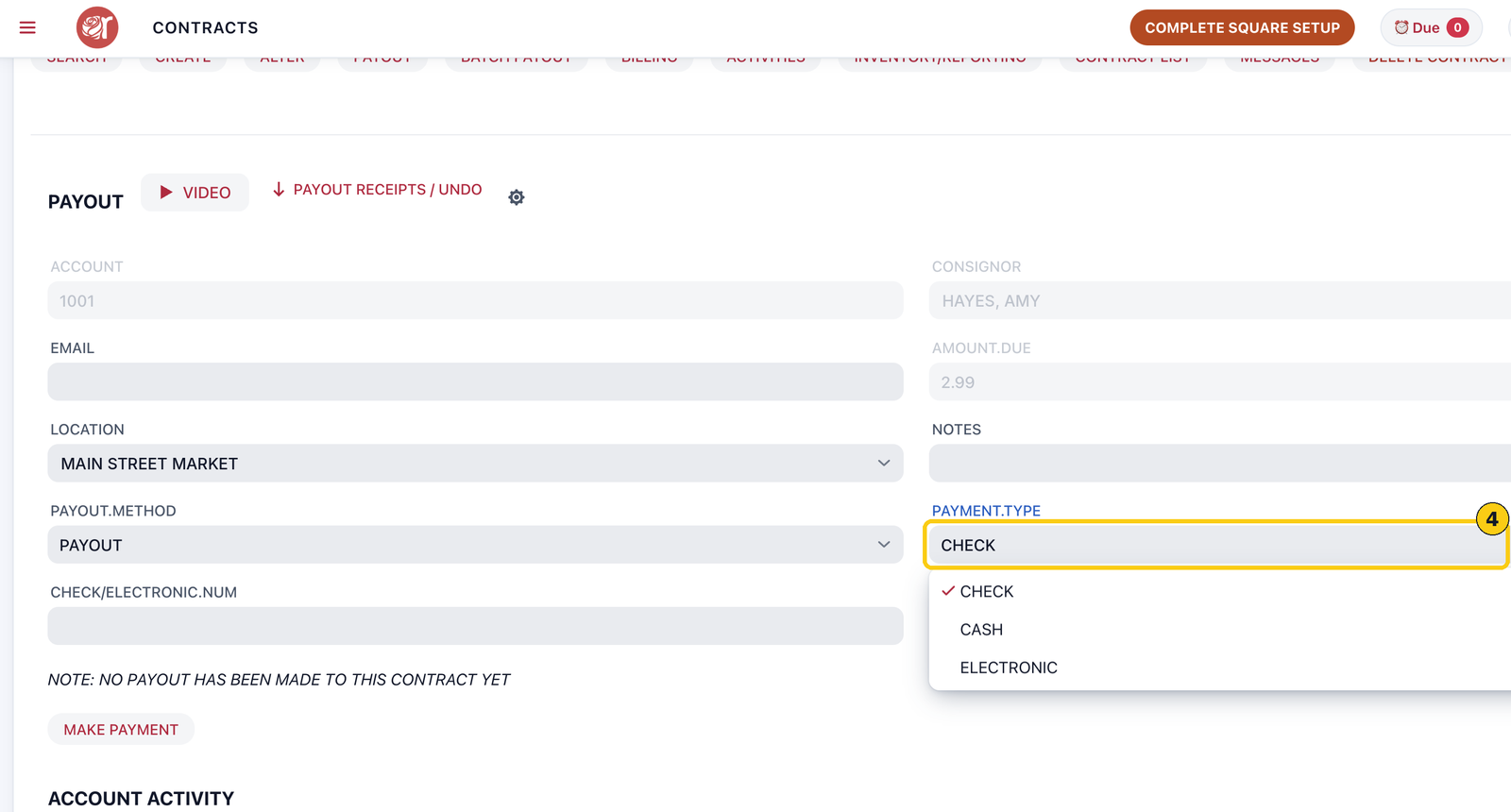
2. Choose the PAYMENT.TYPE: Check, Cash or Electronic.
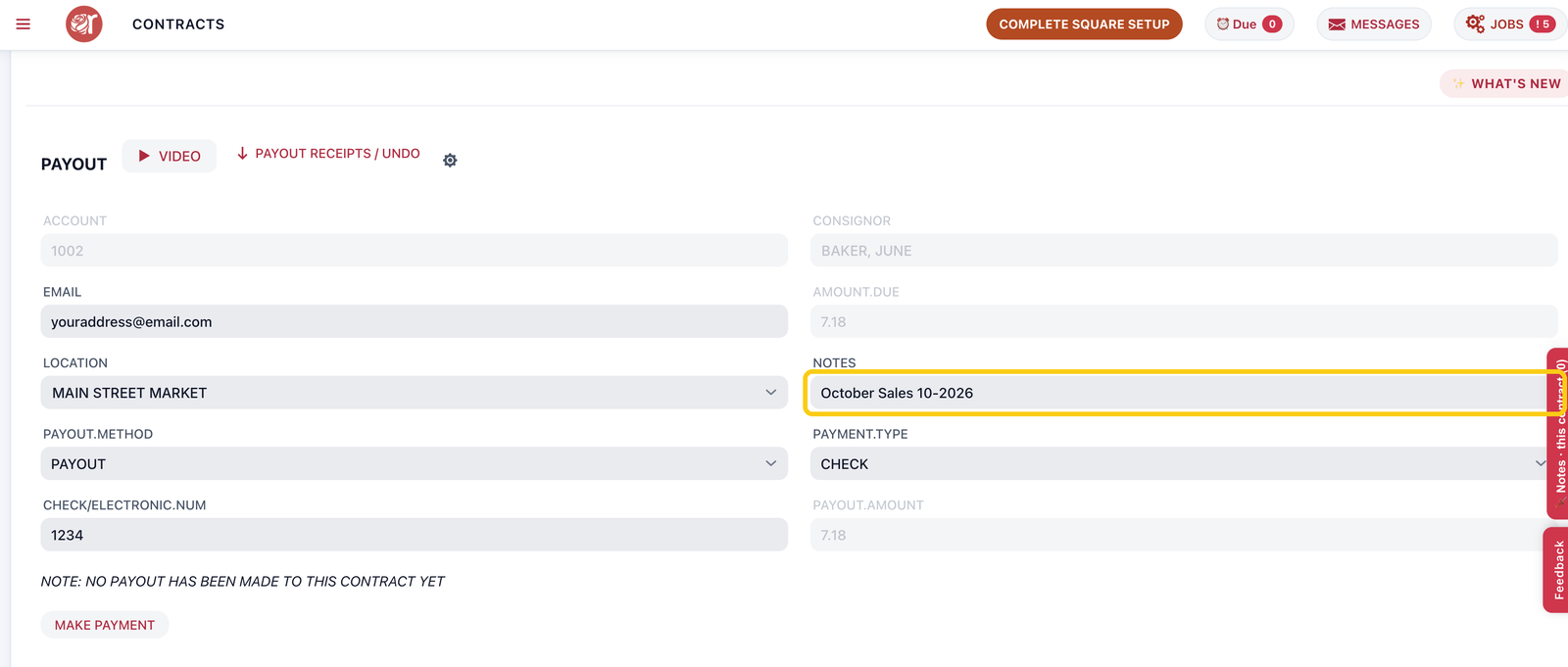
3. Add NOTES if you want, for example October Sales 10-2026. Notes print on the payout receipt.
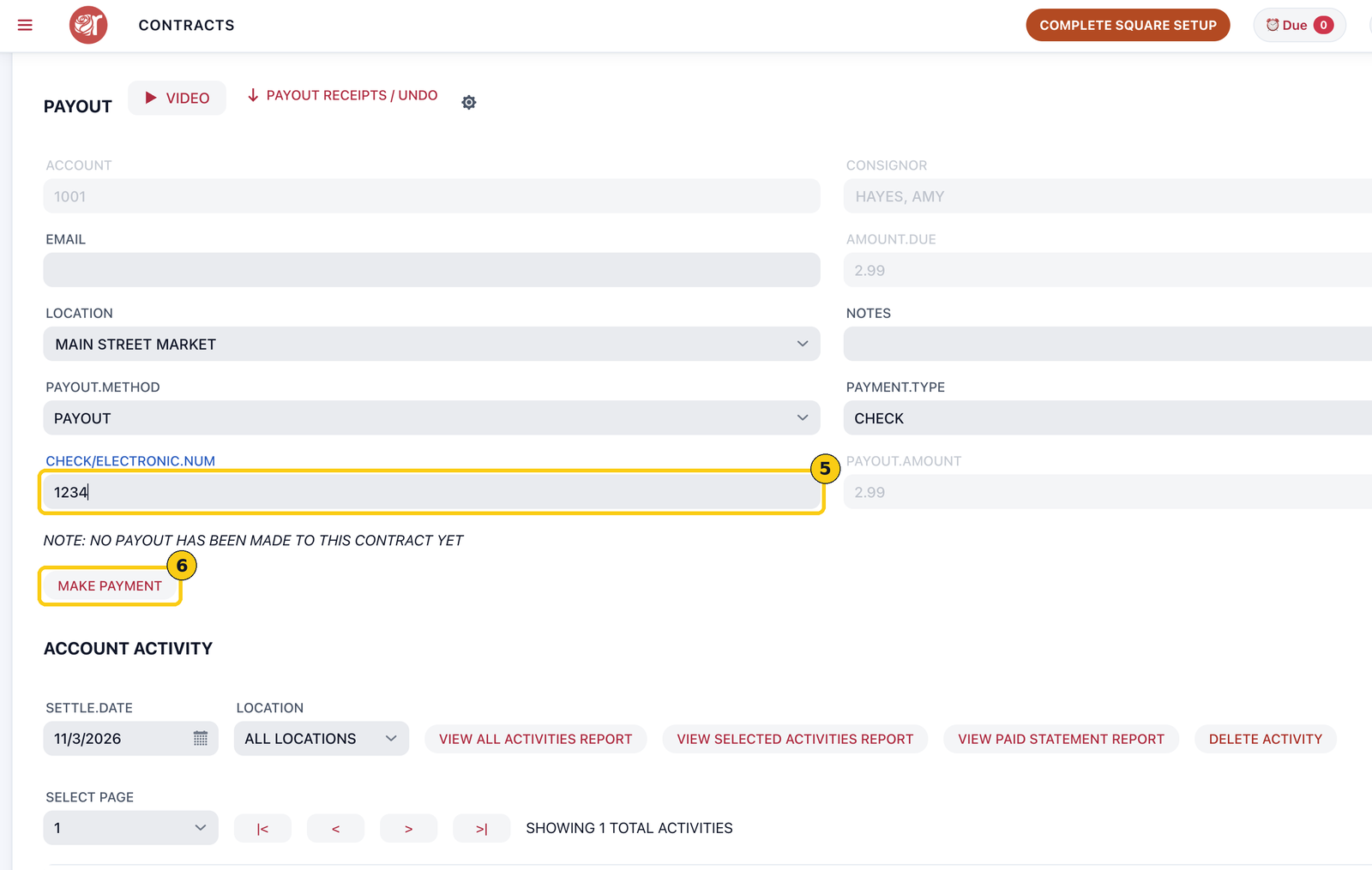
4. For a check or electronic payment, enter the check or transaction number in CHECK/ELECTRONIC.NUM.
5. Click MAKE PAYMENT.
Step 4: Confirm the payment
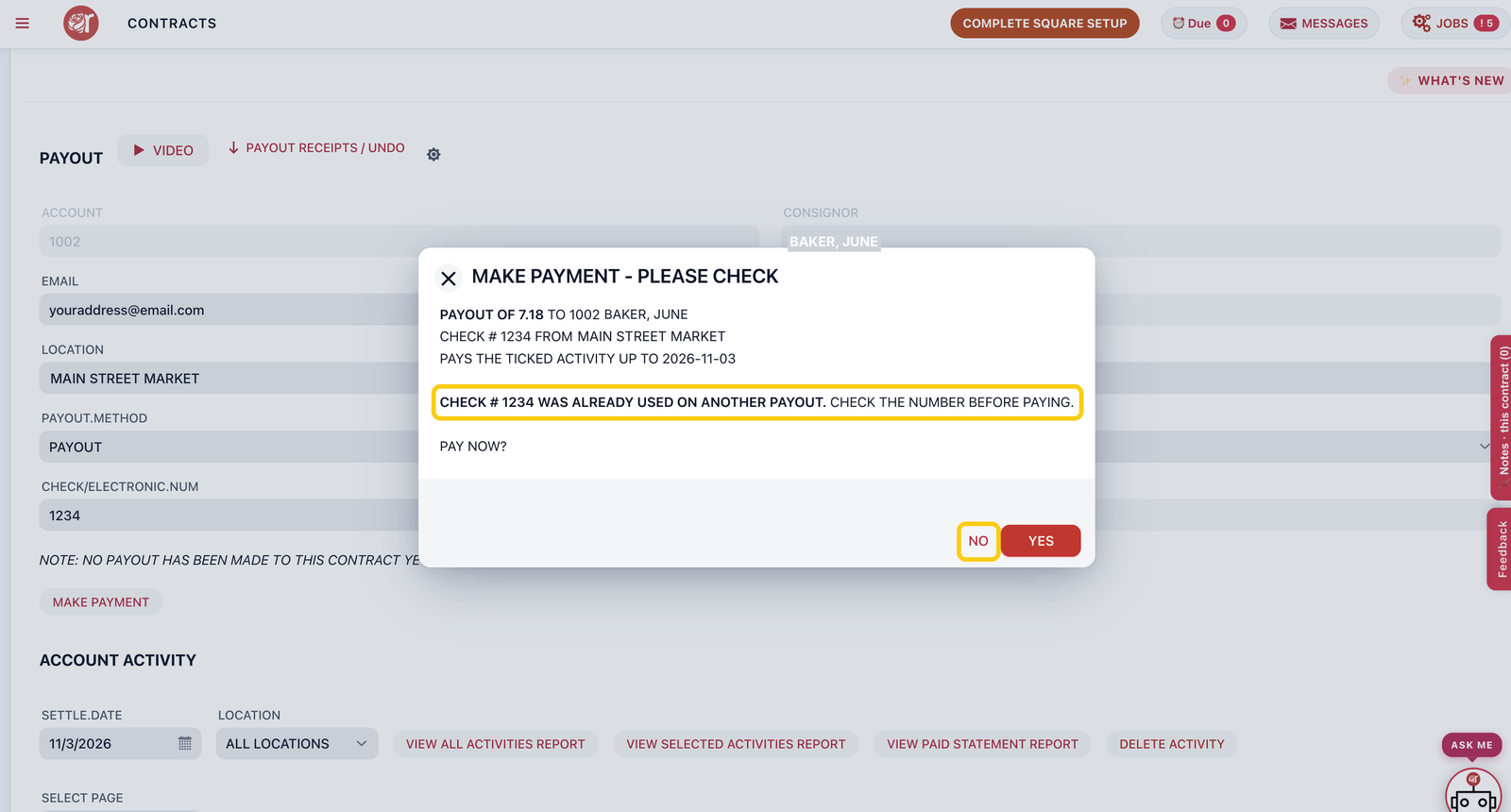
1. Check the summary: the amount, the consignor, the check number, the location, and the date the payment covers activity up to (the SETTLE.DATE). Click YES.
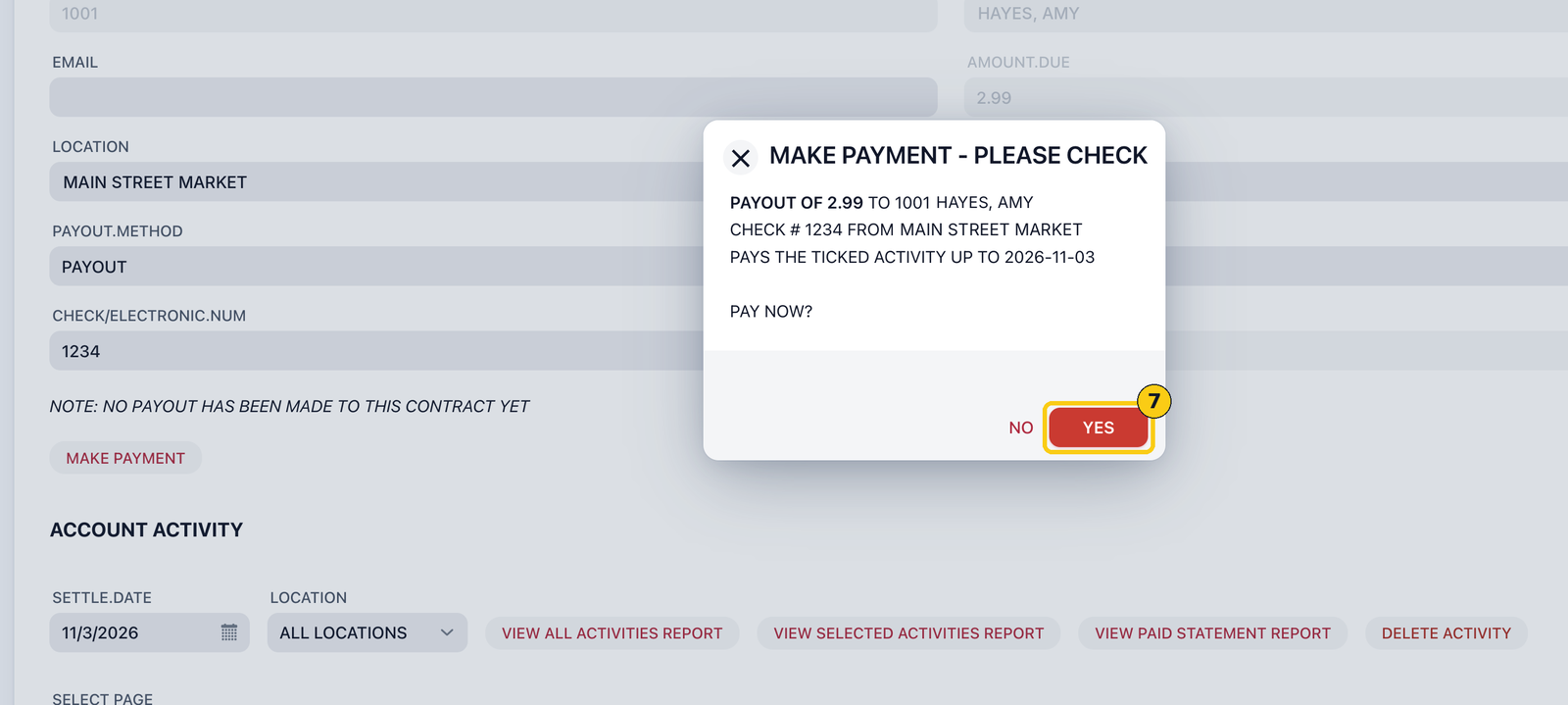
Check number already used? If the check number was used on another payout, Rose warns you in bold. Click NO, correct the number, and click MAKE PAYMENT again.
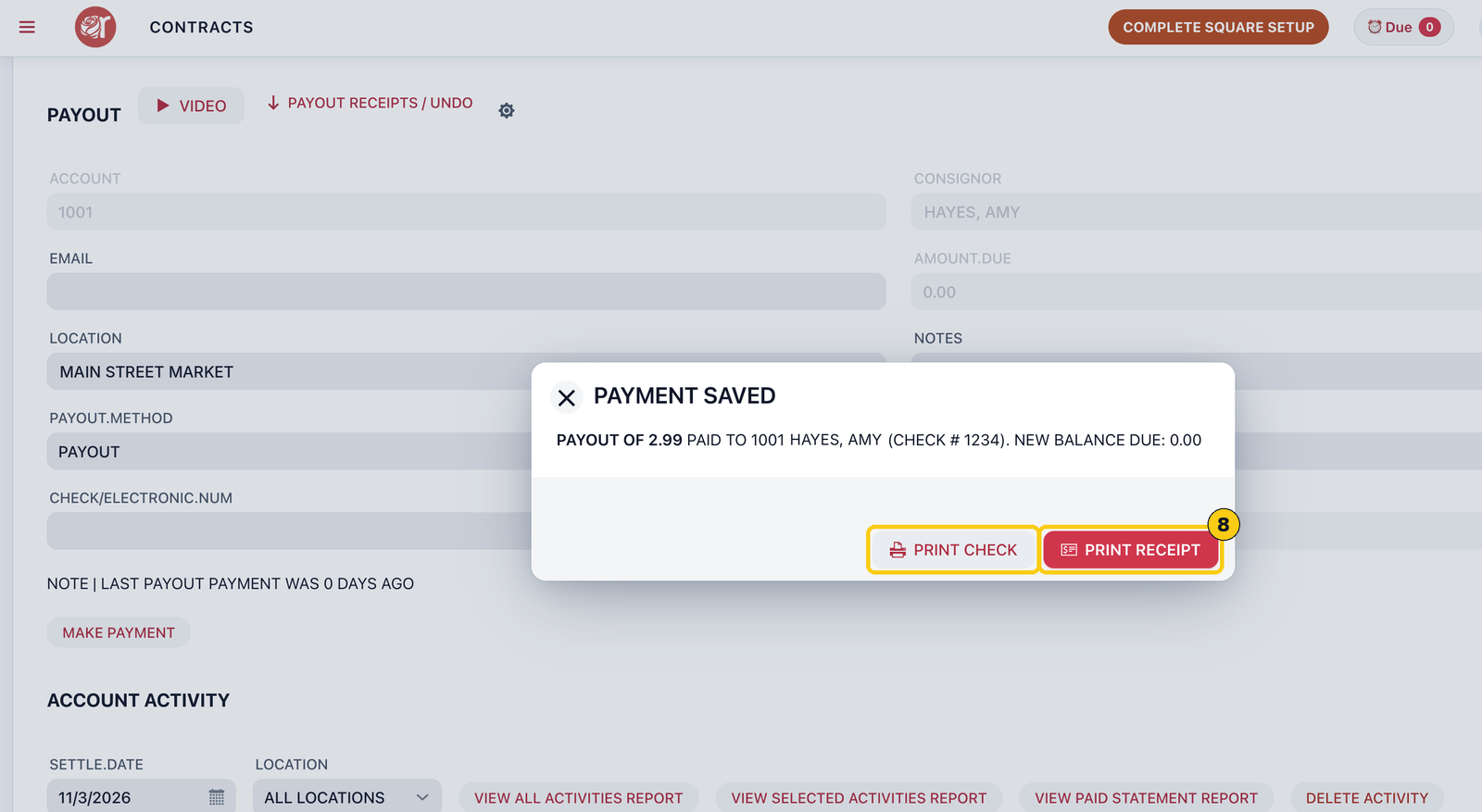
2. PAYMENT SAVED confirms the amount paid and the new balance due. Click PRINT RECEIPT, or PRINT CHECK to print the check.
Print the check
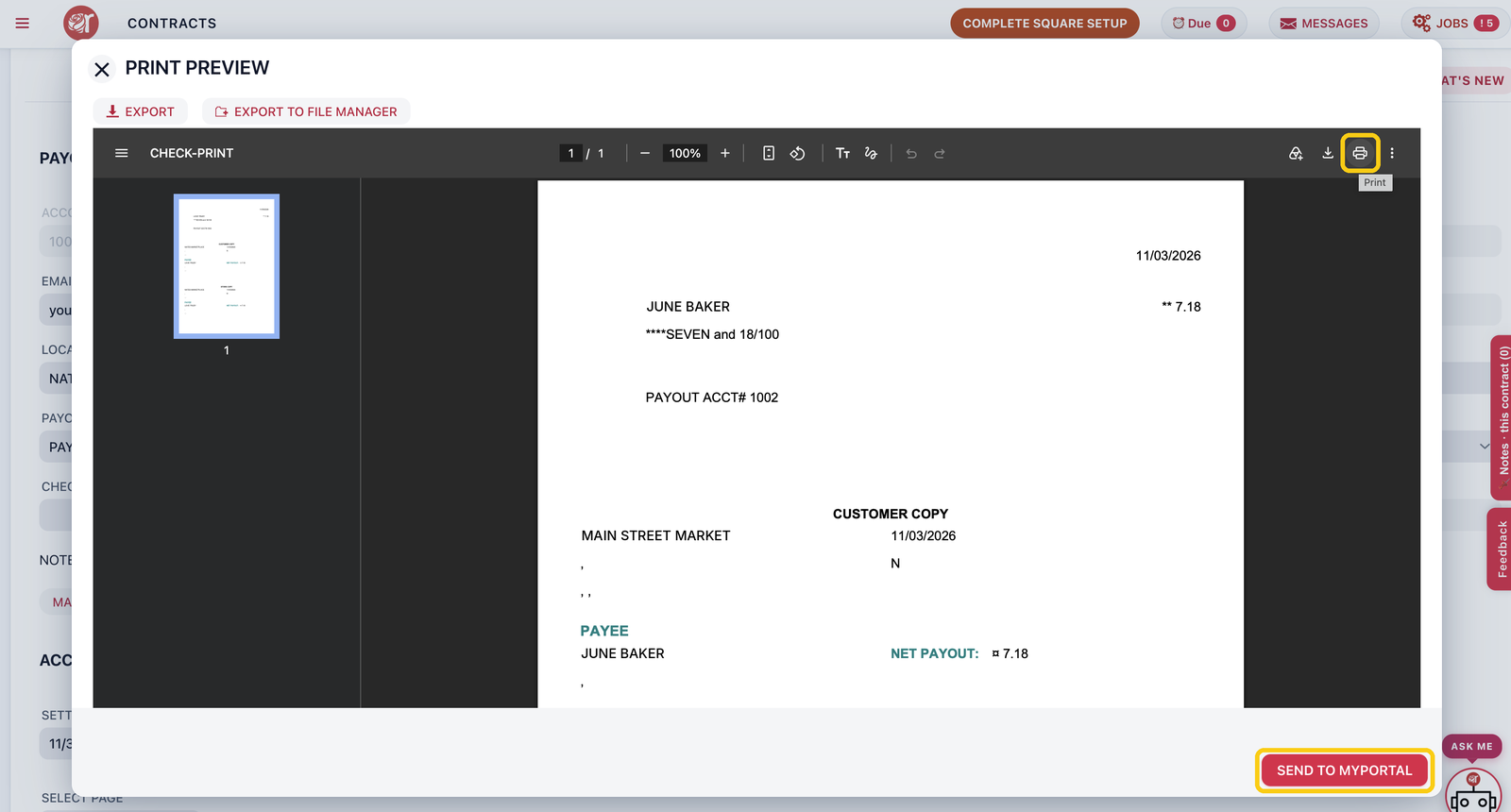
PRINT CHECK opens a print preview of the check, with the amount written out and a customer copy below. Click the printer icon to print it. You can also EXPORT it as a file, EXPORT TO FILE MANAGER to keep it in Rose, or SEND TO MYPORTAL to share it with the consignor.
Step 5: Have the consignor sign
The payout receipt lists every item paid for, with the sold price, card fees, discount, split % and amount paid out.
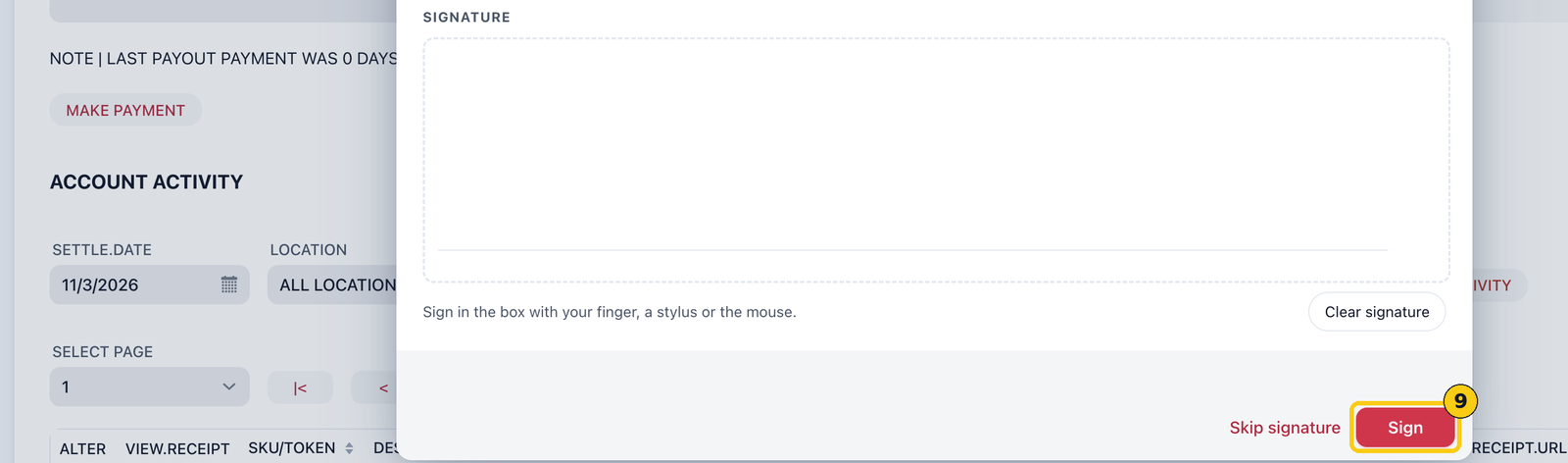
1. Have the consignor sign in the SIGNATURE box with a finger, a stylus or the mouse. Use Clear signature to start again.
2. Click Sign. If the consignor isn't there, click Skip signature.
FAQ
Which sales does a payout cover?
The ticked account activity up to the SETTLE.DATE under ACCOUNT ACTIVITY. Change that date before paying to set the cut-off.
How do I reprint a receipt or reverse a payout?
Use PAYOUT RECEIPTS / UNDO at the top of the payout screen.
Is there a video?
Yes. Click VIDEO next to the PAYOUT heading.
Can I pay several consignors at once?
Use BATCH PAYOUT on the Contracts toolbar.