![1512632091642-p-500.png]](https://help.consignorconnect.com/hs-fs/hubfs/1512632091642-p-500.png?width=131&height=50&name=1512632091642-p-500.png)
Vendors can add many items at once from a spreadsheet; consignors and vendors can download their items and sales.
Import items (vendors) (myPortal)
- Open the menu → IMPORT / EXPORT.
- Press DOWNLOAD THE TEMPLATE and fill in one item per row.
- Choose your CSV file and press CHECK FILE. Fix any line it lists, then press IMPORT.
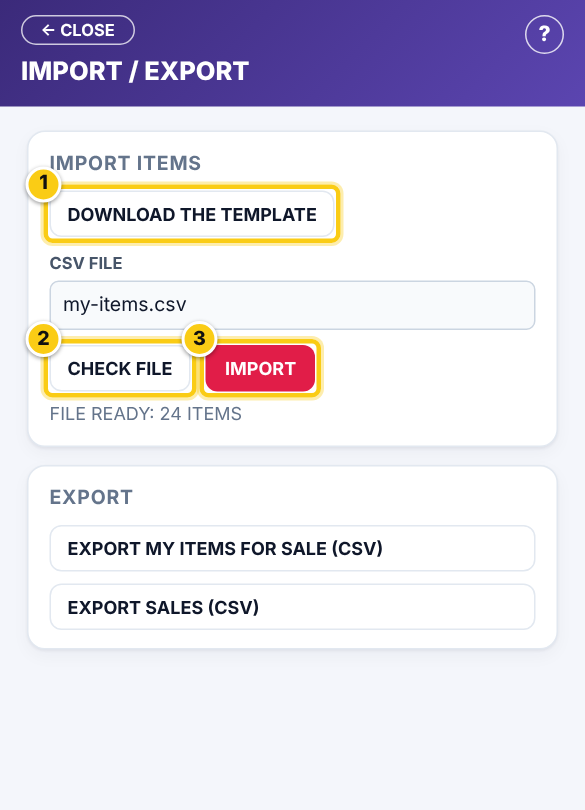
(1) the template, (2) CHECK FILE, (3) IMPORT.
Export (myPortal)
- Open the menu → IMPORT / EXPORT (consignors: EXPORT).
- Press EXPORT MY ITEMS FOR SALE (CSV), EXPORT INVENTORY (CSV) or EXPORT SALES (CSV) and pick the SALES YEAR.
- If an export asks you to subscribe, it is part of a myPortal plan (see Plans).
Questions
The file was not accepted.
Save it as CSV (comma separated) from your spreadsheet, keep the template’s first row, and press CHECK FILE again.
Still stuck? Ask Rosebot (the bubble at the bottom right of Rose and myPortal) or contact Consignor Connect support.