![1512632091642-p-500.png]](https://help.consignorconnect.com/hs-fs/hubfs/1512632091642-p-500.png?width=131&height=50&name=1512632091642-p-500.png)
Set the location, category, pricing, discounts, fees and boxes a new item starts with on Inventory, Contract inventory, Take-ins and myPortal - for the whole store, and for one contract.
Set the store's item defaults (Rose)
- Open Administration → SETTINGS → ITEM DEFAULTS.
- Pick a starting value for each field you want filled in. Leave NONE - PICK EACH TIME where staff should choose.
- Press SAVE ITEM DEFAULTS. Rose says ITEM DEFAULTS SAVED - NEW ITEMS START WITH THEM.
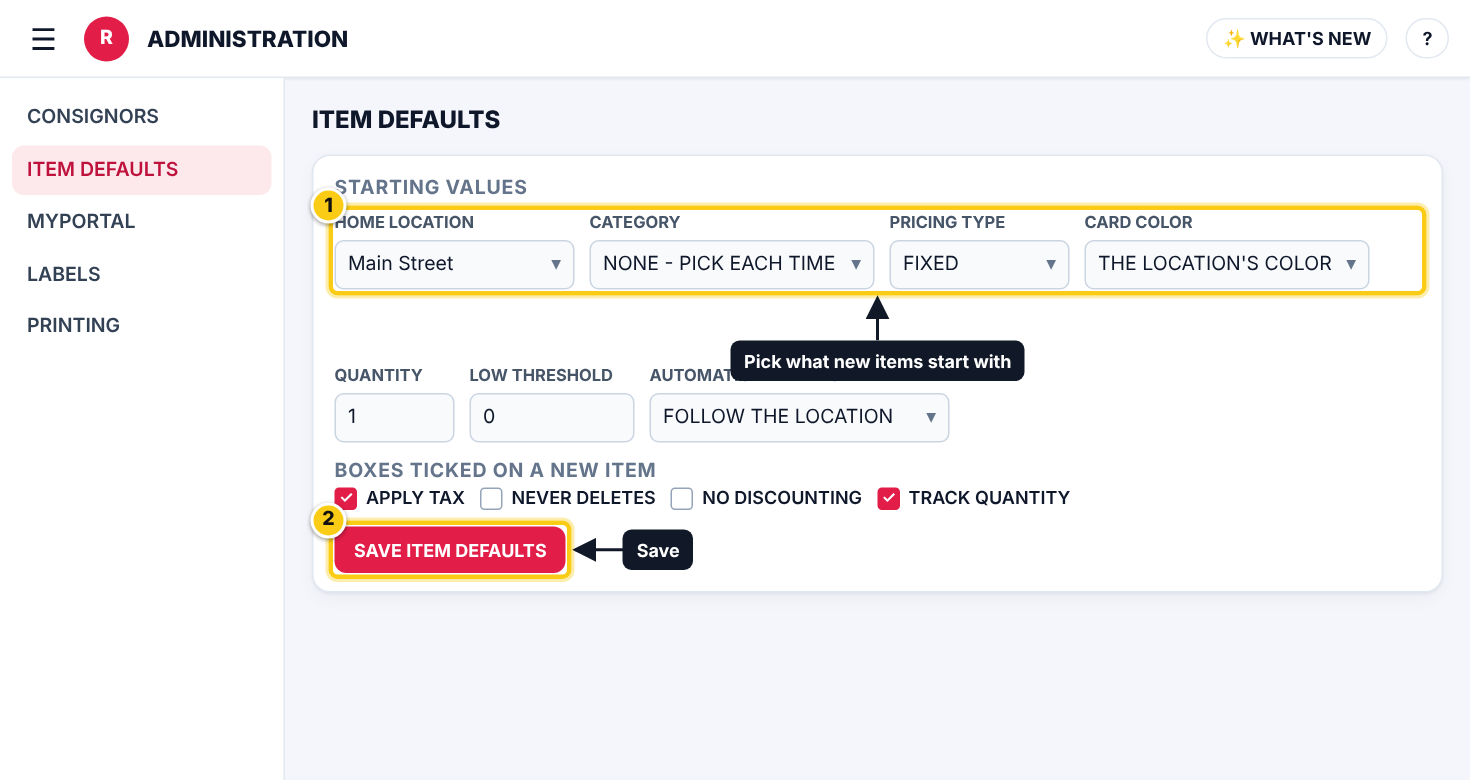
(1) pick the starting values, (2) SAVE ITEM DEFAULTS.
| Field | What it means |
|---|---|
| HOME LOCATION | The location a new item (and a new take-in) starts at, or the user’s own home location. |
| CATEGORY | The category a new item starts in. Its price, shelf life and fees fill in as if it were picked. |
| PRICING TYPE | FIXED or VARIABLE. |
| CARD COLOR | The colour card the item starts on (colour-card discounts follow it), or the location’s colour. |
| AUTOMATIC ITEM FEES | Whether item fees are added: follow the location, always or never. |
| QUANTITY | The starting quantity. |
| LOW THRESHOLD | With TRACK QUANTITY, Square warns you when stock drops to this number. |
| BOXES TICKED ON A NEW ITEM | Which boxes start ticked: APPLY TAX, NEVER DELETES, NO DISCOUNTING, TRACK QUANTITY and others. |
| SOLD-OUT ITEMS | Kept (hidden in Inventory, with their history) or deleted when a sale takes the quantity to 0. |
| SHOPIFY WEBSITE | With Square + Shopify: every item goes to your Shopify website, or only items ticked ONLINE STORE. |
- Items already saved are not changed.
- BACK TO ROSE’S DEFAULTS clears your choices.
Give one contract its own defaults (Rose)
- Open Menu → Contracts, pick the contract and press ALTER, then open ITEM DEFAULTS.
- Each field starts on STORE DEFAULT (...), showing the store’s choice. Pick something else to override it for this contract.
- Optional: tick Lock myPortal to this category so the vendor can only add items in one category.
- Press SAVE ITEM DEFAULTS. ALL BACK TO THE STORE DEFAULTS undoes the overrides.
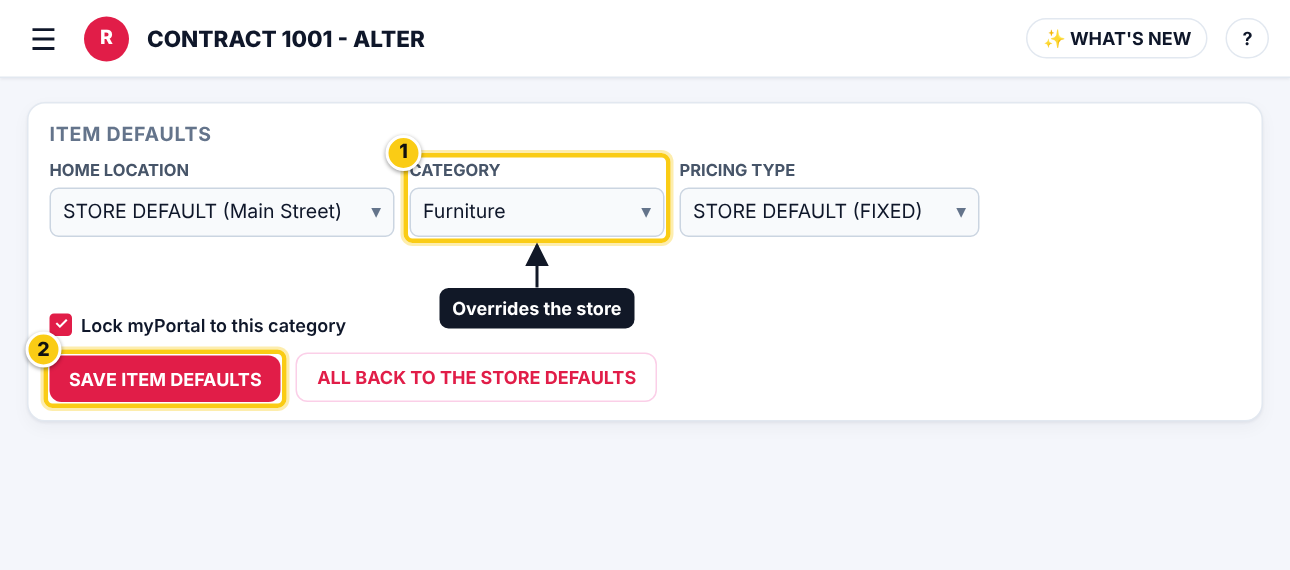
Contract ALTER → ITEM DEFAULTS: (1) override one field, (2) save.
Who can do this (user rights)
| Right in User Maintenance | What it allows | Who has it at first |
|---|---|---|
| Administration and Subscription Plans | Opens Administration → SETTINGS. | Users with Administration ticked in User Maintenance (normally administrators) |
| Contracts | A contract’s own ITEM DEFAULTS on its ALTER screen. | Users with Contracts ticked |
Questions
Do item defaults change items I already have?
No. They only fill in new items. Change existing items in Inventory.
Which wins, the store or the contract?
The contract’s own choice wins for that contract’s new items. Anything left on STORE DEFAULT follows the store, even if you change the store later.
Still stuck? Ask Rosebot (the bubble at the bottom right of Rose and myPortal) or contact Consignor Connect support.
nect.com.