![1512632091642-p-500.png]](https://help.consignorconnect.com/hs-fs/hubfs/1512632091642-p-500.png?width=131&height=50&name=1512632091642-p-500.png)
In each screenshot, the yellow boxes show what to click. Numbers give the order.
Good to know: consignors and vendors read your messages in myPortal, under MESSAGES. When they write to you, Rosebot answers questions about their sales, payouts and items straight away. Anything else comes to you.
When a consignor writes to you
A NEW PORTAL MESSAGE window pops up in Rose, and the MESSAGES button at the top shows how many are waiting.

The MESSAGES button shows a count when messages are waiting.
1. Read the message.
2. Read Rosebot's one-line note for staff. It says what the consignor needs.
3. Click OPEN CONVERSATION to reply, or DISMISS to come back to it later.
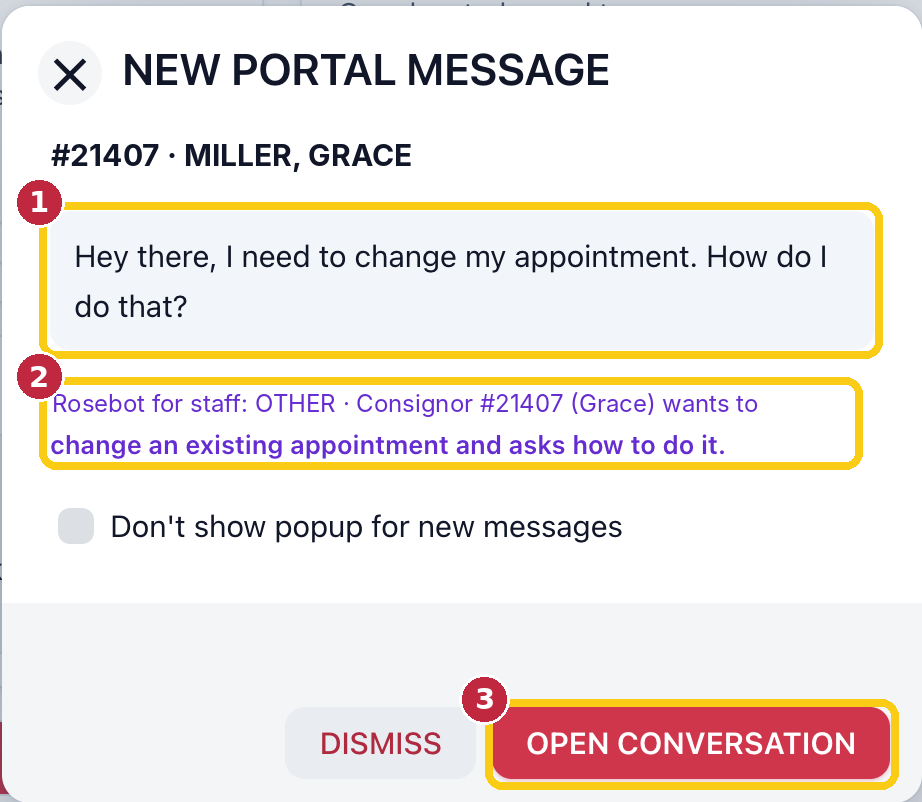
The message (1), Rosebot's note for staff (2) and OPEN CONVERSATION (3).
Don't want the pop-up? Tick Don't show popup for new messages.
Reply to a consignor
OPEN CONVERSATION takes you to the contract's PORTAL MESSAGES tab. You can also get there from Contracts: find the contract, then click MESSAGES.
1. Read their message on the left. Rosebot's automatic answer to them is shown underneath.
2. Leave SEND TO on This contract.
3. Type your reply in MESSAGE.
4. Click SEND. Leave E-mail a heads-up ticked so they get an e-mail telling them to check myPortal.
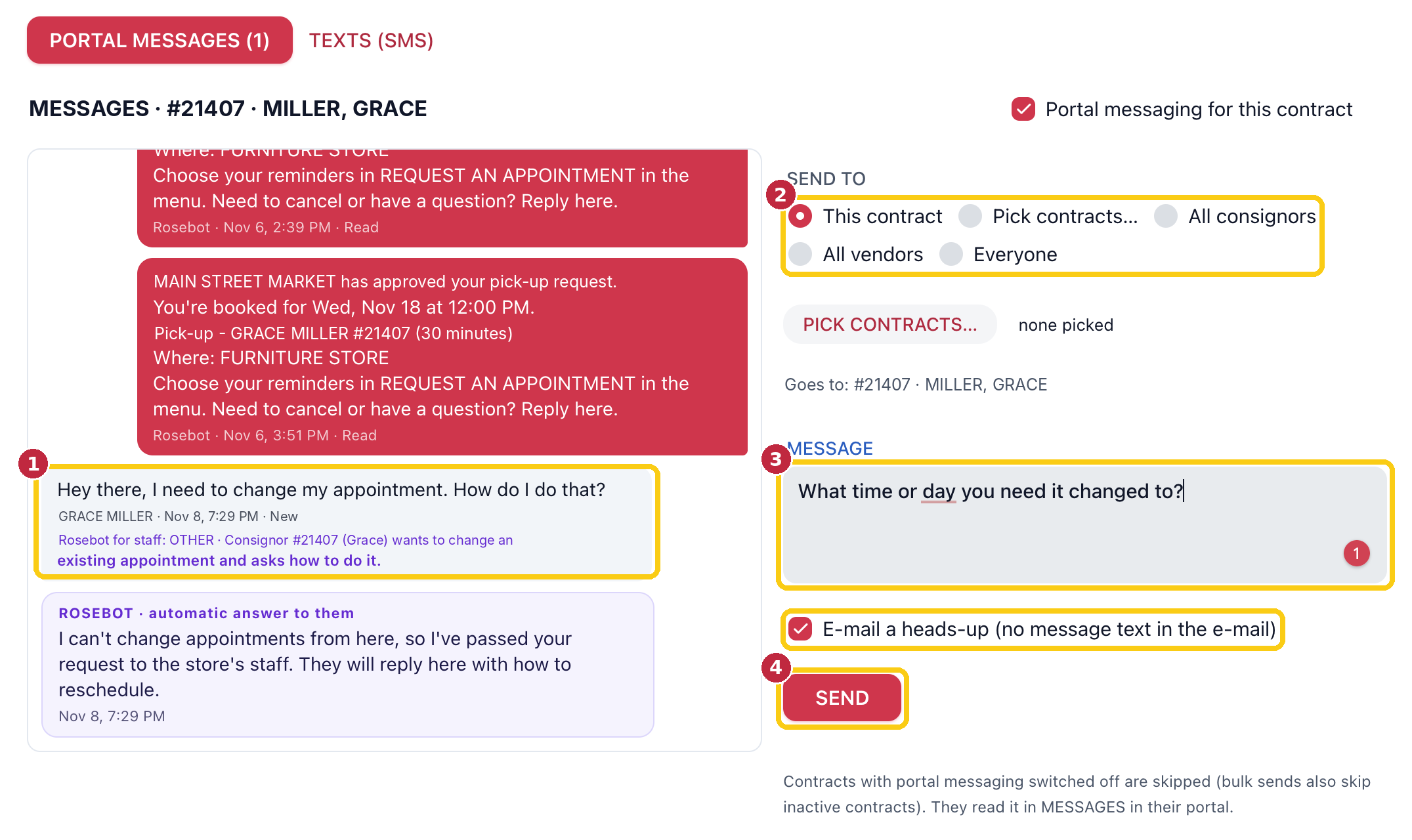
Their message (1), SEND TO (2), your reply (3) and SEND (4).
The e-mail heads-up doesn't include your message, only a note to check myPortal.
Send a message to many consignors
1. Go to Contracts and click MESSAGES.
2. Under SEND TO, pick All consignors, All vendors or Everyone. Or pick Pick contracts... and choose them.
3. Type your message and click SEND.
Contracts with portal messaging switched off are skipped. Bulk sends also skip inactive contracts.
Turn messaging off for one contract
On the contract's PORTAL MESSAGES tab, untick Portal messaging for this contract. Untick Popup for new messages to stop pop-ups from that contract.
Texts (SMS)
The TEXTS (SMS) tab lets you text consignors from Rose, as Rosebot for your store. Your store's name is added to the start of each text, and replies come back here.
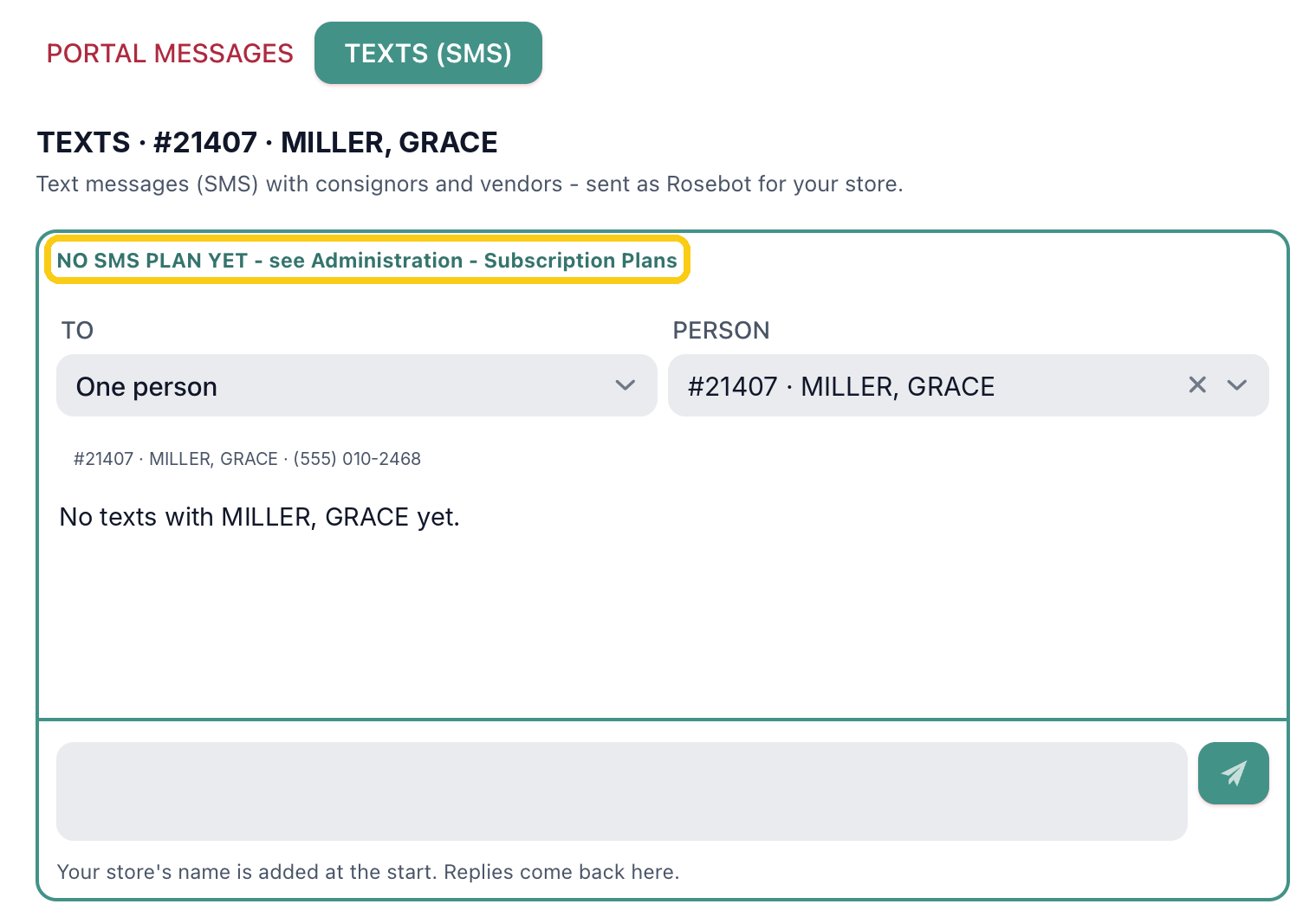
Until your store has a texting plan, the tab says NO SMS PLAN YET.
Still stuck? Ask your Rosebot or email support@consignorconnect.com.