![1512632091642-p-500.png]](https://help.consignorconnect.com/hs-fs/hubfs/1512632091642-p-500.png?width=131&height=50&name=1512632091642-p-500.png)
In each screenshot, the yellow boxes show what to click. Numbers give the order.
Good to know: Rosebot answers questions about your sales, payouts and items straight away. Anything else goes to the store's staff, who reply in the same place.
Read your messages
1. Sign in to myPortal.
2. Click READ MESSAGES (or MESSAGES in the menu). You'll see messages from the store, such as appointment confirmations.
Write to the store
1. Type your message in WRITE TO THE STORE.
2. Click SEND.
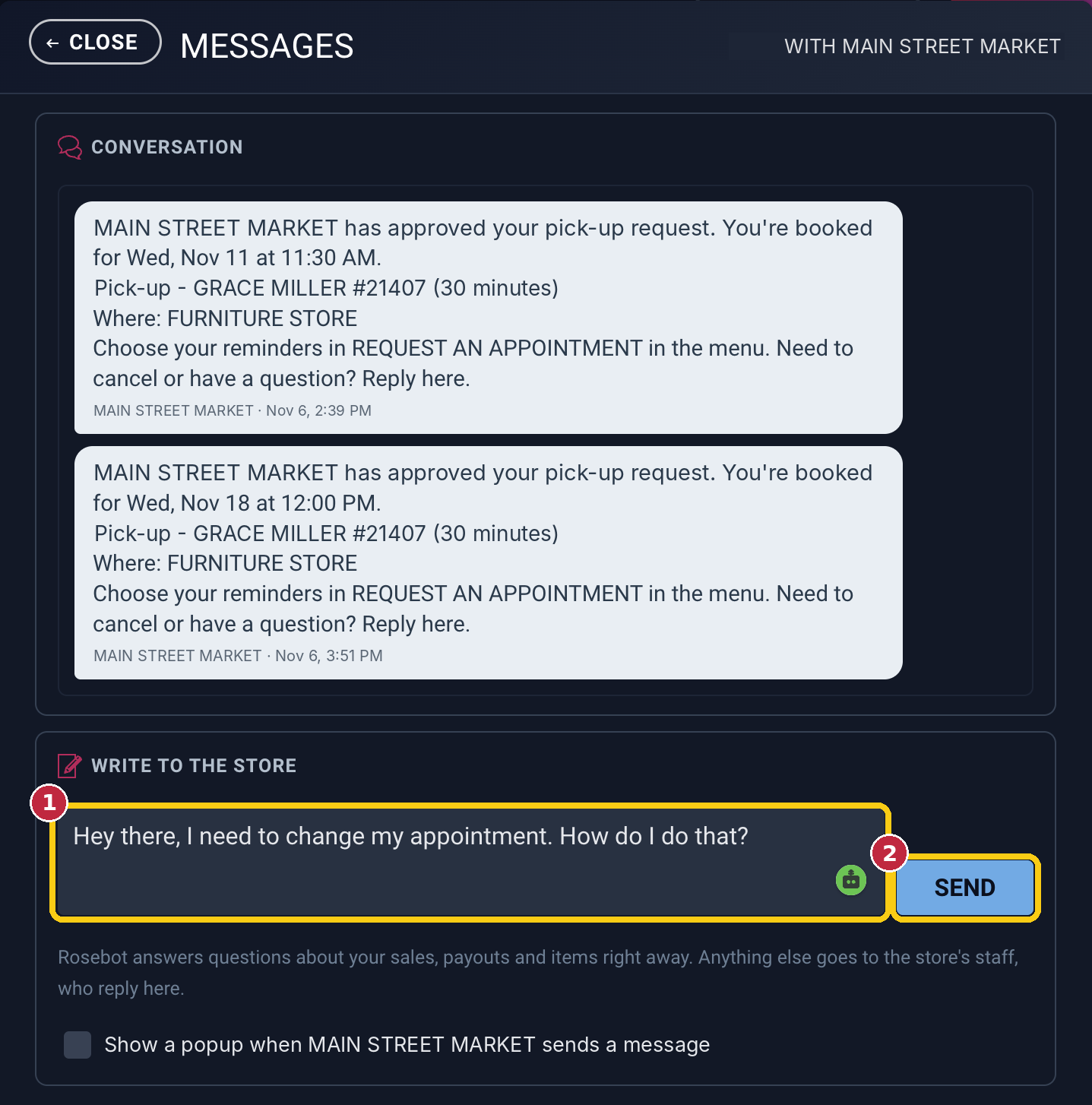
Type your message (1), then click SEND (2).
What happens next
Your message shows in blue, marked Sent to the store. Rosebot replies straight away. If Rosebot can answer, it does. If not, such as changing an appointment, it passes your message to the store's staff, and they reply here.
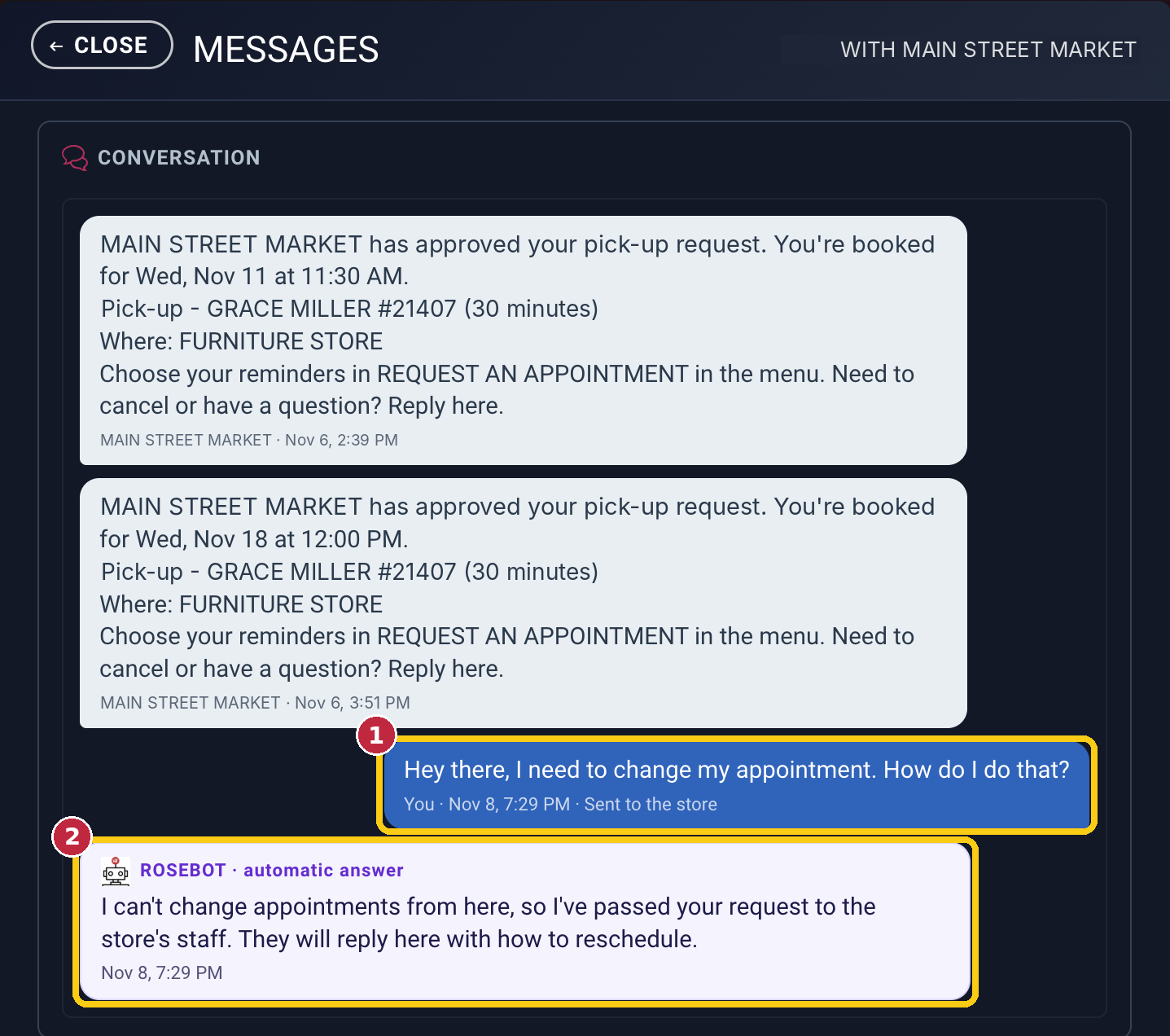
Your message (1) and Rosebot's automatic answer (2).
Get a pop-up when the store replies
Tick Show a popup when [your store] sends a message at the bottom of MESSAGES.
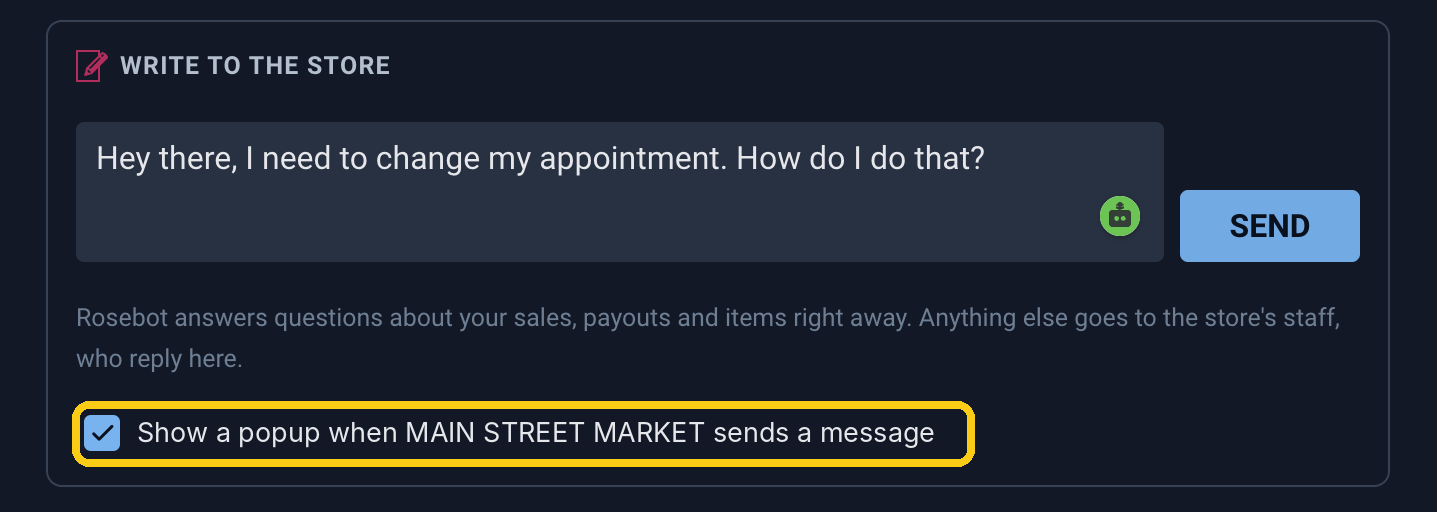
The pop-up setting.
Still need help? Contact the store you consign with.