![1512632091642-p-500.png]](https://help.consignorconnect.com/hs-fs/hubfs/1512632091642-p-500.png?width=131&height=50&name=1512632091642-p-500.png)
Find what your label looks like below. Each problem lists the likely cause and the fix. Most printing problems come down to four settings that don't agree with each other.
Check these four first. They must all agree:
1. The label in your printer. The number is on the box or roll, for example 30334 or 30332.
2. LABEL TYPE in Rose. It must be the same label as the one in your printer.
3. Paper size on your computer. It must match that label too (see Printing labels: full guide for the list). The one exception is the DYMO 1 x 1 (OLD ROSE) label, which prints on a 30334 paper size.
4. Scale 100 / Actual size in the print window. Never Fit to page.
Questions to answer first
If you're asking Rosebot or emailing us, these answers help us find the problem fast:
- Are you on Rose Retail or Rose Pro?
- Did you print with the red tag and the printer icon (print window), or with PRINT ALL LABELS / PRINT SELECTED (Rose Pro)?
- Are you on a Windows computer or a Mac? Are you using Google Chrome?
- Which label printer do you have (for example DYMO LabelWriter 450, 550, 450 Twin Turbo, or Zebra)?
- Which labels are in the printer? The number is on the box or roll.
- Which LABEL TYPE did you pick in Rose?
- What does the printed label look like? For example: tiny, cut off, sideways, blank, or nothing printed.
A tiny label prints in the middle of a full sheet of paper
Why: It went to your office printer instead of your label printer.
Fix it:
1. In the print window, open Destination and pick your label printer (for example DYMO LabelWriter 450).
2. Click Print. Chrome remembers this printer next time.
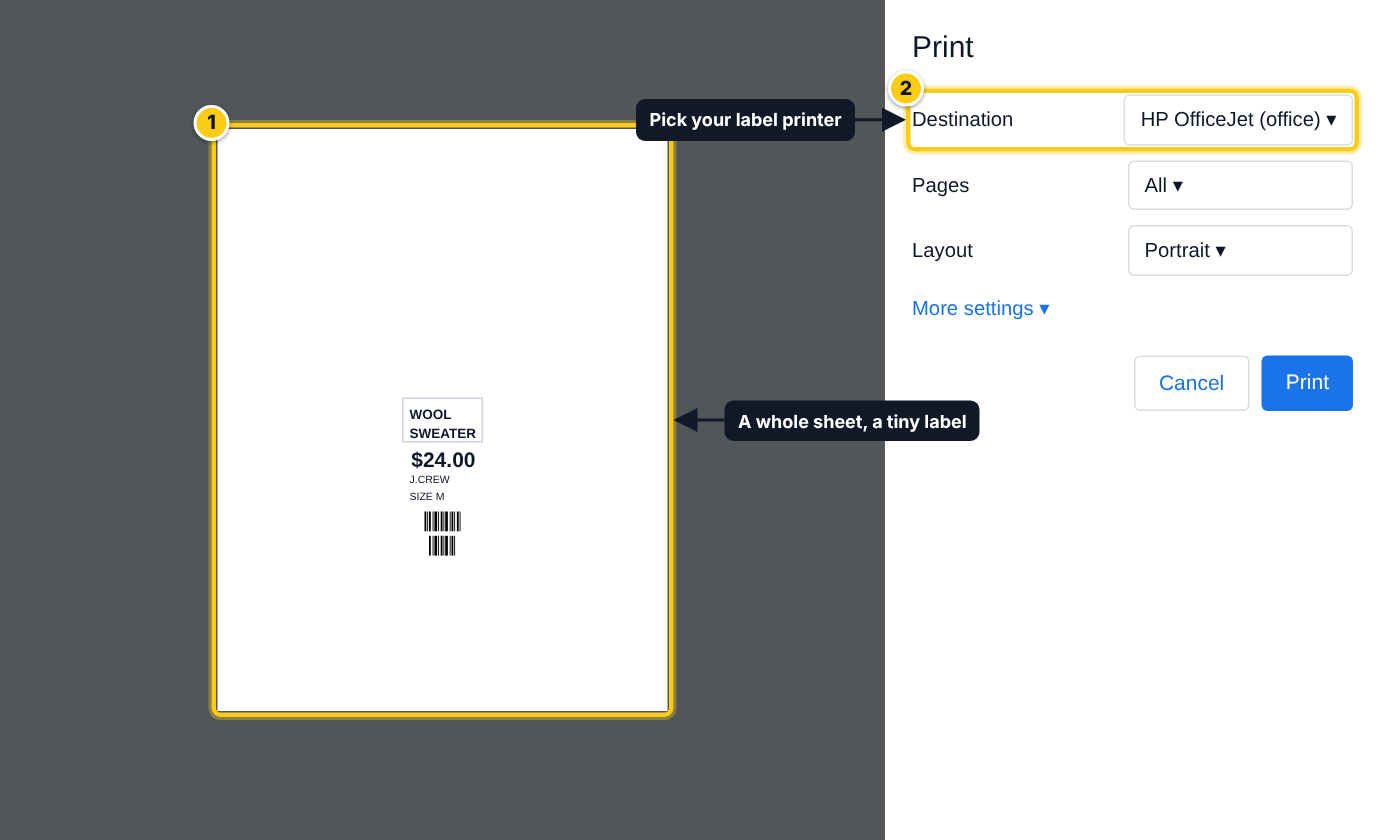
(1) the tiny label on a full Letter sheet, (2) Destination: pick your label printer.
The label prints too small or shrunk
Why: The print window is scaling the label, or the paper size is bigger than your label.
Fix it:
1. In the print window, click More settings and set Scale to Custom 100 (or Actual size). Turn off Fit to page.
2. Check Paper size matches the label in your printer.
3. Check LABEL TYPE in Rose matches the label in your printer.
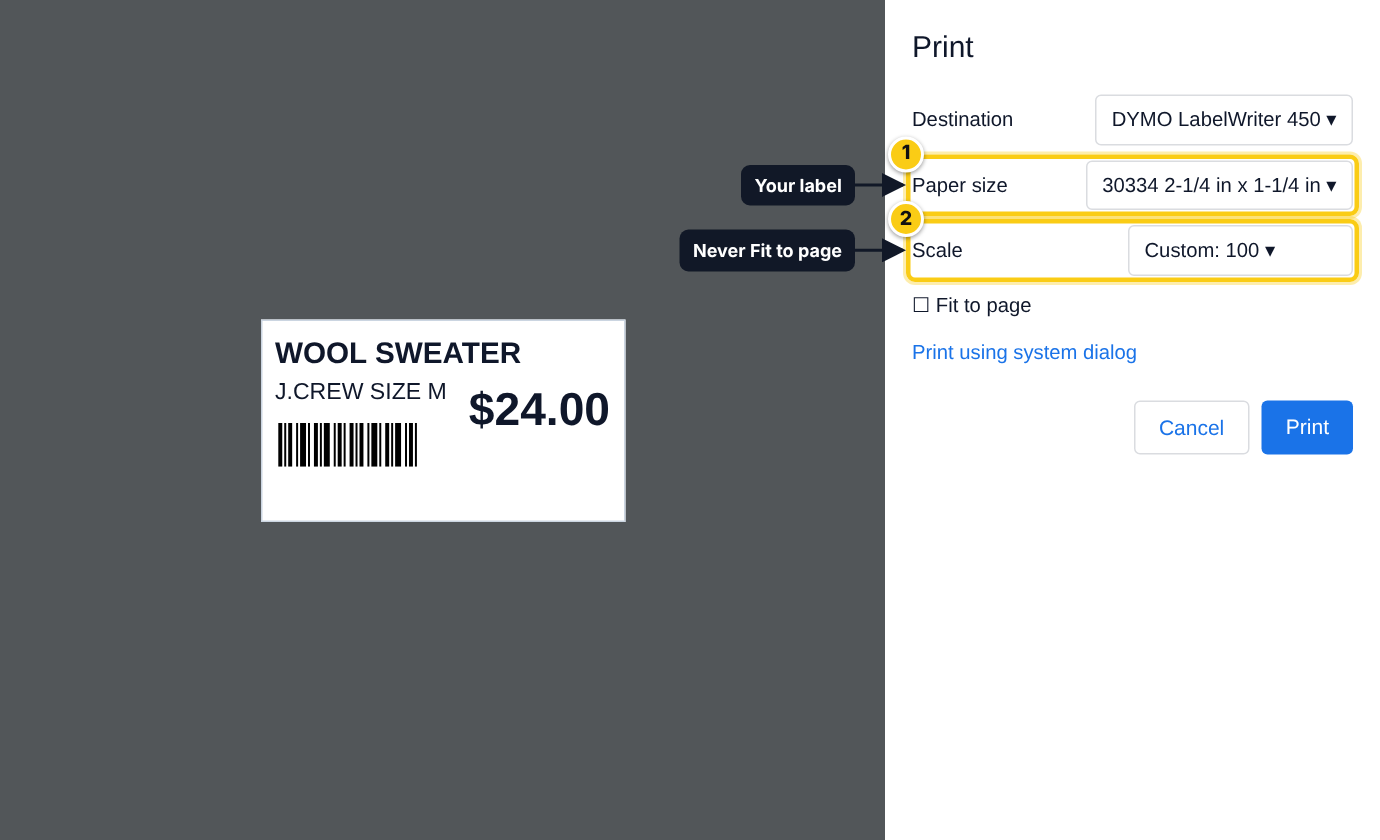
(1) Paper size = your label, (2) Scale = Custom 100.
The label is cut off, or runs onto a second label
Why: The paper size or the LABEL TYPE doesn't match the labels in your printer.
Fix it:
1. Look at the label number on your roll.
2. In Rose, pick that label in LABEL TYPE.
3. In the print window, set Paper size to the same label. If it isn't in the list, click Print using system dialog, or set it in your printer settings (see Printing labels: full guide).
4. Make sure Scale is 100.
1 x 1 labels print in the wrong spot or only partly
Why: Your paper size is still 30334 (the old Rose setting) but you picked DYMO 1 x 1 LABEL - 30332.
Fix it:
1. Easiest fix: in LABEL TYPE, pick DYMO 1 x 1 (OLD ROSE) ON 2 1/4 x 1 1/4 LABEL - 30334 (second in the list). It's made for a 30334 paper size.
2. Or keep DYMO 1 x 1 LABEL - 30332 and change your paper size to 30332.
Good to know: You can make the OLD ROSE label your store's default in Administration › Settings › Labels › ROSE DEFAULT LABEL.
The label prints sideways
Why: Your printer turns the label differently from how Rose lays it out.
Fix it:
1. In Rose's print preview, change ROTATE FOR MY PRINTER, then print again.
2. On Windows, check Printing preferences has Orientation set to Portrait.
Good to know: Rose says ROTATE FOR MY PRINTER is for the printer icon and download only, not Rose Pro's PRINT ALL LABELS.
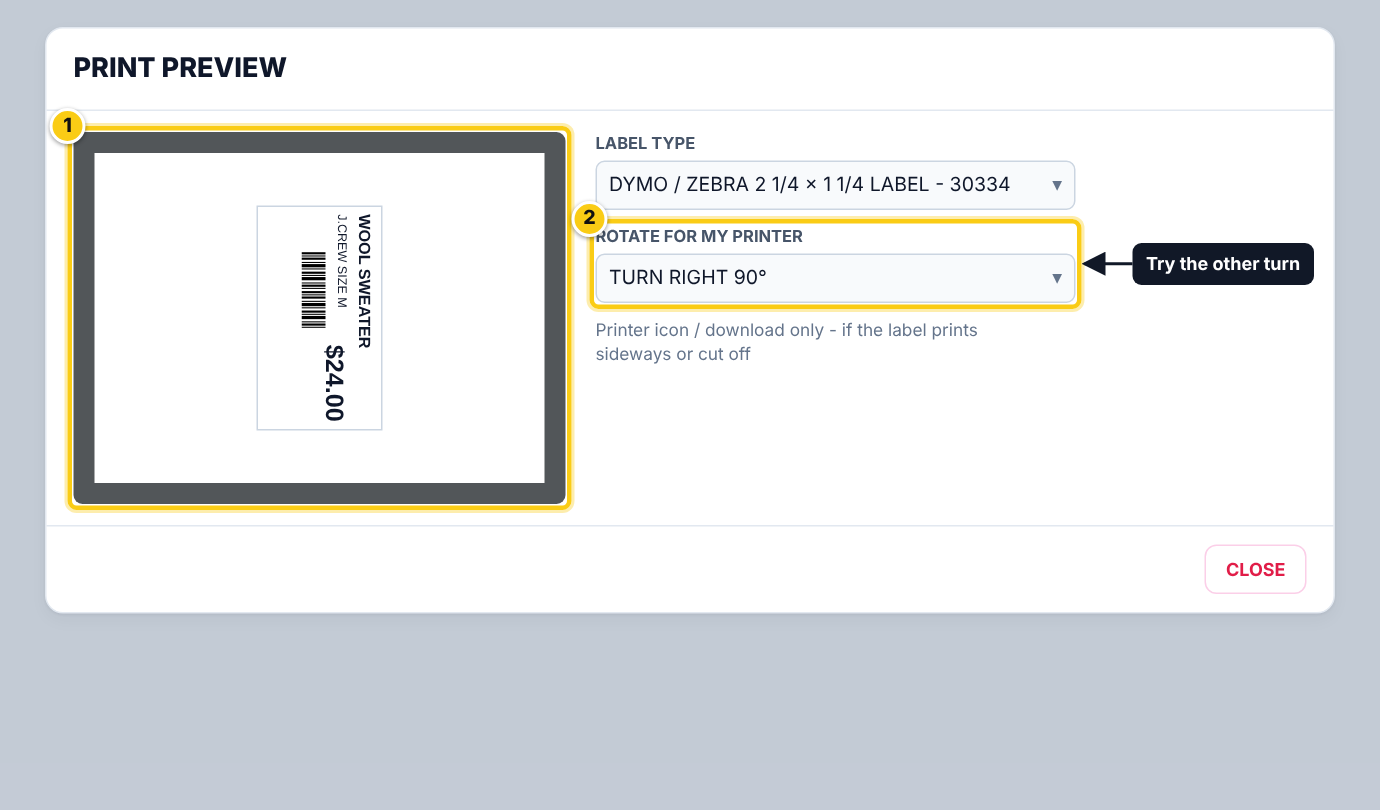
(1) the label prints sideways, (2) ROTATE FOR MY PRINTER in Rose’s print preview.
One label prints, then one or more blank labels come out
Why: The paper size is longer than your label, so the printer feeds extra labels. Or your labels have no gap between them.
Fix it:
1. Set Paper size to exactly your label (not Letter or a bigger label).
2. Use labels with a gap or punch-out between each one. Labels without one don't work.
My label size isn't in the Paper size list
Why: Chrome's own print window doesn't always show every label size.
Fix it:
1. In the print window, click More settings, then Print using system dialog, and pick the size there.
2. To fix it for good, set the paper size in your printer settings. On Windows: Printers & scanners › your DYMO › Printing preferences › Paper/Quality › Advanced. On a Mac: localhost:631/printers › your DYMO › Set Default Options.
My label printer isn't in the Destination list
Why: The printer isn't installed or connected on this computer.
Fix it:
1. Check the printer is plugged in, turned on, and its USB cable is connected to this computer.
2. Check the DYMO driver is installed (see Printing labels: full guide).
3. On Windows, open Printers & scanners and check the DYMO is listed. If not, click Add device. On a Mac, open System Settings › Printers & Scanners and click Add Printer.
4. Restart the computer and try again.
Nothing prints at all
Why: The printer is offline, paused, or has a stuck print job.
Fix it:
1. Check the printer is on and the labels are loaded.
2. On Windows, open Printers & scanners › your DYMO › Open print queue. Cancel any stuck jobs.
3. On a Mac, open Printers & Scanners › your DYMO › Printer Queue, and click Resume if it's paused.
4. Turn the printer off and on, then print again.
The label comes out blank or very faint
Why: DYMO and Zebra printers print with heat, so they need thermal labels loaded the right way round.
Fix it:
1. Use thermal labels made for your printer.
2. Reload the roll so the labels face the right way (see your printer's instructions).
3. Print a test page from your computer's printer settings to check the printer itself.
Rose Pro: PRINT ALL LABELS says sent, but nothing prints
Why: Rose Pro prints through PrintNode, which runs on the computer your label printer is plugged into.
Fix it:
1. Check that computer is on and awake, and PrintNode is running on it.
2. In PRINTER SELECTION, check you picked the right printer and it says ONLINE.
3. If it says OFFLINE, restart PrintNode or that computer, and check the printer is on.
4. Check your PrintNode details in Administration › Settings › Printing.
Good to know: DYMO 450 Twin Turbo printers can't be used for Rose Pro printing.
I don't see PRINT ALL LABELS or PRINT SELECTED
Why: Printing many labels at once is part of Rose Pro.
Fix it:
1. On Rose Retail, print one label at a time with the red tag next to each item.
2. To print many at once, ask us about Rose Pro.
Twin Turbo prints from the wrong roll
Why: The roll is chosen in your computer's printer settings, not in Rose.
Fix it:
1. In Rose's print preview, click the printer icon, then More settings › Print using system dialog.
2. Click Preferences › Paper/Quality and set Paper source to the left or right roll.
3. Your computer remembers this, so print everything for one roll before switching.
Printing doesn't work in Safari or Microsoft Edge
Why: Label printing is supported in Google Chrome only.
Fix it:
1. Open Rose in Google Chrome and print from there.
The same label printed twice
Why: The item wasn't marked as printed.
Fix it:
1. After printing from the printer icon, click MARK AS PRINTED in Rose.
Still stuck? Ask your Rosebot or email support@consignorconnect.com.