![1512632091642-p-500.png]](https://help.consignorconnect.com/hs-fs/hubfs/1512632091642-p-500.png?width=131&height=50&name=1512632091642-p-500.png)
Still on Classic Rose? See the Classic Rose steps.
Every payout in a date range, by location and payment method - printed, as a spreadsheet, or as a file for QuickBooks Online.
Run the report
- Open Menu → Reports.
- In PERIOD REPORTS, pick Paid Out / QuickBooks Export.
- Set the START DATE and FINISH DATE (both included).
- Press VIEW / PRINT, or EXPORT FOR QUICKBOOKS for a file QuickBooks Online can upload (Banking → Upload transactions).
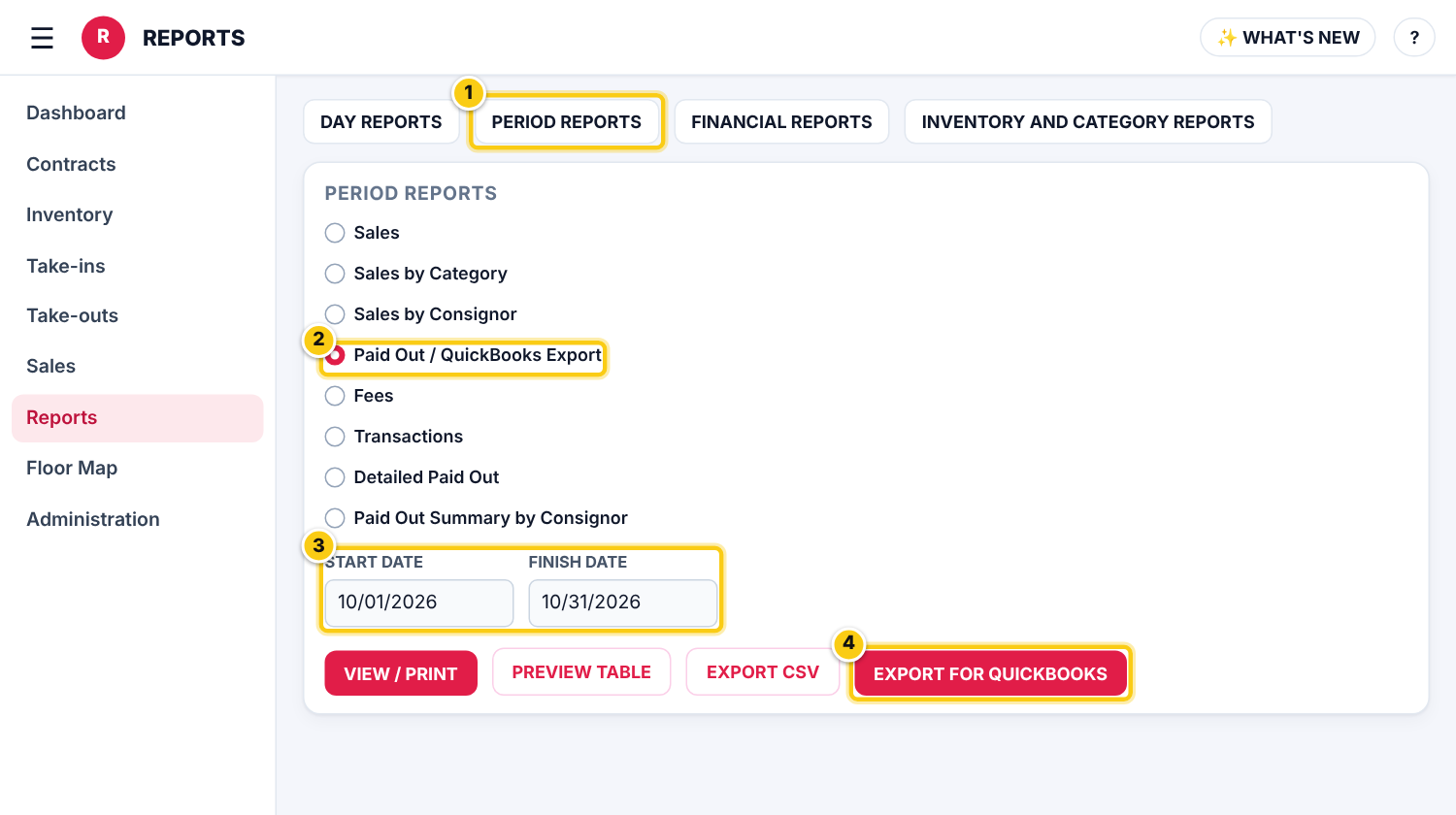
(1) PERIOD REPORTS, (2) Paid Out / QuickBooks Export, (3) the dates, (4) EXPORT FOR QUICKBOOKS.
Print it or open it in a spreadsheet
- VIEW / PRINT opens the report as a PDF to print or save.
- PREVIEW TABLE shows it on screen.
- EXPORT CSV downloads the data with the consignors’ contact details for Excel or Google Sheets; EXPORT AS EXCEL saves the printed report as an Excel file in your File Manager.
Who can do this (user rights)
| Right in User Maintenance | What it allows | Who has it at first |
|---|---|---|
| Reports | Shows Reports in the menu. | Users with Reports ticked in User Maintenance |
Questions
I need to see which items each payout paid for.
Pick Detailed Paid Out. For one line per consignor with their total, pick Paid Out Summary by Consignor.
Still stuck? Ask Rosebot (the bubble at the bottom right of Rose and myPortal) or contact Consignor Connect support.