![1512632091642-p-500.png]](https://help.consignorconnect.com/hs-fs/hubfs/1512632091642-p-500.png?width=131&height=50&name=1512632091642-p-500.png)
Vendors with Portal Pro can print their labels straight to their own label printer.
Set it up once (myPortal)
- Open the menu → KLOUDPRINT PRINTING and press SET UP PRINTING.
- Choose a password for the PrintNode app.
- Press DOWNLOAD THE PRINTNODE APP, install it on the computer your printer is plugged into, and sign in with the e-mail shown and that password.
- Back in myPortal, press THIS IS MY COMPUTER when it shows up, choose your label printer and press SAVE PRINTERS.
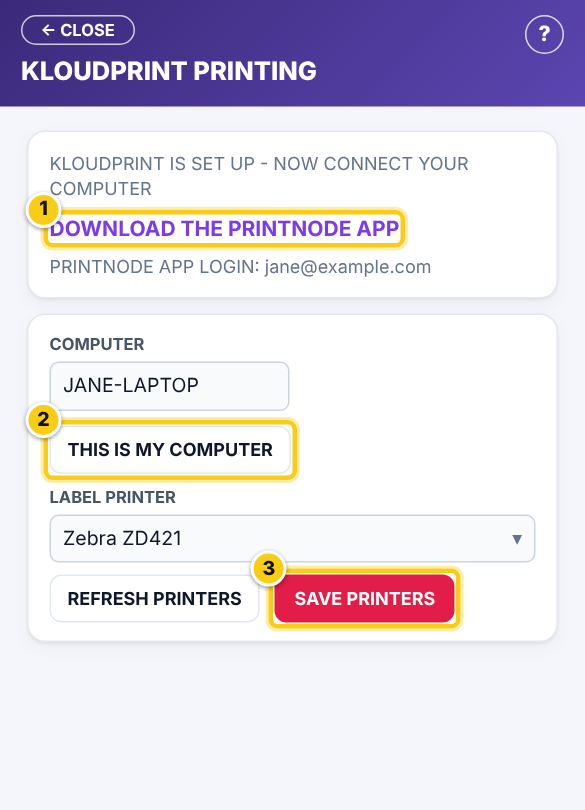
(1) download the app, (2) your computer, (3) SAVE PRINTERS.
- Your KloudPrint is your own: the store can’t see your printers, and you can’t see theirs.
Print (myPortal)
- In MY ITEMS, select items and press PRINT LABELS. They print straight away.
Questions
My printer isn't listed.
Make sure the PrintNode app is running and signed in on that computer, then press REFRESH PRINTERS.
Still stuck? Ask Rosebot (the bubble at the bottom right of Rose and myPortal) or contact Consignor Connect support.