![1512632091642-p-500.png]](https://help.consignorconnect.com/hs-fs/hubfs/1512632091642-p-500.png?width=131&height=50&name=1512632091642-p-500.png)
Still on Classic Rose? See the Classic Rose steps.
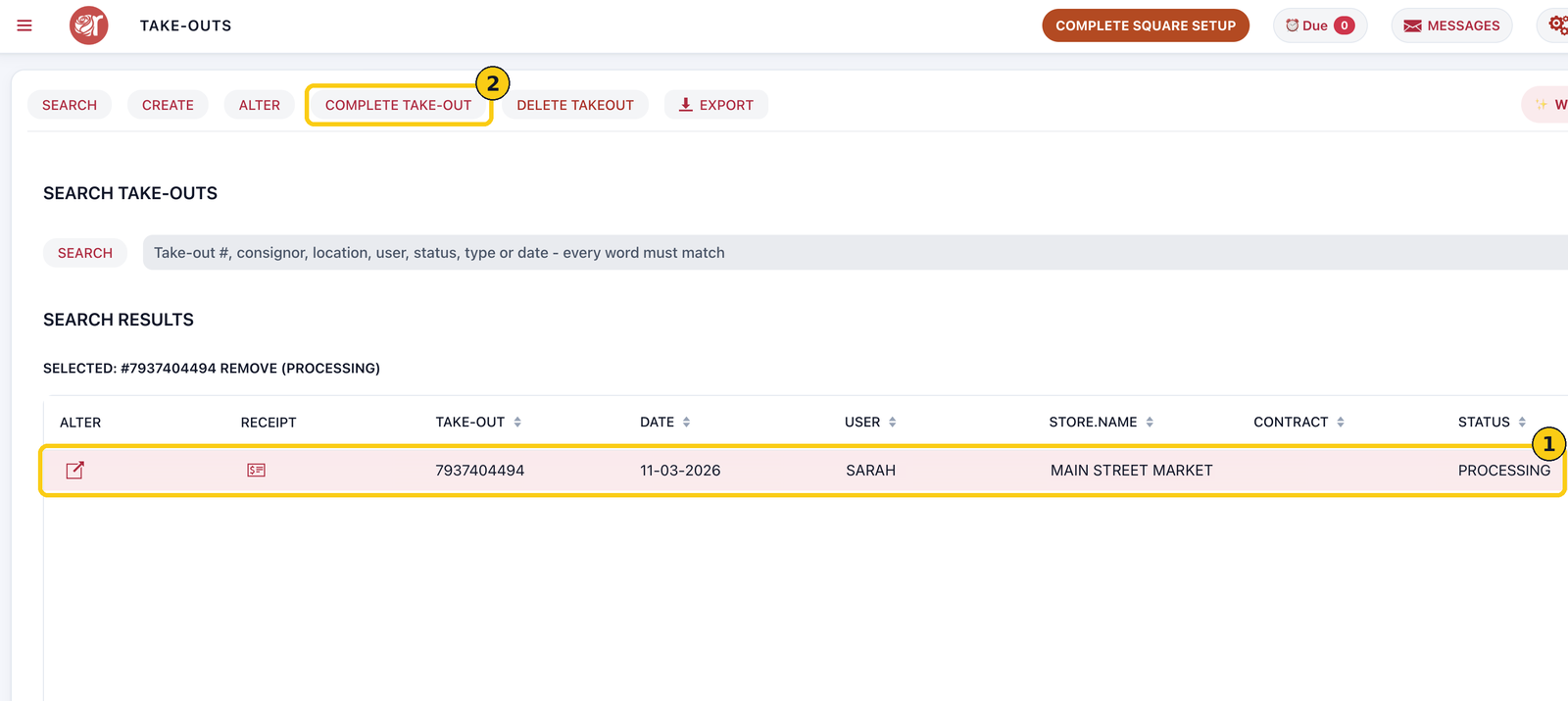
In each screenshot, the yellow boxes show what to click. Numbers give the order.
Overview
A take-out removes items from your stock and records why they left: damaged, donated, lost and so on. You build a take-out in three parts: create it, add the items, then complete it. Stock doesn't change until you complete the take-out.
Where to find it: Dashboard › menu (☰) › Take-outs.
Step 1: Open Take-Outs from the Dashboard
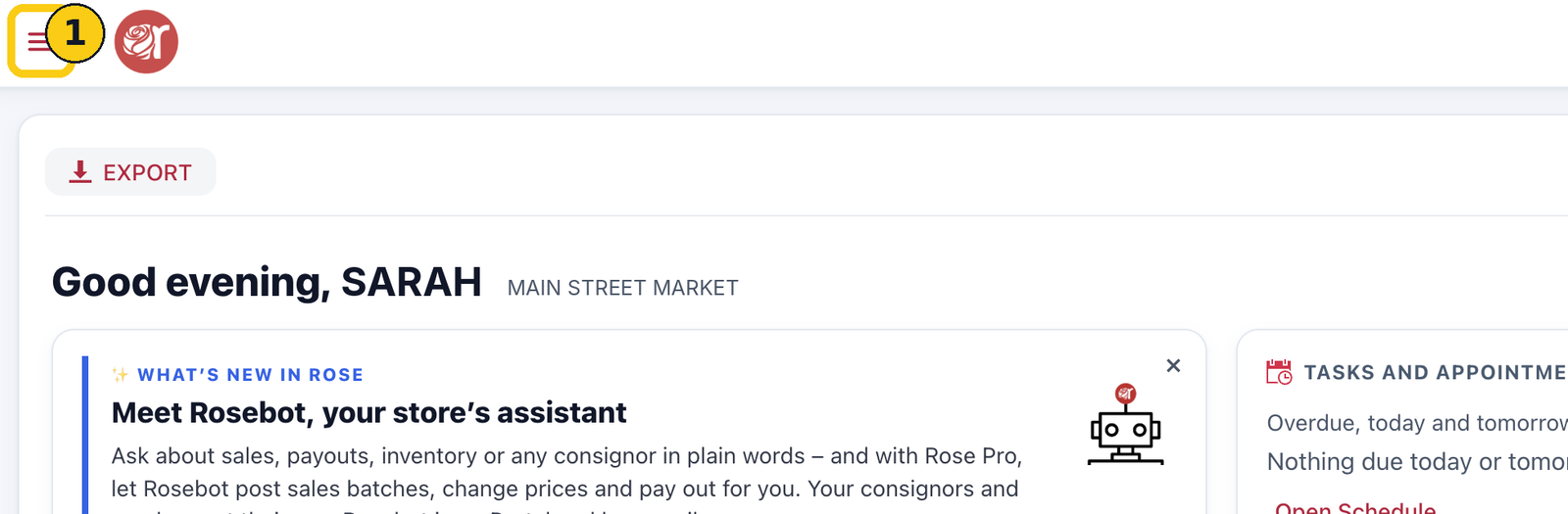
1. On your Dashboard, click the menu icon (☰) in the top-left corner.
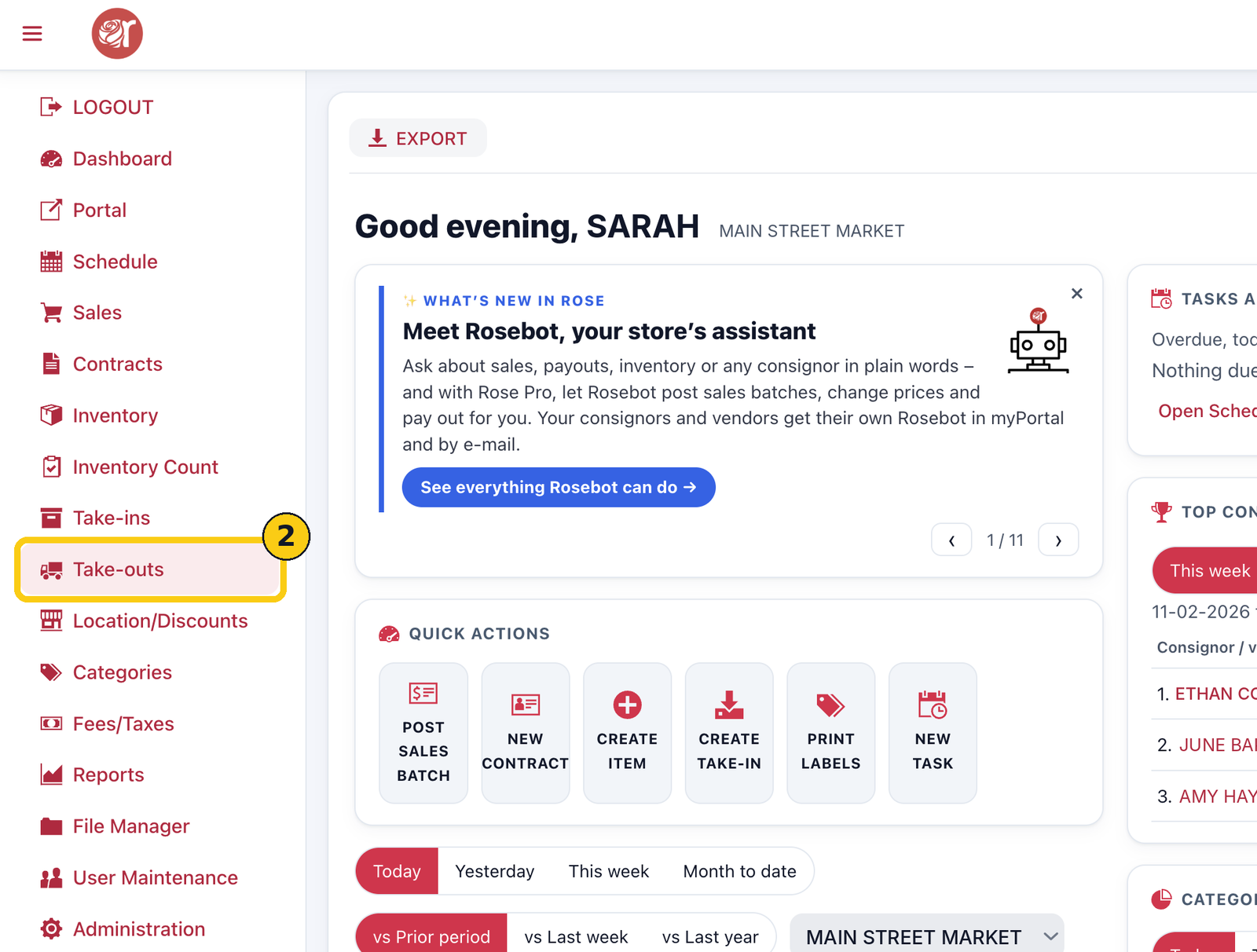
2. Click Take-outs.
Step 2: Create the take-out
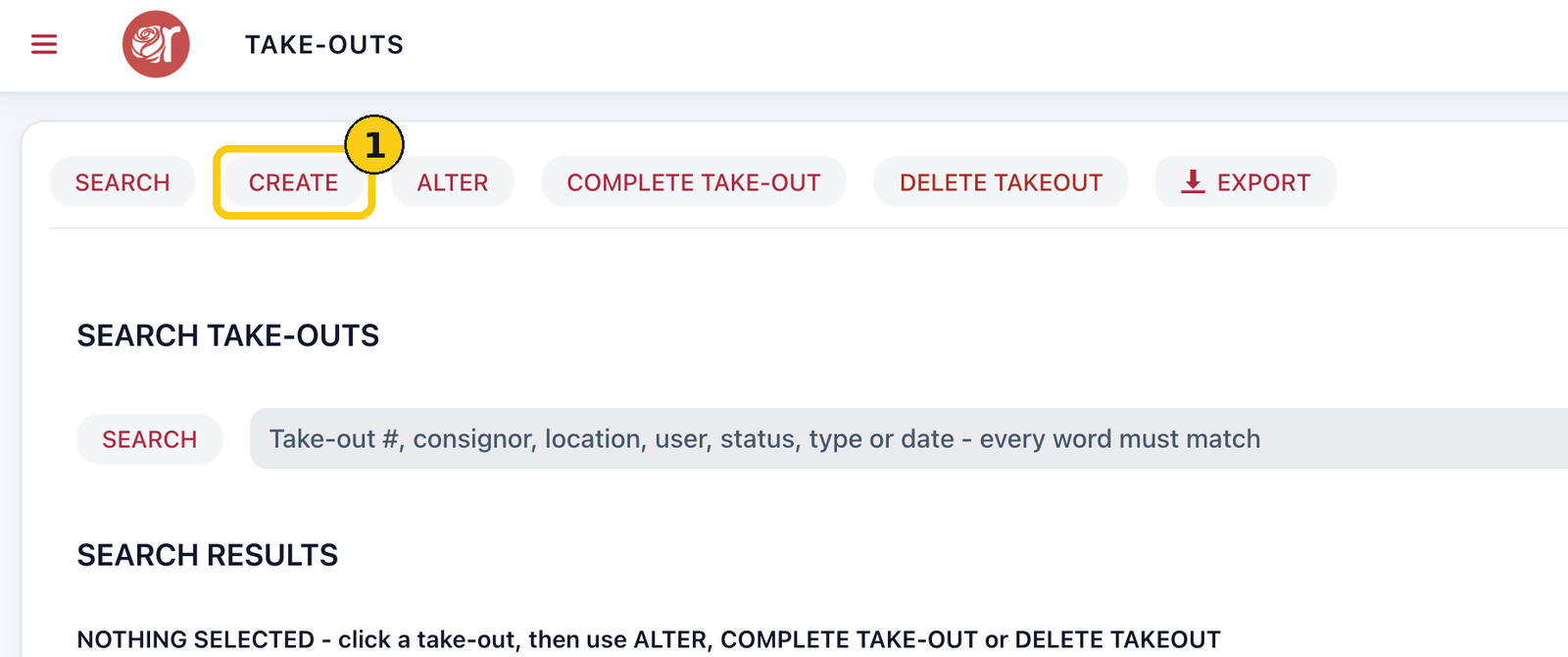
1. On the Take-Outs screen, click CREATE.
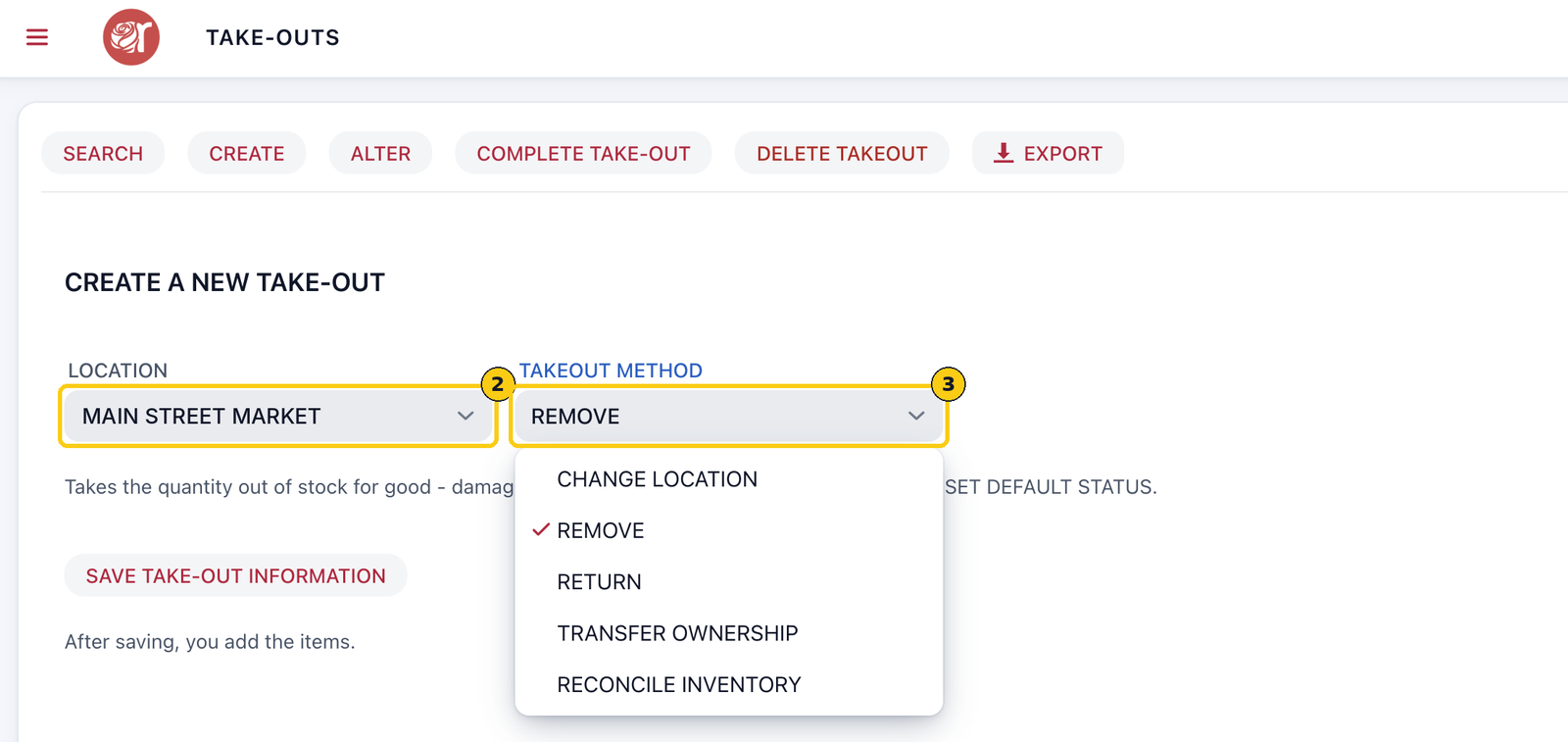
2. Pick the LOCATION the items are leaving from.
3. Pick the TAKEOUT METHOD. This guide uses REMOVE, which takes the quantity out of stock for good.
4. Click SAVE TAKE-OUT INFORMATION. Rose saves the take-out and opens it so you can add items.
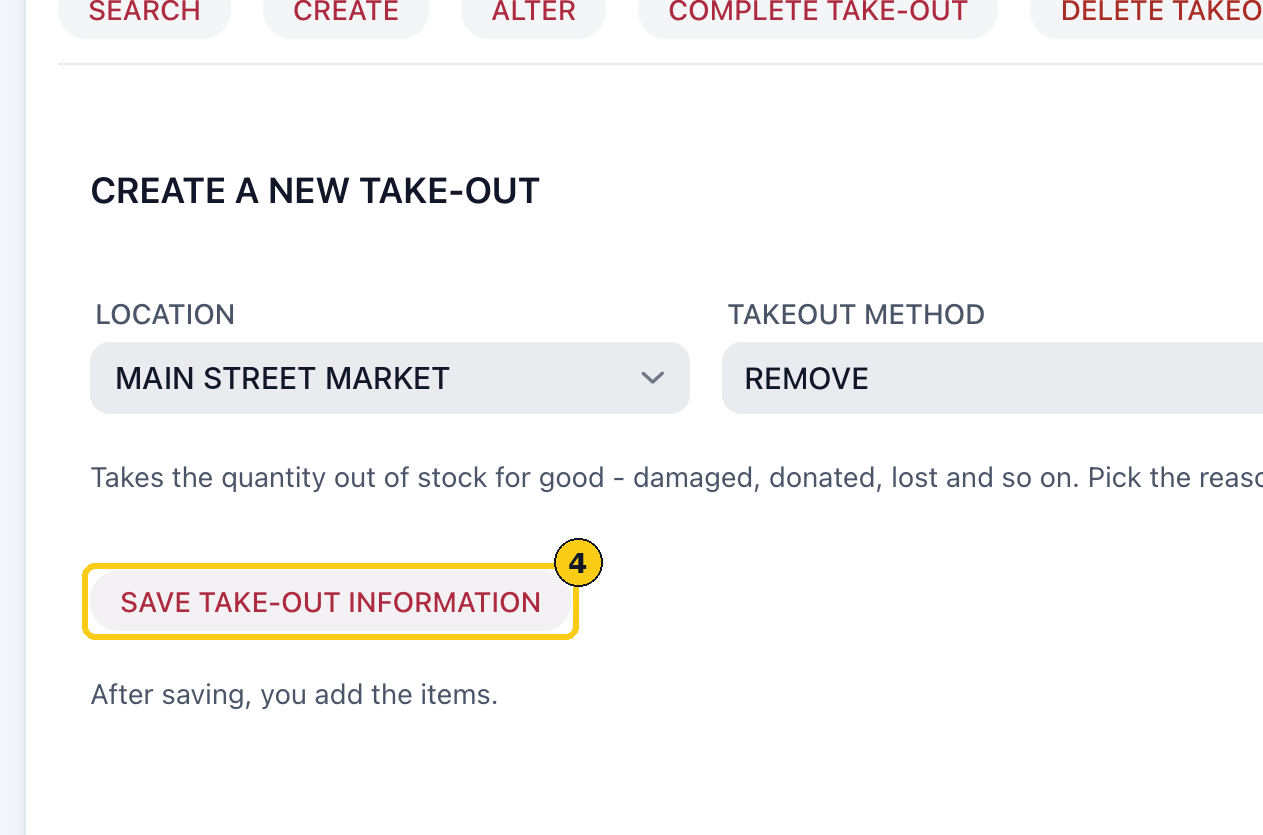
The TAKEOUT METHOD list also includes Change Location, Return, Transfer Ownership and Reconcile Inventory. Once saved, the location and method can't be changed.
Step 3: Add the items
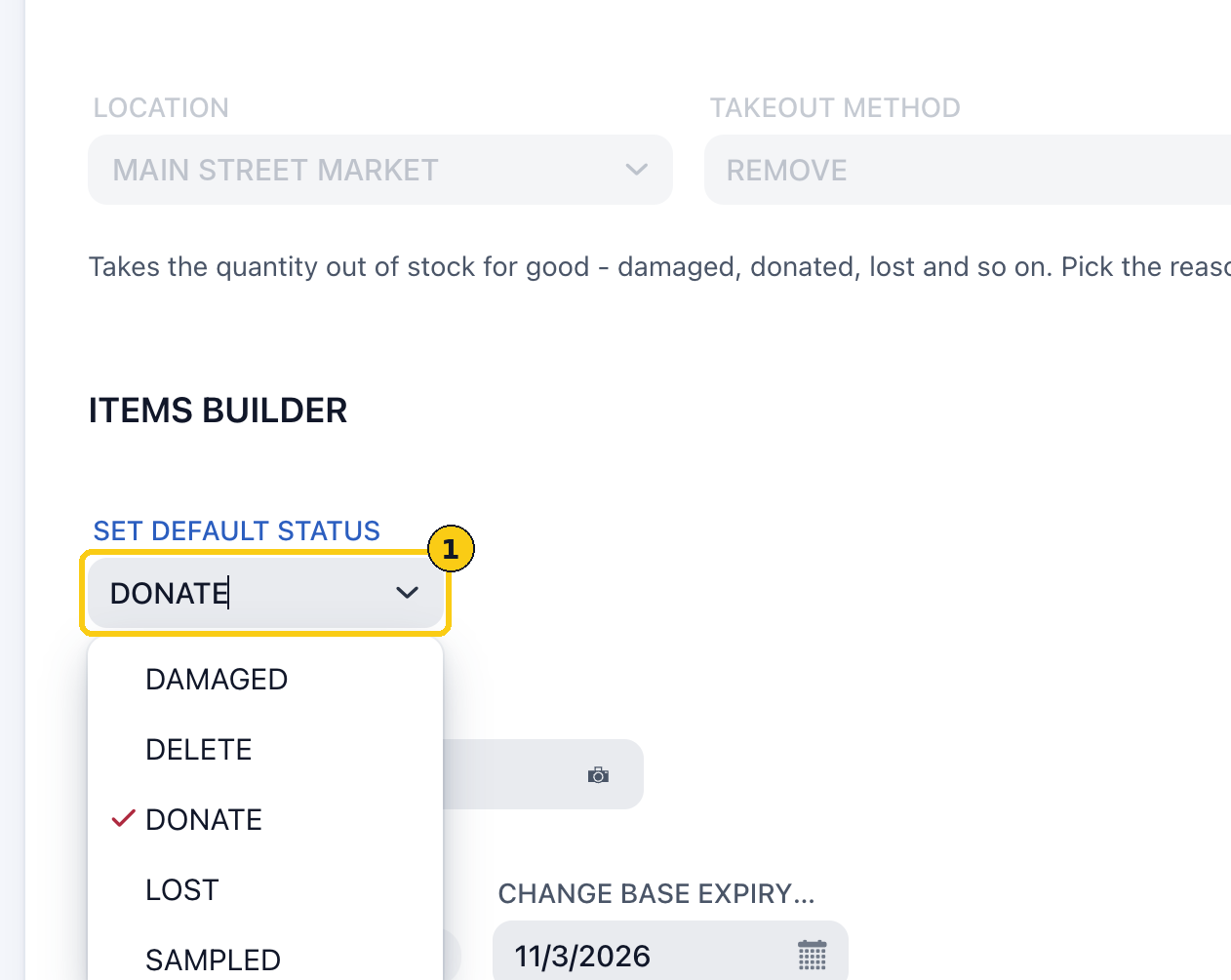
The ITEMS BUILDER opens under ALTER TAKE-OUT with the take-out number.
1. Choose the reason in SET DEFAULT STATUS: Damaged, Delete, Donate, Lost or Sampled. Every item you add next gets this status.
2. Type the item's SKU in the SKU box, or click the camera icon to scan its barcode.
3. Click SEARCH. The item is added to the TAKE-OUT ITEMLIST below.
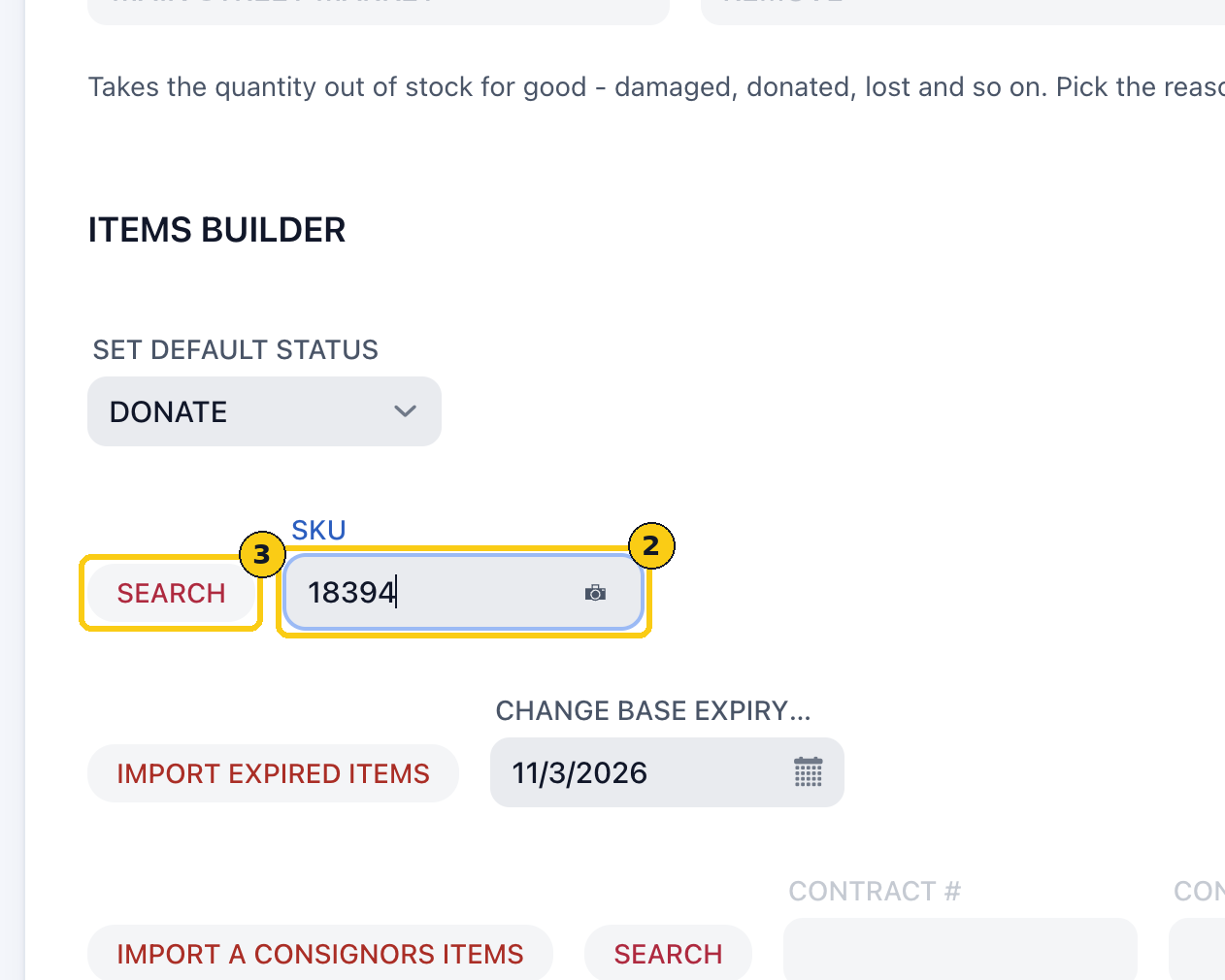
4. Repeat for each item.
Add many items at once
- IMPORT EXPIRED ITEMS adds items that have expired by the date in CHANGE BASE EXPIRY (today by default).
- IMPORT A CONSIGNORS ITEMS adds one consignor's items. Use the SEARCH button beside it to pick the contract first.
- TAKE OUT THE FULL ON-HAND QUANTITY takes every unit of each imported item. Untick it to take 1 of each.
Note: an import clears the item list and builds a new one. Imports are limited to 1,000 items, starting from the oldest expired.
Step 4: Check the item list
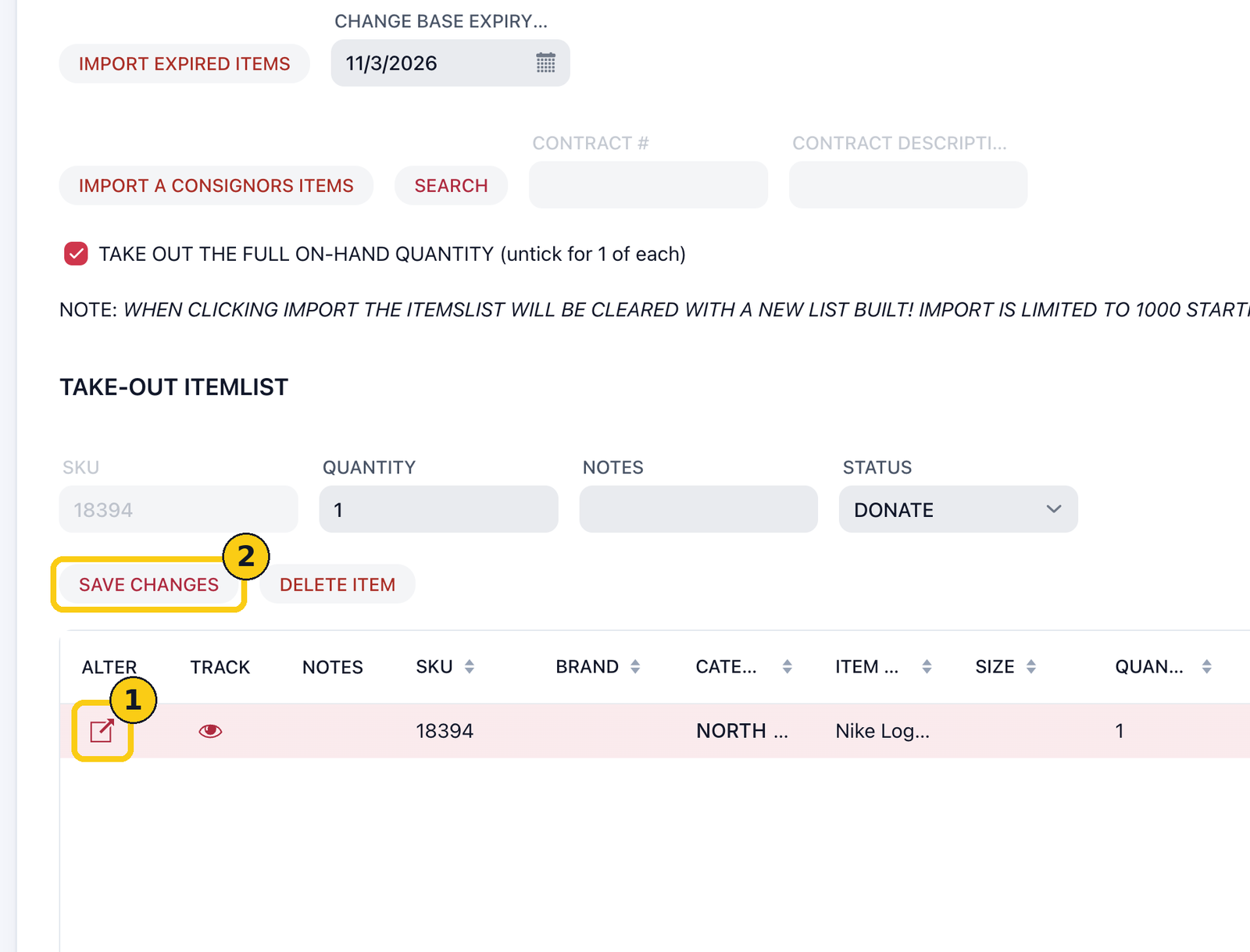
Every item you've added is listed in the TAKE-OUT ITEMLIST with its SKU, quantity, price, expiry, contract and status.
1. To change an item, click the edit icon in its ALTER column. Its SKU, quantity, notes and status fill in above the list.
2. Change the QUANTITY, NOTES or STATUS, then click SAVE CHANGES. To drop the item from the take-out, click DELETE ITEM instead.
Step 5: Complete the take-out
Until you complete it, the take-out shows as PROCESSING, and nothing has been taken out of stock.
1. Click SEARCH in the Take-Outs toolbar and click the take-out's row to select it.
2. Click COMPLETE TAKE-OUT.
3. Check the summary: the method, the number of items and the total quantity. Click YES.
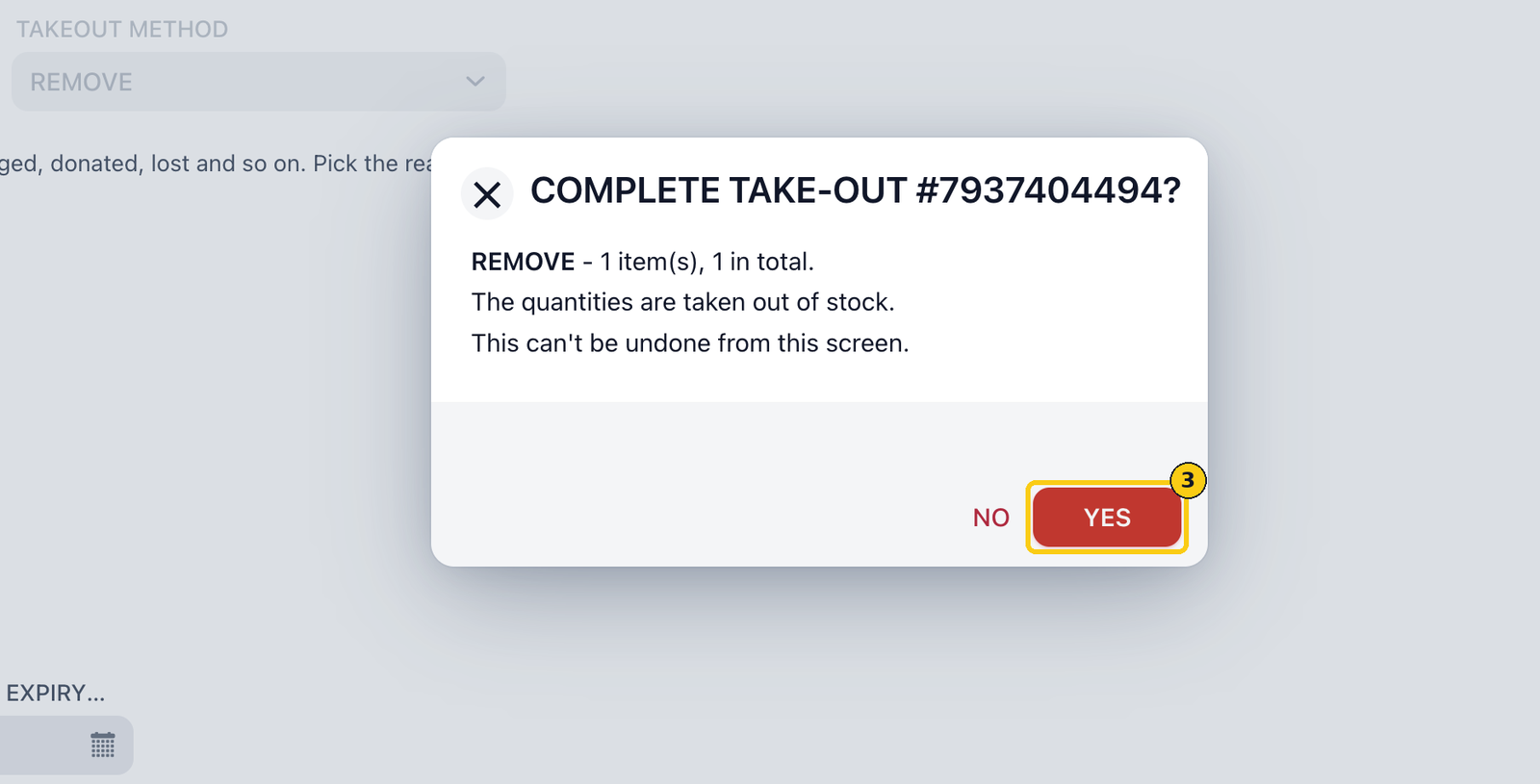
The quantities are taken out of stock. This can't be undone from this screen, so check the item list carefully before you confirm.
FAQ
Can I come back to a take-out later?
Yes. It's saved as soon as you click SAVE TAKE-OUT INFORMATION. Find it under SEARCH, click its row, then click ALTER to keep adding items.
Can items in one take-out have different reasons?
Yes. SET DEFAULT STATUS sets the reason for items as you add them. Change any single item's status in the item list.
What does the receipt icon do?
The icon in a take-out's RECEIPT column opens its receipt.
How do I get rid of a take-out I don't need?
Select it under SEARCH and click DELETE TAKEOUT.