![1512632091642-p-500.png]](https://help.consignorconnect.com/hs-fs/hubfs/1512632091642-p-500.png?width=131&height=50&name=1512632091642-p-500.png)
Check what is selling, what has sold and what you have been paid, and print a statement of your sales.
Your items (myPortal)
- Press MY ITEMS.
- Switch between SELLING (in the store now), SOLD UNPAID (sold, waiting for your next payout) and SOLD PAID (already paid).
- Search by name or SKU, and tick SHOW SOLD OUT to include sold-out items.
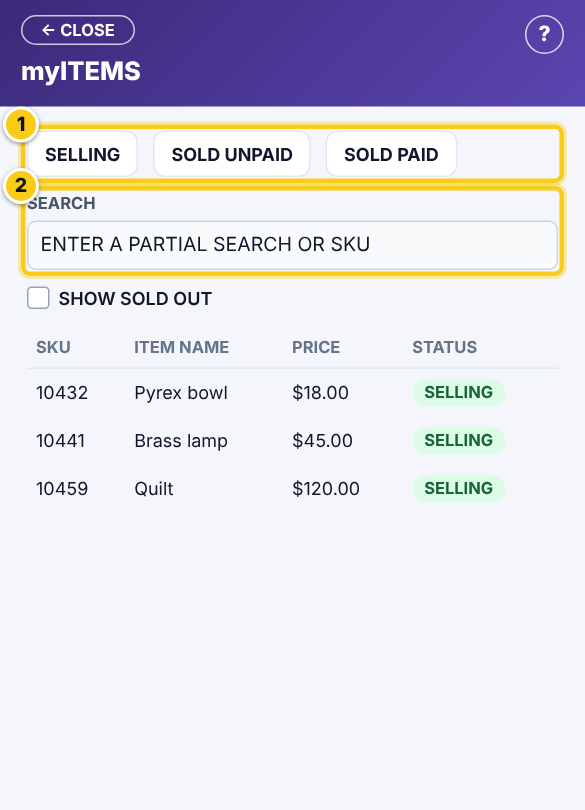
(1) selling, sold unpaid and paid, (2) search.
Your statement (myPortal)
- In MY ITEMS, open the sold items and press STATEMENT OF SALES.
- Pick the year and press PRINT.
Your payouts and account (myPortal)
- Press MY ACCOUNT. PAYOUTS shows each payout with its date, and your LAST PAYOUT and TOTAL PAID.
- Keep your contact details up to date there, and choose SALES E-MAILS FROM ROSEBOT if you want an e-mail when things sell.
- Paid by bank transfer? Add your bank in ROSE PAY.
Questions
When do I get paid?
Your store decides when payouts are made. Your sold unpaid items are what the next payout covers.
My item sold but shows as sold unpaid.
That’s right until the store makes its next payout; then it moves to sold paid.
Still stuck? Ask Rosebot (the bubble at the bottom right of Rose and myPortal) or contact Consignor Connect support.