![1512632091642-p-500.png]](https://help.consignorconnect.com/hs-fs/hubfs/1512632091642-p-500.png?width=131&height=50&name=1512632091642-p-500.png)
In each screenshot, the yellow boxes show what to click. Numbers give the order.
Overview
Find your question in the table, then open that report. Every report can be viewed and printed, previewed as a table, or exported to CSV or Excel.
Where to find it: Dashboard › menu (☰) › Reports. Some answers are on a consignor's contract instead, as the table shows.
Find your question
| Your question | Where to find the answer |
|---|---|
| What did one consignor sell? | Contracts › select the consignor › INVENTORY/REPORTING, or PAYOUT › VIEW ALL ACTIVITIES REPORT |
| What do I owe each consignor right now? | FINANCIAL REPORTS › Contract Balances |
| Who is due a payout? | FINANCIAL REPORTS › Contracts Due Payout |
| Which consignors haven't been paid in a while? | FINANCIAL REPORTS › NOT PAID IN (DAYS) |
| A list of all my consignors | FINANCIAL REPORTS › Contract List |
| Does yesterday's sales batch match Square? | DAY REPORTS › Batched Sales, or VIEW REPORT on the batch in Sales |
| Sales for a week, month or year | PERIOD REPORTS › Sales |
| Sales by consignor, or by category | PERIOD REPORTS › Sales by Consignor / Sales by Category |
| Store fees and charges collected | PERIOD REPORTS › Fees |
| Payouts for my bookkeeper | PERIOD REPORTS › Paid Out / QuickBooks Export or Detailed Paid Out |
| Each consignor's payout total for the year (1099s) | PERIOD REPORTS › Paid Out Summary by Consignor |
| What I owe consignors at year end | FINANCIAL REPORTS › End of Year Liability |
| Everything in stock, with cost and price | INVENTORY AND CATEGORY REPORTS › All Inventory |
| Items expiring soon, or already expired | INVENTORY AND CATEGORY REPORTS › Expiring - Next 7 Days / Expired Inventory |
| Take-ins not finished yet | INVENTORY AND CATEGORY REPORTS › Active Take-ins |
| What was returned to consignors or donated | TAKE-OUTS › TAKE-OUT REPORT (or TAKE-OUT RECEIPTS to reprint one) |
| An item disappeared. Who removed it? | DELETED ITEMS. PUT BACK returns items to inventory. |
| Who changed a balance, undid a payout or posted a batch? | AUDIT LOG (administrators only) |
Run a report
1. Open Reports and find the section from the table, for example PERIOD REPORTS.
2. Pick the report.
3. Set the date or dates. Period reports include both the start and finish dates. Financial and inventory reports use today's figures and need no date.
4. Click VIEW / PRINT to see it, or EXPORT CSV / EXPORT AS EXCEL for a spreadsheet.
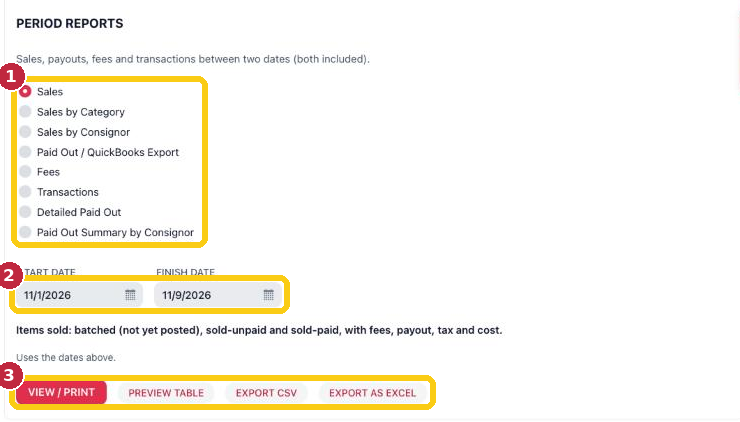
Pick the report (1), set the dates (2), then view, print or export (3).
Build your own report (Report Writer)
Need something the list doesn't have? Report Writer (side menu) lets you drag fields into a report, group and filter it, add charts and export to CSV, Excel or PDF. Rose Retail and Rose Pro include 1 saved report. Rose Enterprise includes unlimited reports, Ask Rosebot for reports, and scheduled report emails.
Questions
My report is empty.
Check the dates. For a sales report, the sales also need to be in a sales batch: sales that haven't been read from Square yet won't show.
What's the difference between Sales and Batched Sales?
Batched Sales (Day report) lists one day's sales batch. Sales (Period report) covers any dates and includes sales that are batched but not posted, sold but unpaid, and sold and paid.
Need more help? Visit the Help Center on our website, consignorconnect.com, ask your Rosebot, or email support@consignorconnect.com.