![1512632091642-p-500.png]](https://help.consignorconnect.com/hs-fs/hubfs/1512632091642-p-500.png?width=131&height=50&name=1512632091642-p-500.png)
Getting Started
First – do not plug your Dymo labelwriter into your computer yet. If your Dymo USB is plugged in, go ahead and unplug it now.
Download and Install the driver for the Dymo 450, 550, or Twin Turbo
- Download the drivers for the Dymo 450/550/Twin Turbo from dymo.com. Go to Support > Downloads: Software, Drivers & User Guides > Click on the Windows download. Or, click here to download directly.
- Go to your downloads folder, or click on the downloads icon at the top right of your Chrome browser.
- Open it and run the Install Wizard.
- Follow the Dymo install prompts and click Next.
- Once finished, plug the printer into your computer. Doing so before the driver install may require you to remove the printer from your Windows Printers and Scanners settings screen and then plug it back in.
Add the Labelwriter to your Windows computer
-
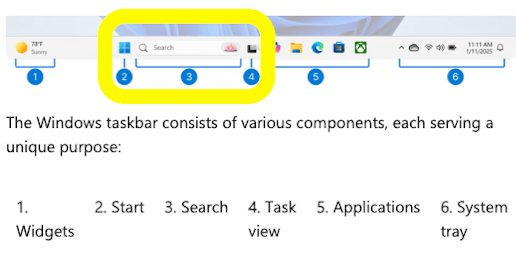
Navigate to/find the Printers and Scanners settings screen. Go to your Windows Search and type in “Printers and Scanners." (The current Windows 11 search screen is a centrally located, rounded floating pane that appears above the taskbar when clicking the search box/icon or pressing Win+S)
-
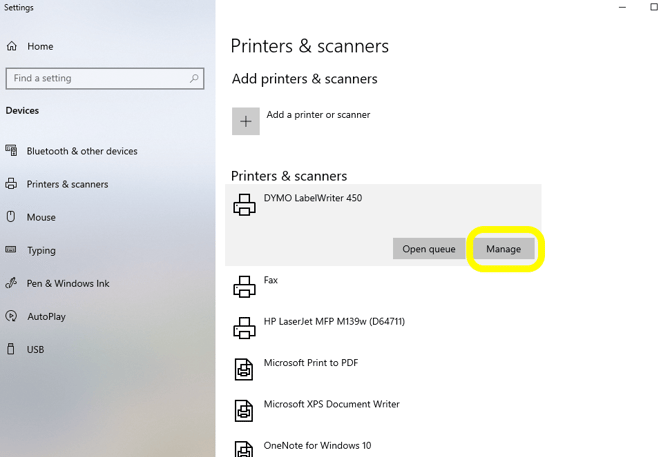
Click on Dymo Labelwriter 450, then Manage. If not showing, then click “Add a printer or scanner” and Windows will search via USB/Bluetooth or give other options to locate. If you are not seeing the printer listed after Windows search, try restarting your computer.
-
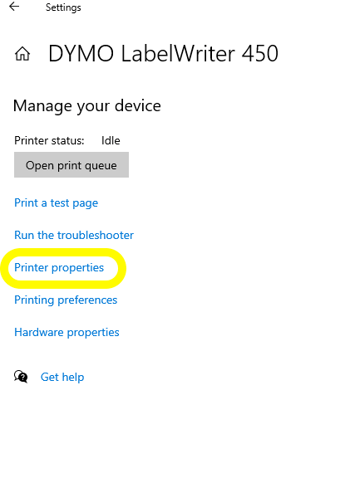
- Click on Printer Properties.
- Best Practice Tip: Name your Labelwriter. Follow instructions below if you use multiple printers.
- Rename your Printer (ex. Location) and click OK.
- Go Back to the main Printers and Scanners screen to refresh the name. Windows will not allow you to change advanced printer preferences till you do.
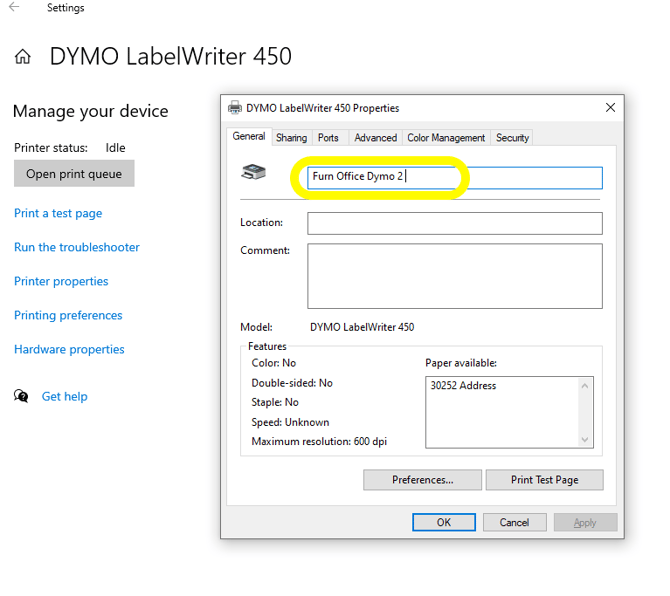
- Click on "Preferences" button next to Print Test Page.
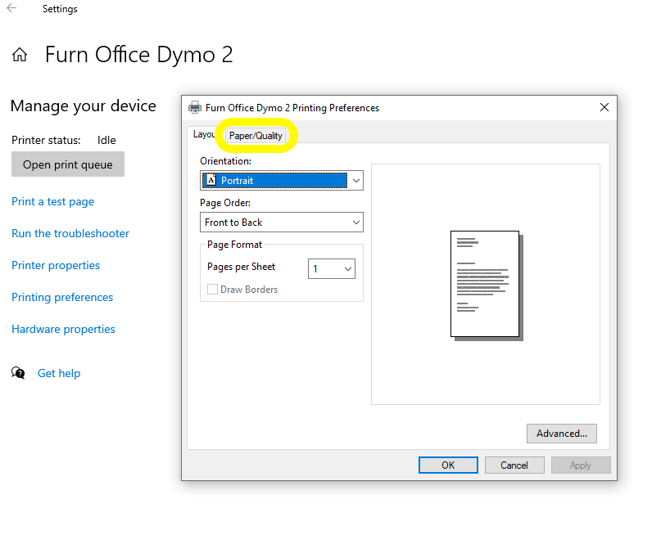
- Click on “Your New Name Printer” and click Manage, as you did in Step 9. Keep the Orientation as Portrait and leave those settings as is. Click on the Paper/Quality tab.
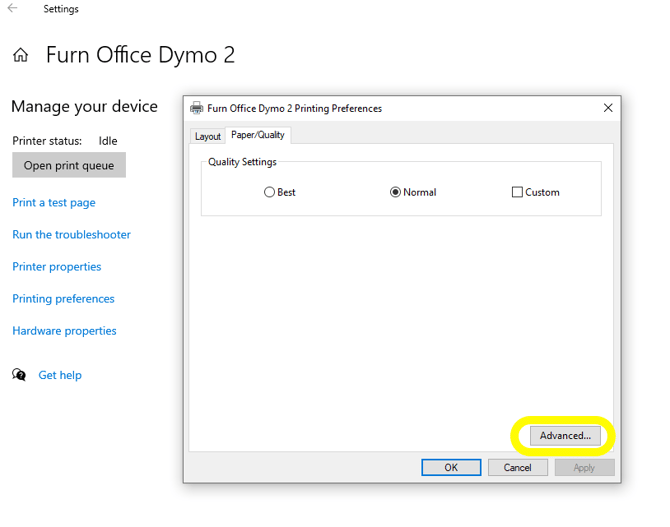
- Click Advanced.
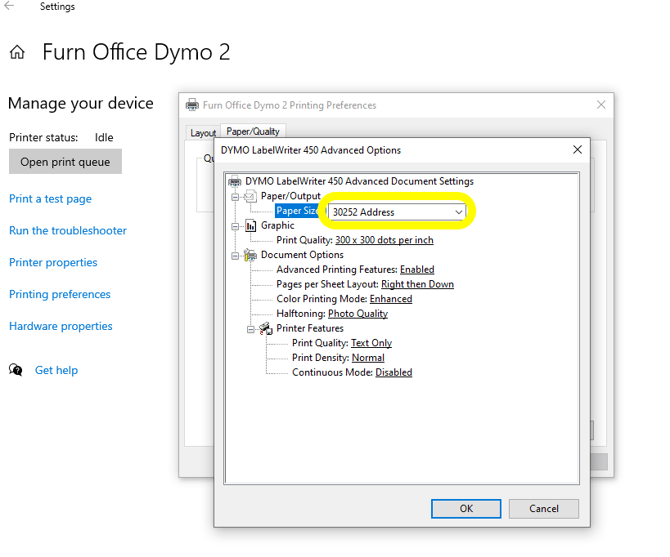
- Change the paper size from the 30252 Address to 30334 2-¼ x 1-¼ in.
- IMPORTANT NOTE: The Paper Size will ALWAYS be 30334 2-¼ x 1-¼ in. regardless of what paper size you have in your DYMO (or Zebra, Jaden, or Ozemzizy). This is a default Rose setting to make it easier by not having to select a different paper size when switching between standard 2-¼ x 1-¼ in., 1 x 1 in., or jewelry labels.
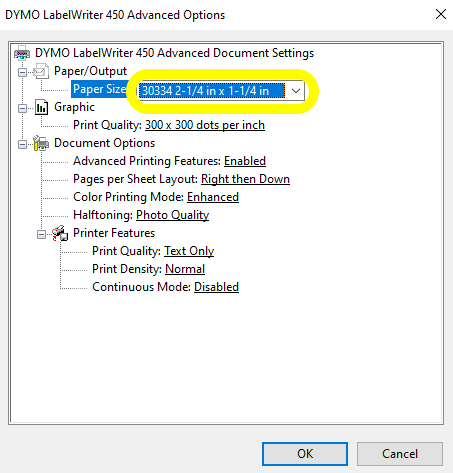
- Click Ok and you’re done!
- If you want to print on a different label than the default label (30334), you will have to alter and save the item in Rose on a small label or jewelry label.

- For Rose Trial and Rose Retail customers, only single-label printing is offered. Use the Label icon on the left to print your item’s label for each one created. You may not select multiple items nor use the “Print Labels for Selected” on Rose Retail or Rose Trial subscriptions.
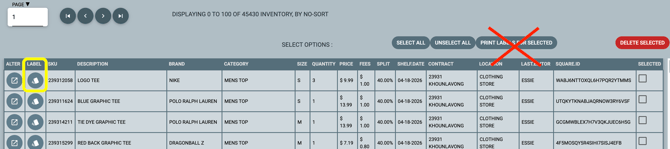
- The "Print Labels for Selected" function on the Inventory and Take-In screen is exclusively available to active Rose Pro subscribers who have a Kloudprint login.
Rose supports three Dymo label sizes:
- 30334 - 2-1/8" x 1-1/8" (Default)
- 30332 - 1"x 1" (Small)
- 30299 - 2-1/8" x 7/16" (Jewelry)