![1512632091642-p-500.png]](https://help.consignorconnect.com/hs-fs/hubfs/1512632091642-p-500.png?width=131&height=50&name=1512632091642-p-500.png)
Still on Classic Rose? See the Classic Rose steps.
The short version: set the paper size to the label you are printing. It's in Chrome's print window under More settings.
1. Install the DYMO driver
First, don't plug your DYMO LabelWriter into your computer yet. If it's plugged in, unplug it now.
- Download the driver for the DYMO 450, 550 or Twin Turbo from dymo.com: Support › Downloads: Software, Drivers & User Guides, then the Windows download. Or click here to download it directly.
- Open your Downloads folder (or the downloads icon at the top right of Chrome) and run the Install Wizard. Follow the prompts and click Next.
- When it finishes, plug the printer into your computer. If you plugged it in before installing, remove the printer from Printers & scanners, then plug it back in.
2. Find your DYMO in Windows
1. Click the Windows Search box (or press Win+S), type printer and choose Printers & scanners.
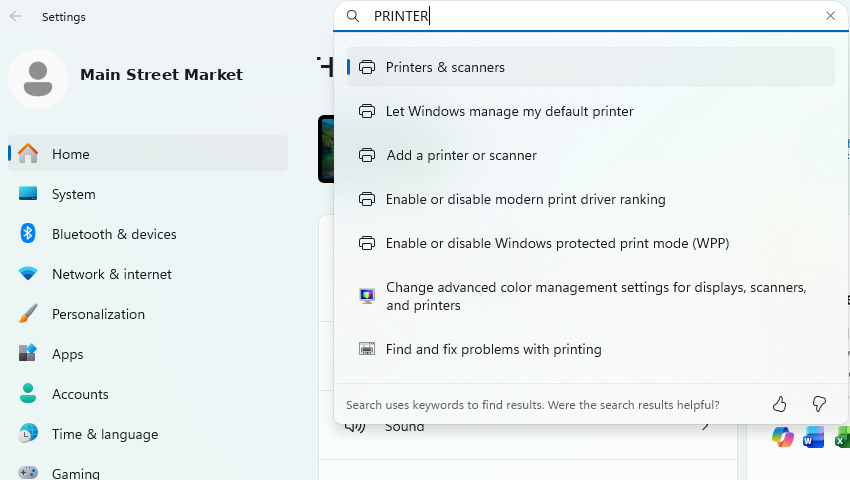
Search for "printer" and open Printers & scanners.
2. Click your DYMO LabelWriter in the list. Not there? Click Add device and Windows will look for it. If it still doesn't show, restart your computer.
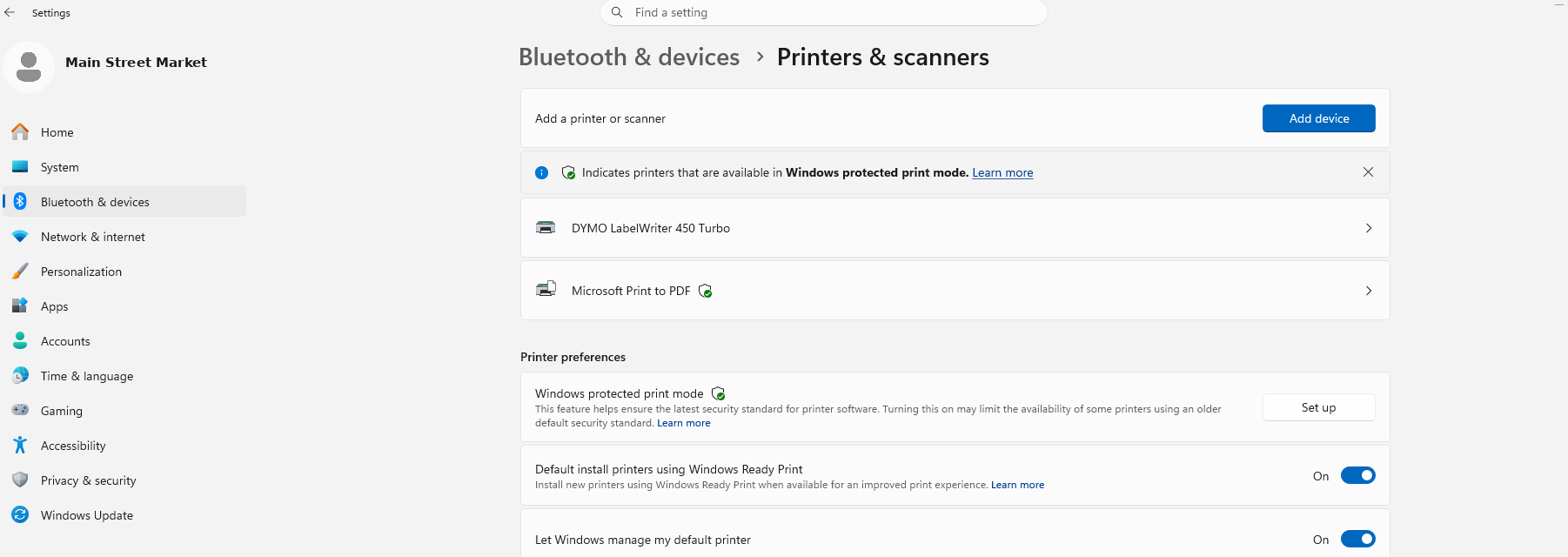
Your DYMO in Printers & scanners.
Tip: using more than one label printer? Name each one (for example by location) under Printer properties, so you pick the right one when you print.
3. Set the DYMO's paper size
Set the paper size to the label you print most. You can still pick another size each time you print (section 5).
1. On the DYMO's page, click Printing preferences. On the Layout tab, leave Orientation on Portrait.
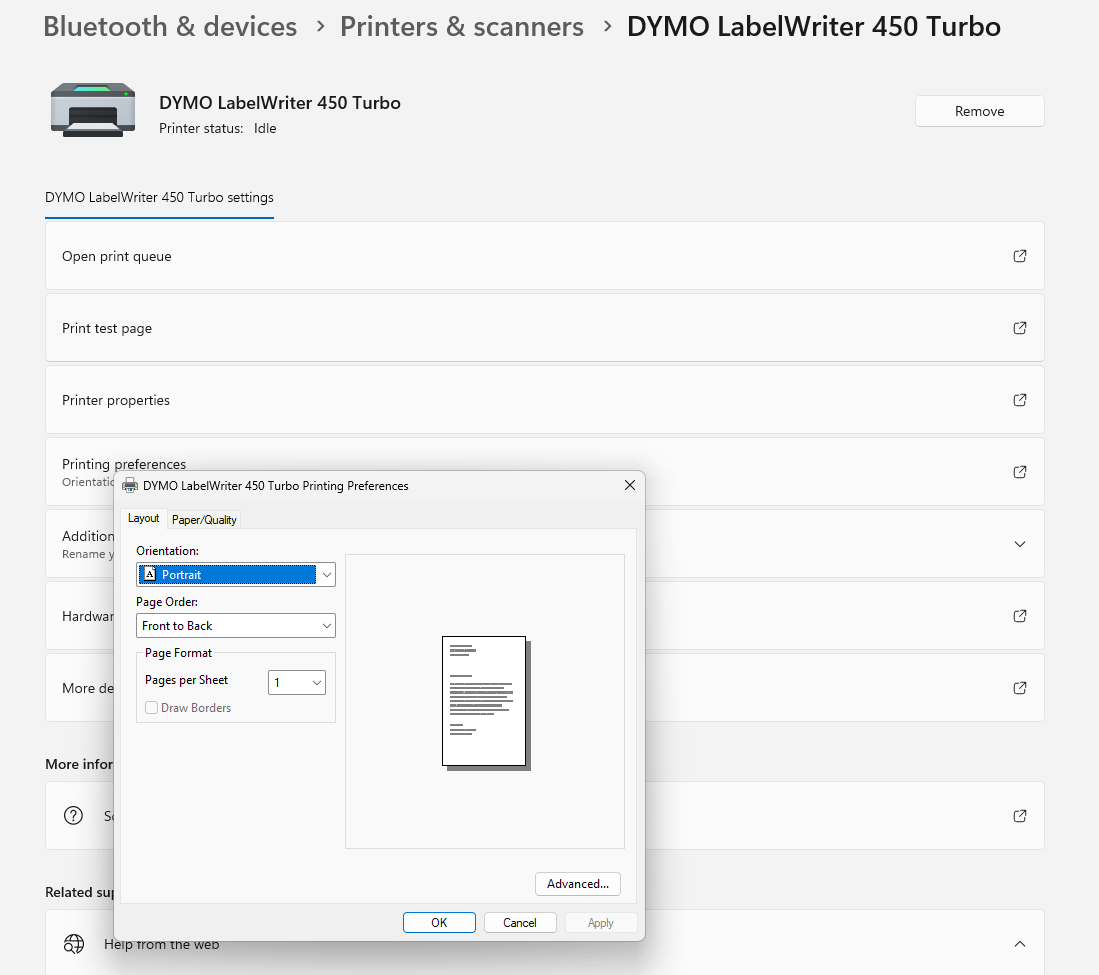
2. Click the Paper/Quality tab, then Advanced.
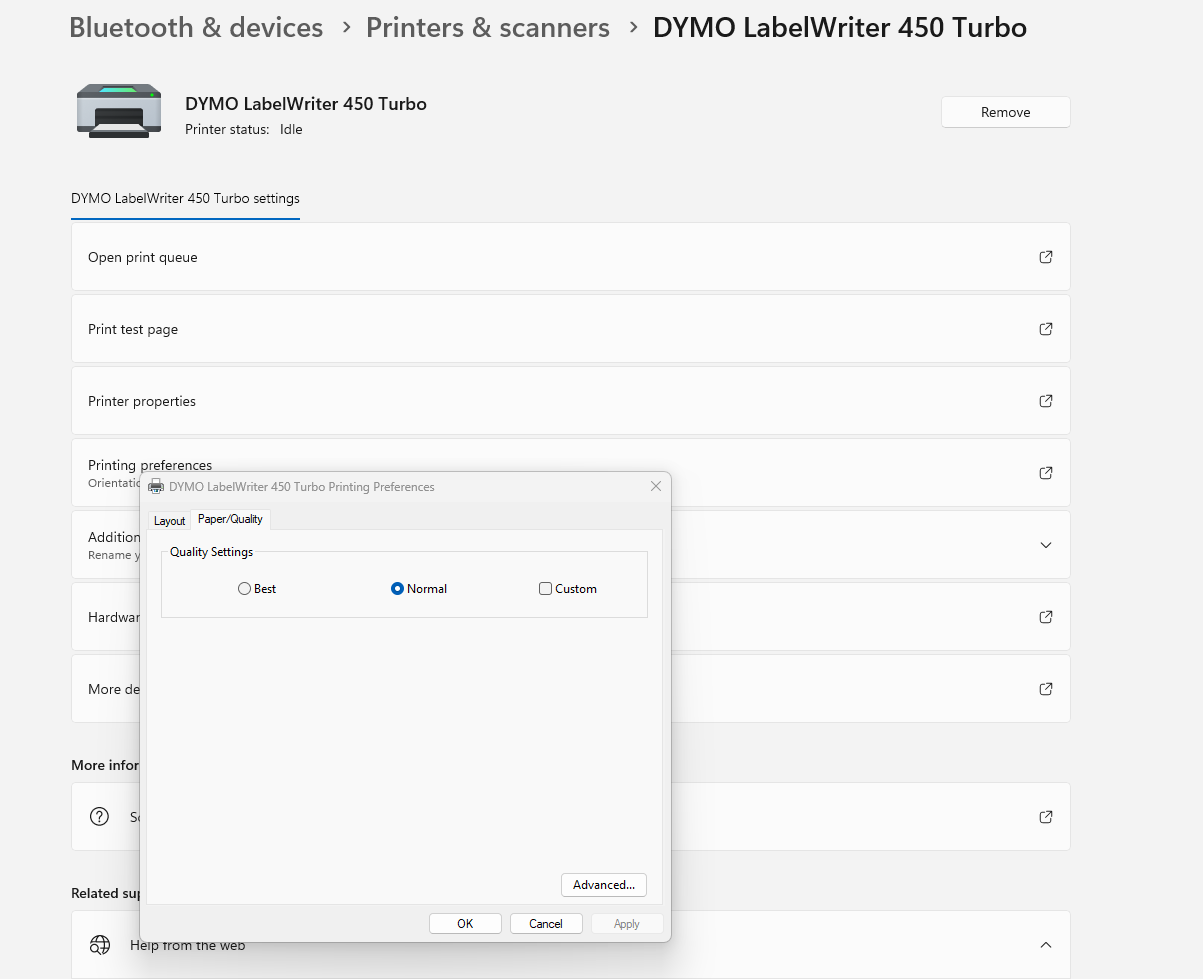
3. Paper Size starts on 30252 Address. That's the wrong size for Rose labels.
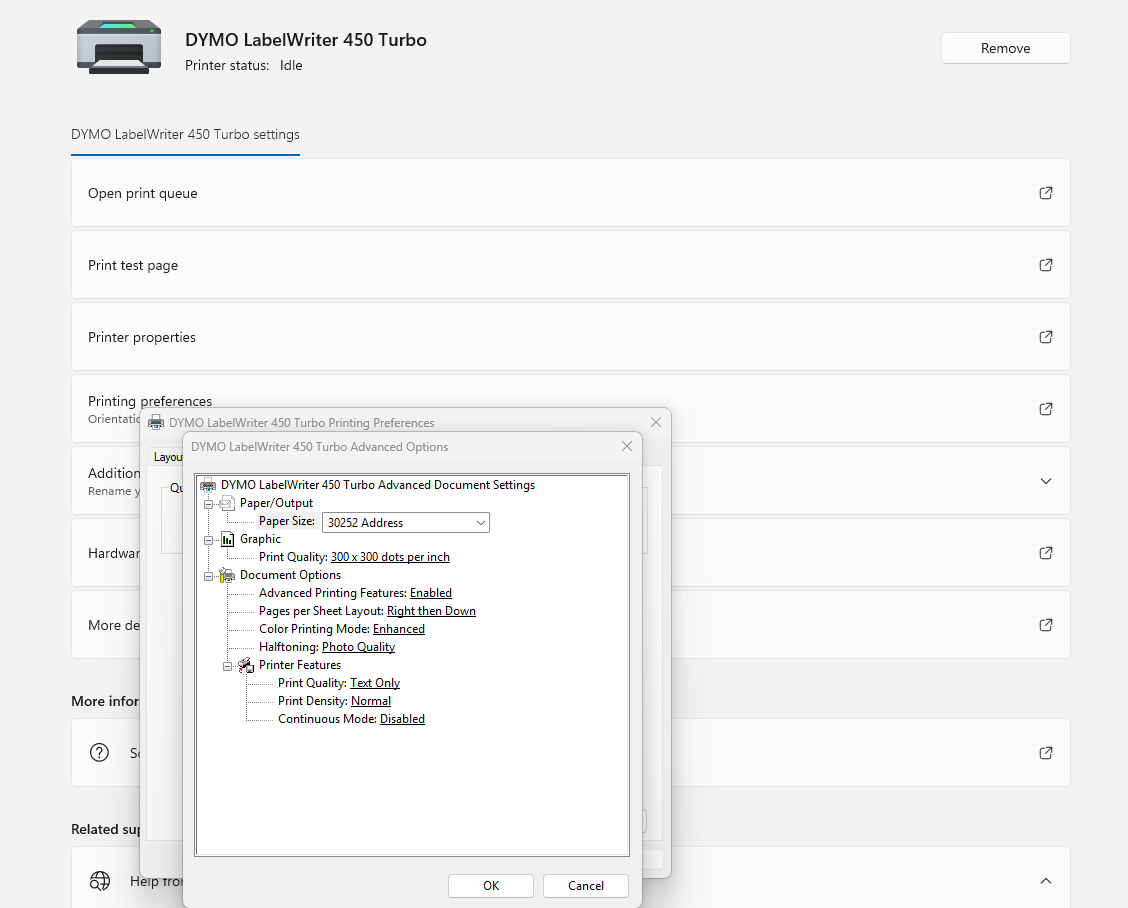
The DYMO starts on 30252 Address. Change it.
4. Open the Paper Size list and pick your label:
- 30334 2-1/4 in x 1-1/4 in for the usual 2-¼ x 1-¼ label
- 30332 1 in x 1 in for 1 x 1 labels
- 30299 Jewelry Label (2 up) for jewelry labels
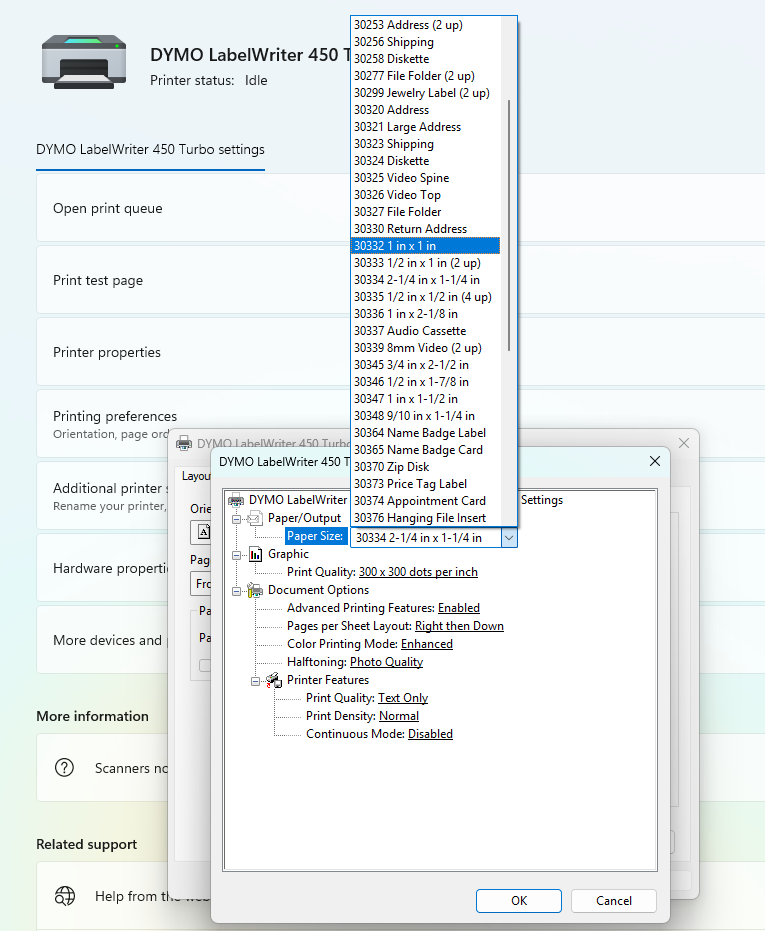
The Paper Size list (30332 1 x 1 highlighted).
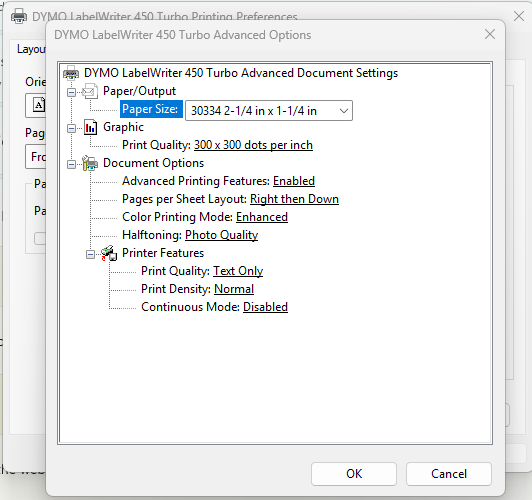
Set for the usual 2-¼ x 1-¼ label: 30334.
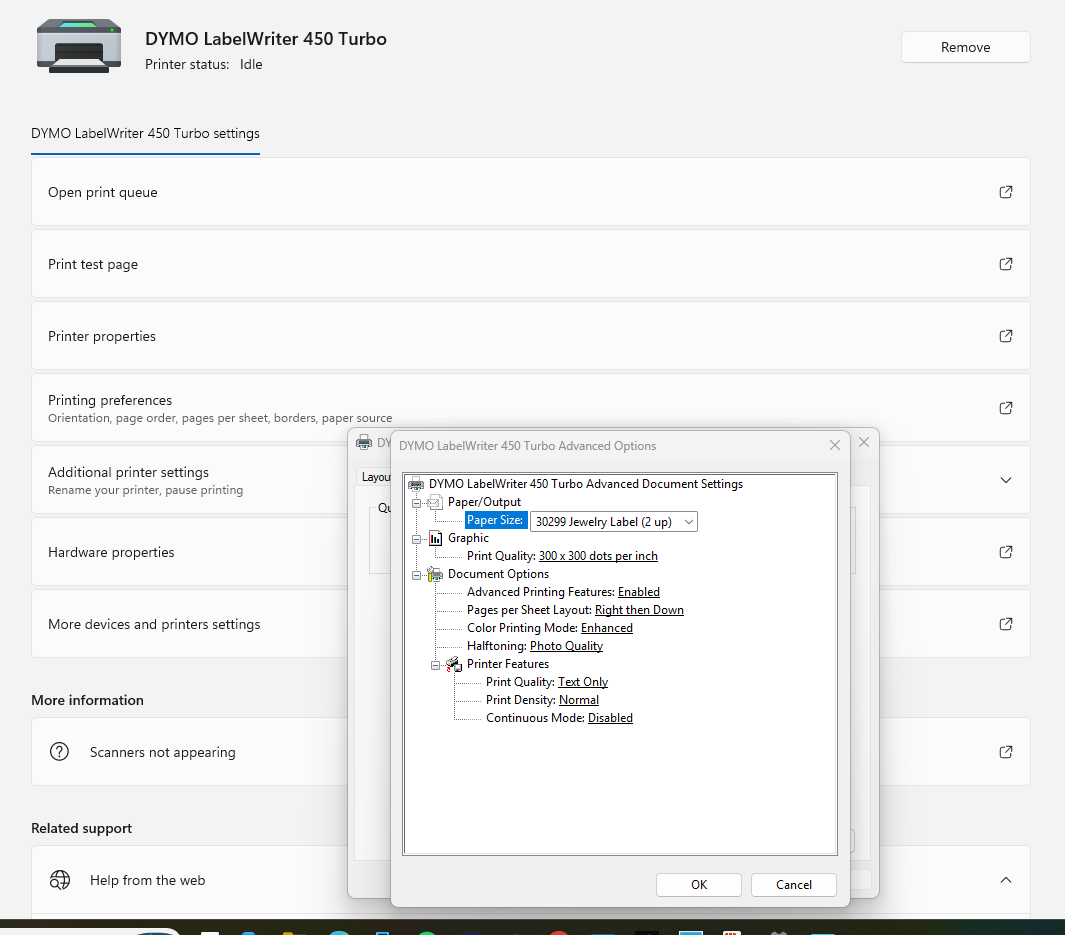
Set for jewelry labels: 30299.
5. Click OK, then OK again. Your printer is ready.
New in Rose 3.0: the paper size must match the label. The old Rose always printed on 30334, whatever label you used. Rose 3.0 prints each label at its real size, so the paper size has to be the same as the label you print. The one exception is DYMO 1 x 1 (OLD ROSE), which still prints on 30334.
4. Which paper size goes with which label
| LABEL TYPE in Rose | Paper size |
|---|---|
| DYMO / ZEBRA 2 1/4 x 1 1/4 LABEL - 30334 (the usual label) | 30334 2-1/4 in x 1-1/4 in |
| DYMO 1 x 1 (OLD ROSE) ON 2 1/4 x 1 1/4 LABEL - 30334 | 30334 2-1/4 in x 1-1/4 in. Use this if your printer is set to 30334 and you don't want to change it. |
| DYMO 1 x 1 LABEL - 30332 | 30332 1 in x 1 in |
| DYMO JEWELRY LABEL 7/16 x 2 1/8 - 30299 | 30299 Jewelry Label (2 up) |
| Zebra jewelry, Zebra 1 x 1, DYMO / ZEBRA 2 x 1 or 2 x 1.5 | The same size in your printer's paper list |
| AVERYLABELS 1 x 1 (Presta 94103) or 1 x 2-5/8 (5160) | Letter, on a regular office printer |
5. Print a label from Rose
1. In Inventory or Take-ins, click the red tag in the item's LABEL column. The PRINT PREVIEW opens.
2. Check the LABEL TYPE. It starts with the item's own label. Pick another one if you need it.
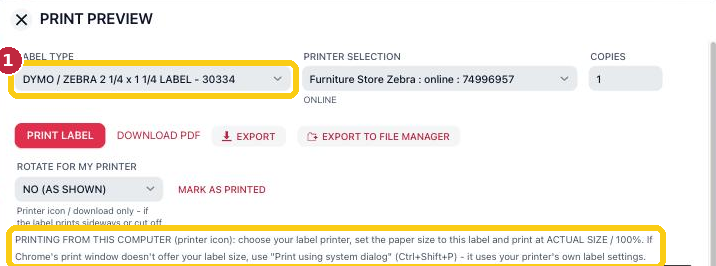
Choose the LABEL TYPE (1). Rose's printing tip is under it.
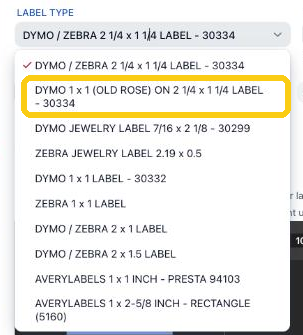
The 10 label types. DYMO 1 x 1 (OLD ROSE) still prints on 30334.

Example: a 1 x 1 label (30332) ready to print.
3. Click the printer icon above the label. Chrome's print window opens.
4. Set Destination to your DYMO. If it isn't listed, click See more and pick it.
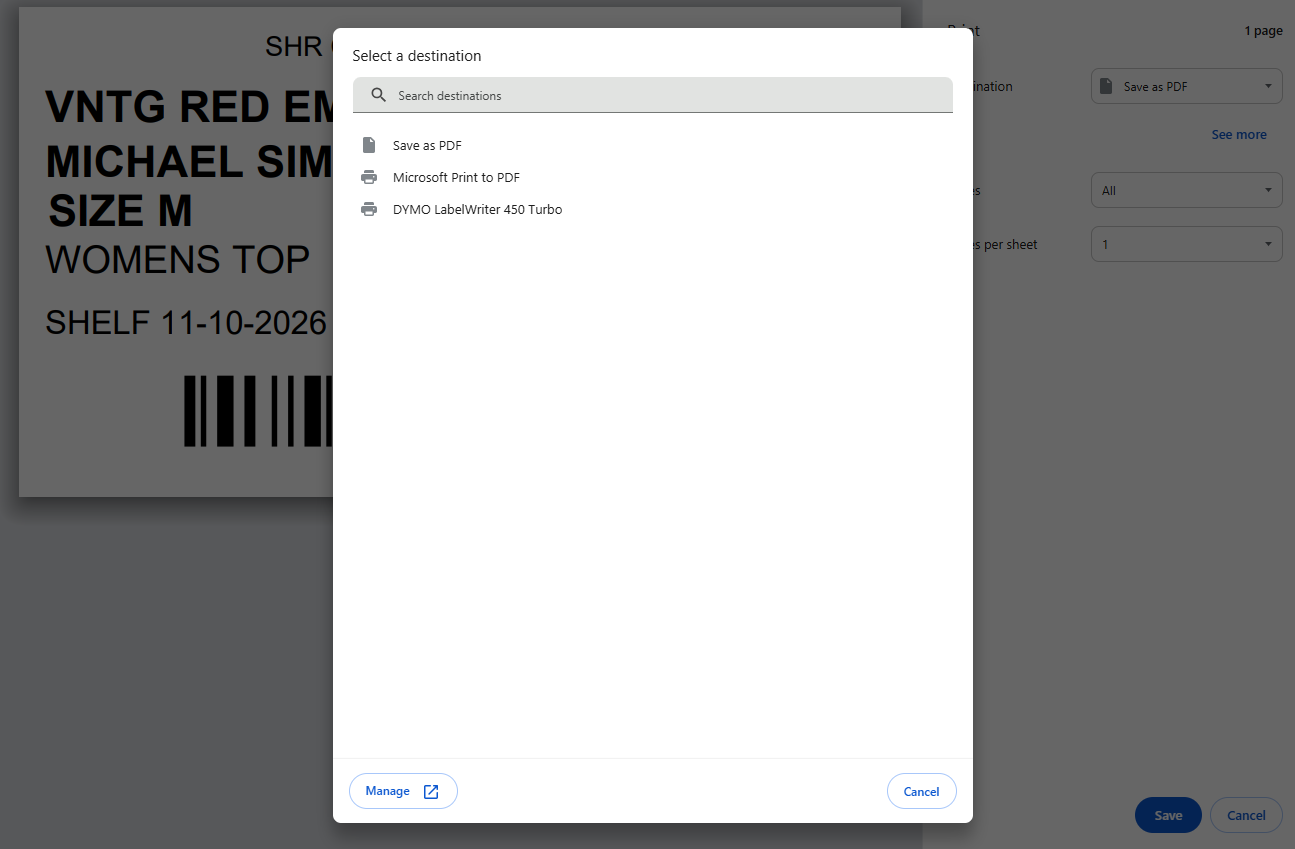
5. Click More settings. Set Paper size to match the label (see the table). Leave Scale on Default. Then click Print.
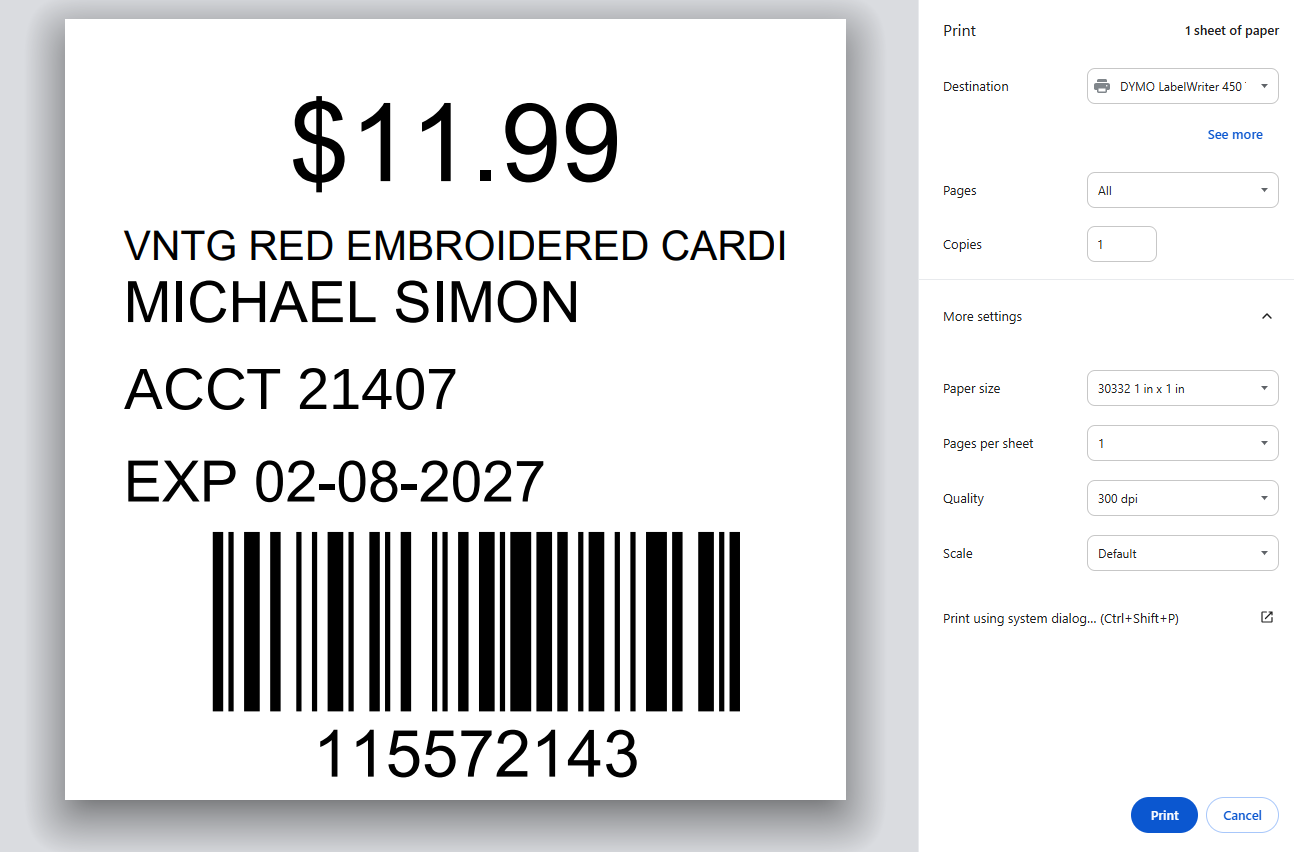
A 1 x 1 label: paper size 30332.
Chrome remembers these settings, so next time you usually only need to check them.
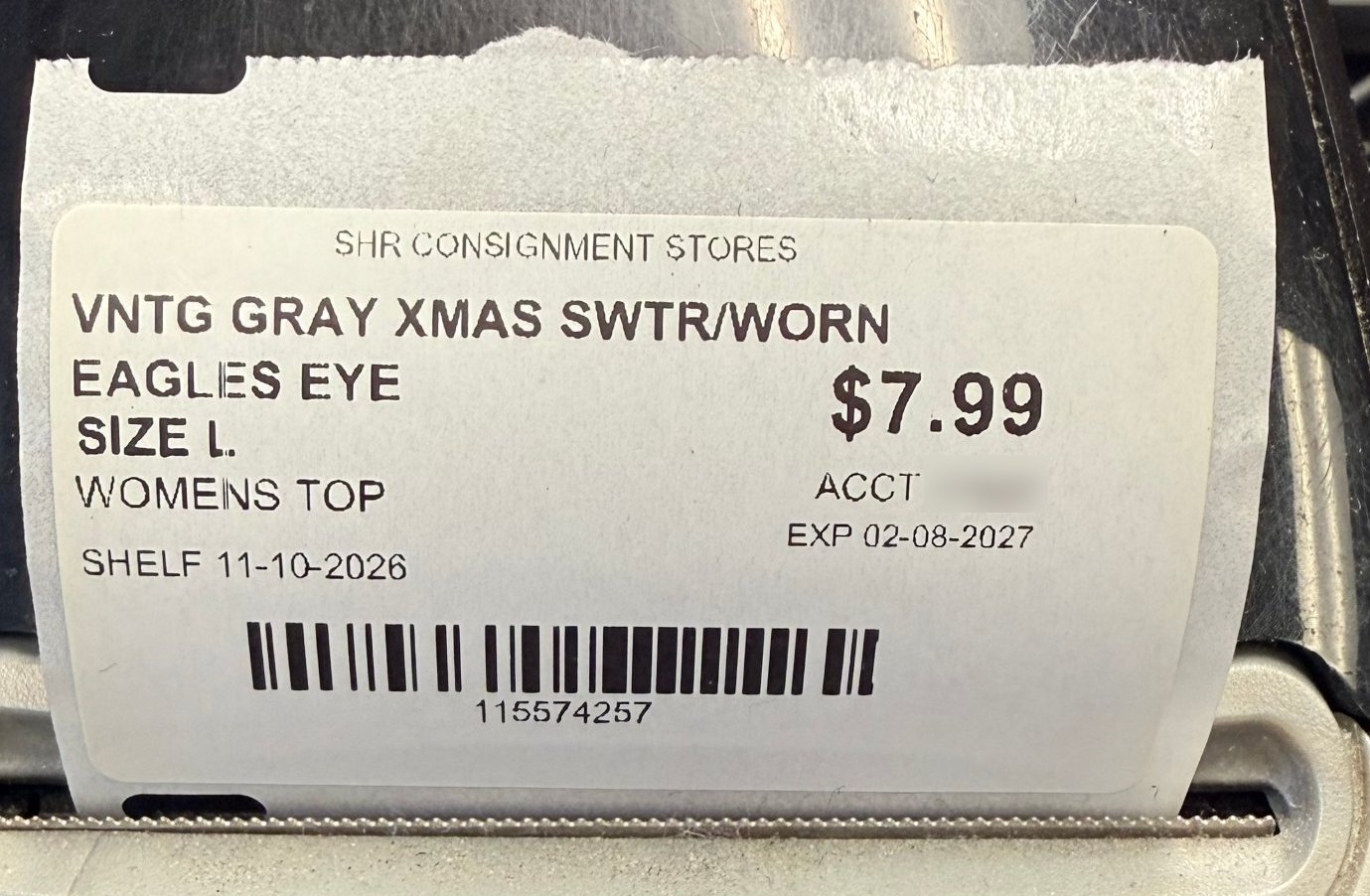 Right: 30334 label on 30334 paper. | 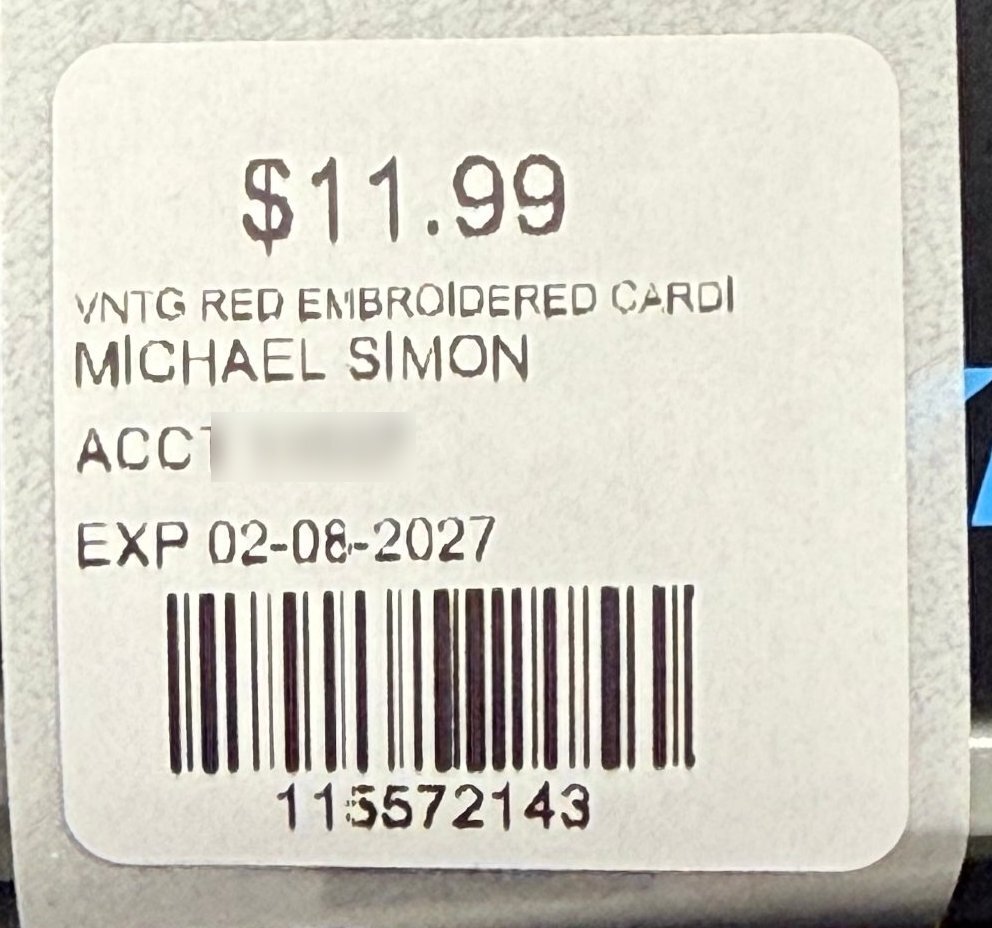 Right: 1 x 1 label on 30332 paper. |
Your label size isn't in Chrome's list? Click Print using system dialog at the bottom of Chrome's print window, or press Ctrl+Shift+P. Windows' own print window uses the printer's label settings from section 3.
Rose Pro and Enterprise: PRINT LABEL sends the label straight to your printer through KloudPrint, with no print window, and you can print many labels at once. See Print All Your Labels at Once (Rose Pro). On Rose Retail, print one label at a time as above. See Print a Label (Rose Retail).
Set the label an item or your store uses
- One item: open it with its ALTER pencil and pick a LABEL. See Altering Existing Inventory.
- Your whole store: Administration › SETTINGS › LABELS › ROSE DEFAULT LABEL. Staff can still pick another label each time they print.
Questions
My label is cut off, or the printer skips blank labels.
The paper size is smaller than the label. Here a 30334 label went to a 1 x 1 roll: the side is cut off and the next labels come out blank. Set the paper size to match the label (see the table).
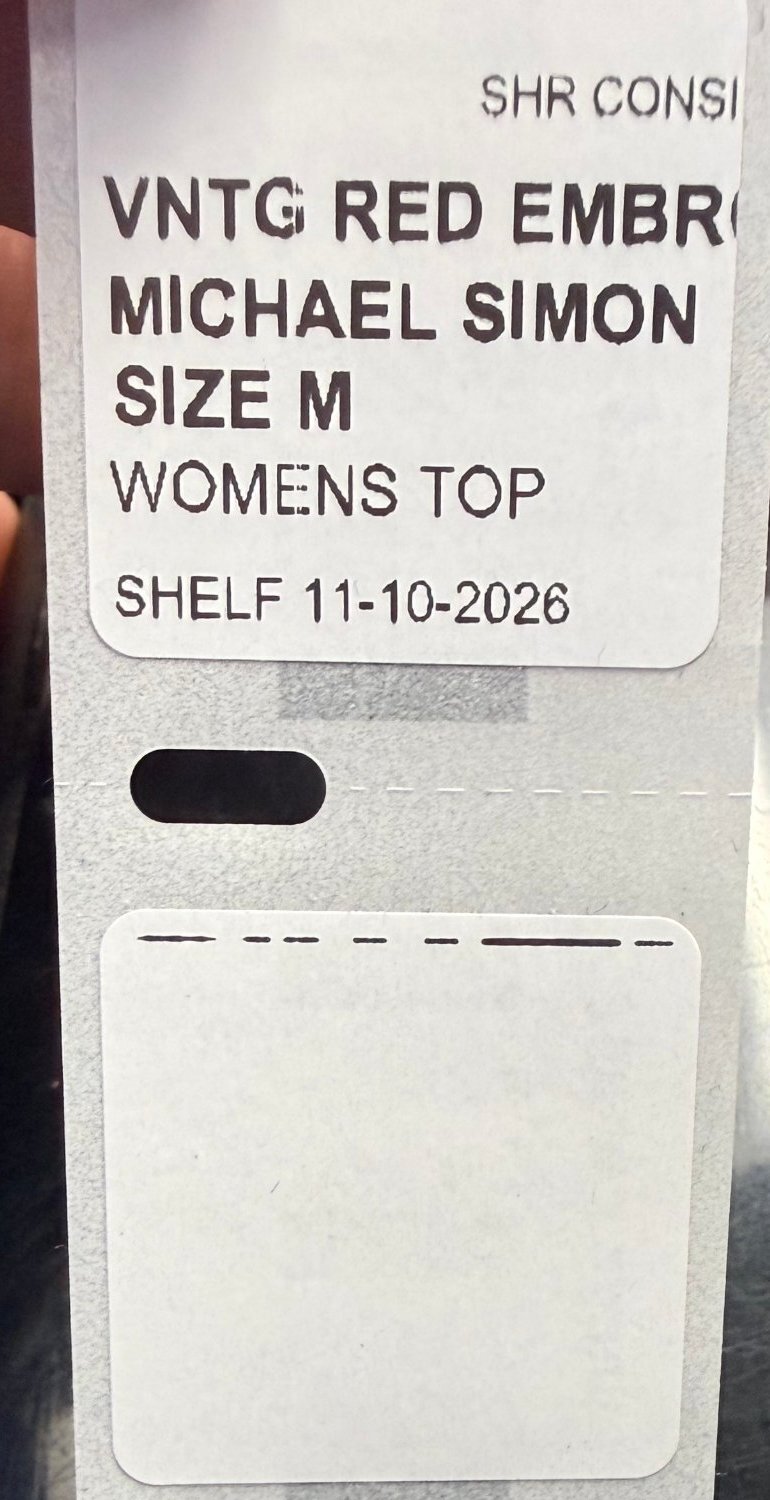
Wrong: a 30334 label printed on a 1 x 1 roll.
My label prints tiny, with lots of white space.
The paper size is bigger than the label. In this preview a 1 x 1 label is set to 30334 paper. Change the paper size to 30332.
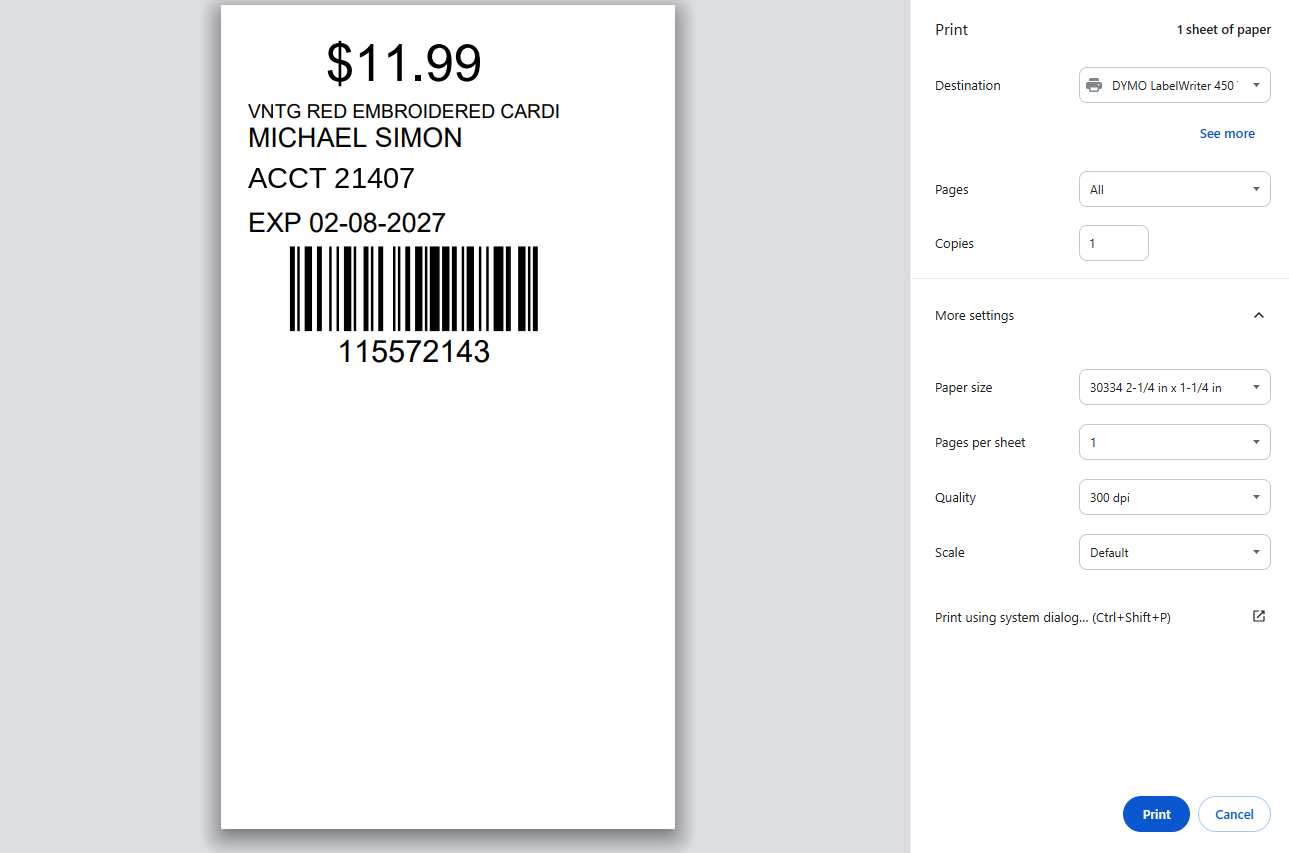
Wrong: a 1 x 1 label with the paper size set to 30334.
The paper size is right, but my 1 x 1 label is cut off (often the barcode number at the bottom).
Some DYMO printers need a small manual adjustment for the 1 x 1 label. In Chrome's print window, under More settings, set Scale to Custom and type 90. Print again, and lower the number a little more if needed. Chrome remembers it for next time.
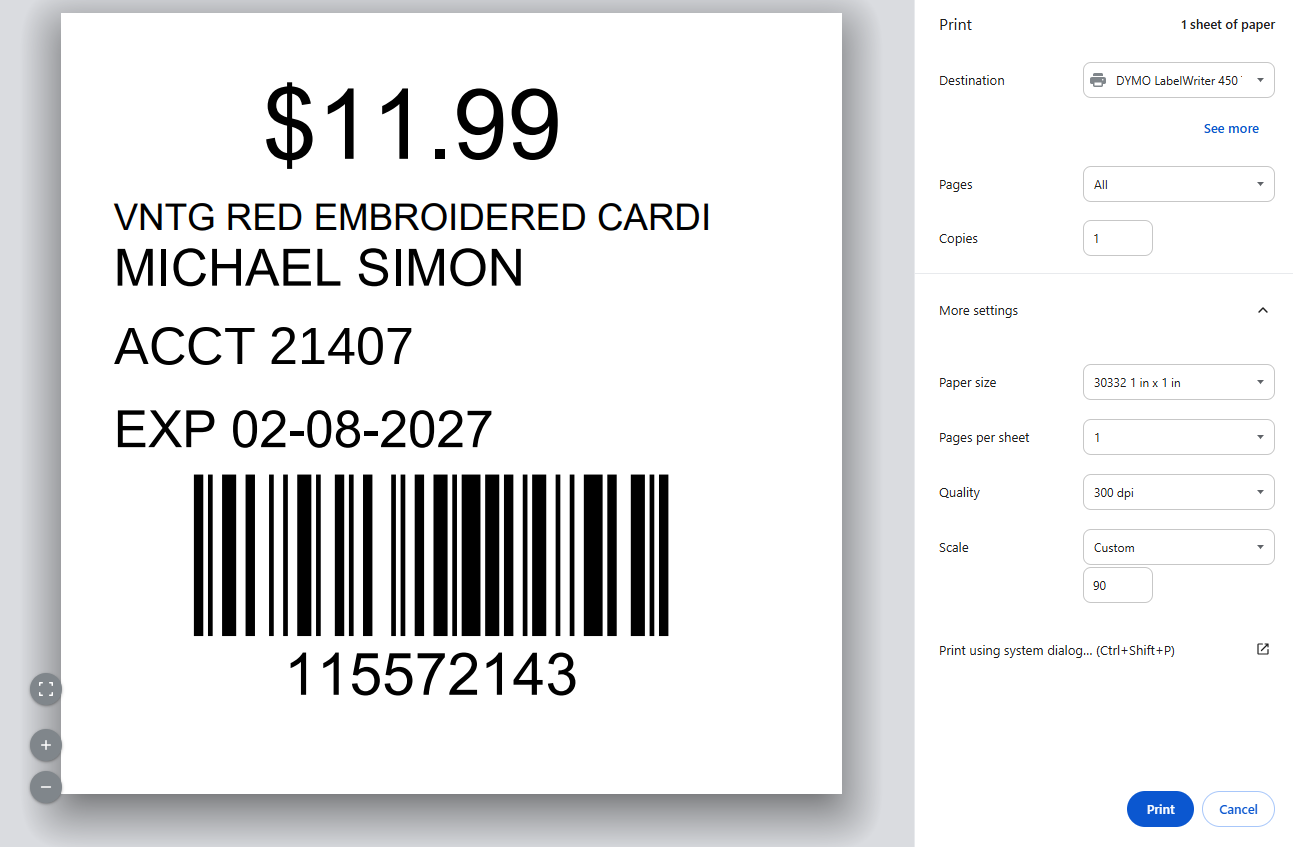
The fix for a cut-off 1 x 1 label: Scale Custom, 90.
My label prints sideways.
In the print preview, change ROTATE FOR MY PRINTER and print again. It applies when you print with the printer icon or download the label.
Need more help? Visit the Help Center on our website, consignorconnect.com, ask your Rosebot, or email support@consignorconnect.com.