![1512632091642-p-500.png]](https://help.consignorconnect.com/hs-fs/hubfs/1512632091642-p-500.png?width=131&height=50&name=1512632091642-p-500.png)
Rose Retail · Take-ins and Inventory
Printer-friendly PDF · One-page cheat sheet
Good to know: On Rose Retail, you print one label at a time using the tag next to each item. Printing several labels at once (ticking items, PRINT SELECTED and PRINT ALL LABELS) comes with Rose Pro.
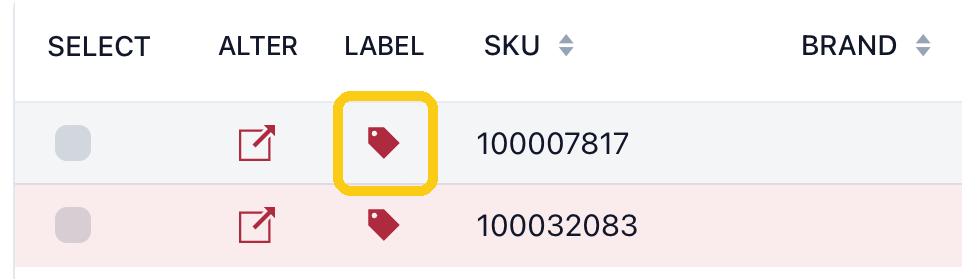
1. Click the red tag next to the item.
You'll find it in the LABEL column of the item list, on a take-in or in Inventory. A preview of the label opens.
2. Type how many labels you need in COPIES.
Usually one label for each piece. For 10 bowls, type 10.

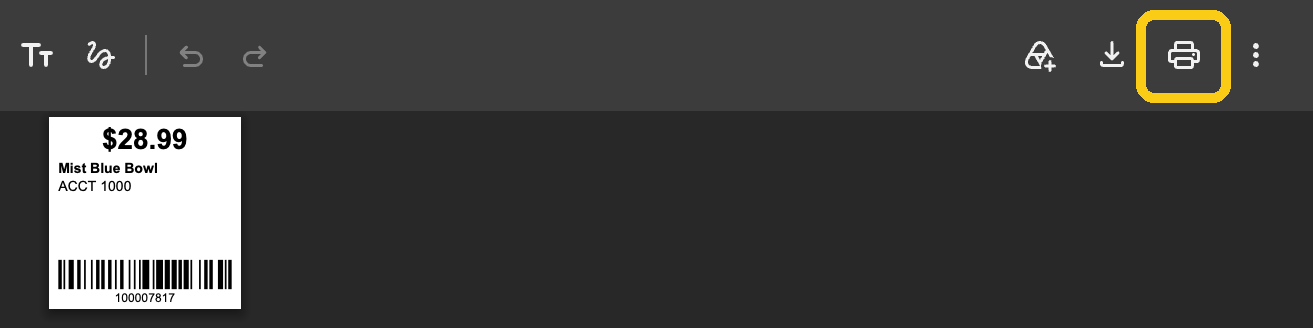
3. Click the printer icon.
It's at the top right, above the label. Your computer's print window opens.
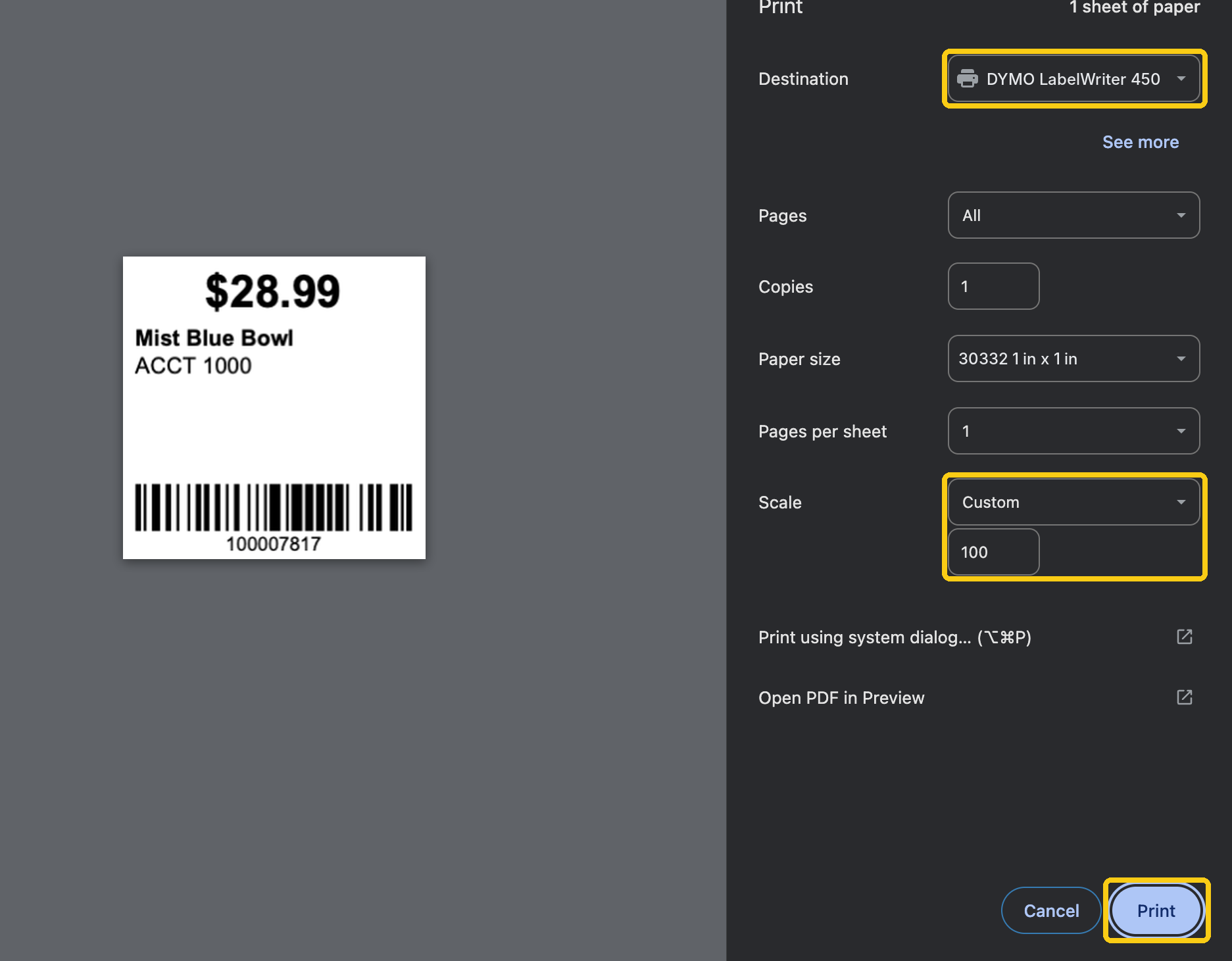
4. Pick your label printer. Make sure Scale says 100. Click Print.
Choose the label printer under Destination (for example DYMO LabelWriter), not the office printer. Paper size should match your label. The preview should show one small label.
5. Click MARK AS PRINTED.
Back in Rose. This tells Rose the label is done, so it isn't printed twice.

Want to print a whole take-in in one click? With Rose Pro, PRINT ALL LABELS sends every label straight to your label printer. See Print all your labels at once.
Label looks wrong, or need more help? Ask your Rosebot or email support@consignorconnect.com.