![1512632091642-p-500.png]](https://help.consignorconnect.com/hs-fs/hubfs/1512632091642-p-500.png?width=131&height=50&name=1512632091642-p-500.png)
Add a single item straight to Inventory without a take-in: pick the consignor, fill in the details, then add it and print its label.
Open a new item (Rose)
Use this for one-off items, store-owned stock or a quick add. For a consignor dropping off a batch of items, a take-in is quicker: see How to Create Inventory.
- Open Menu → Inventory and press CREATE (or Create item in the Dashboard’s Quick actions).
- The item opens with your store’s item defaults already filled in (see Item defaults).
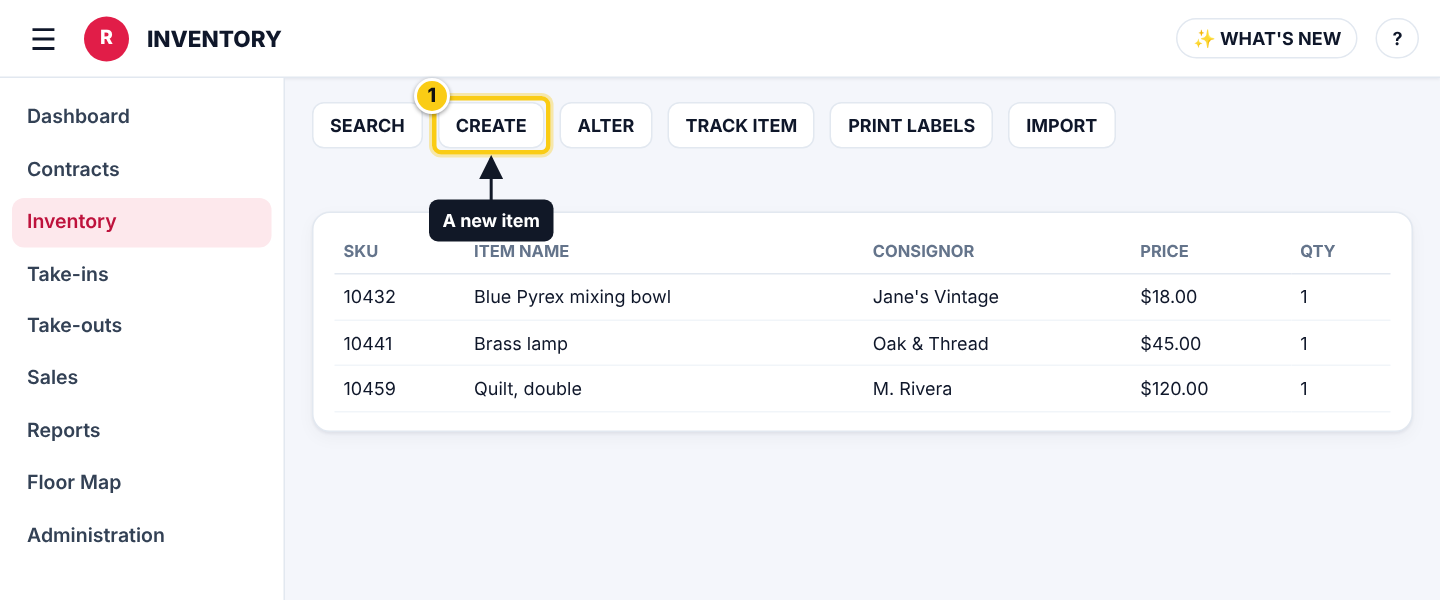
Inventory: (1) CREATE opens a new item.
Fill in the item (Rose)
- Type the consignor’s name in CONSIGNOR (or their number in CONTRACT) - the two fill each other in. CONSIGNOR/CREATE makes a new consignor on the spot.
- Scan or type a SKU, or press GENERATE SKU.
- Pick the CATEGORY. Its price, shelf life and fees fill in.
- Type the ITEM NAME, and BRAND, SIZE and COLOR if you use them.
- Check QUANTITY and EA.PRICE.
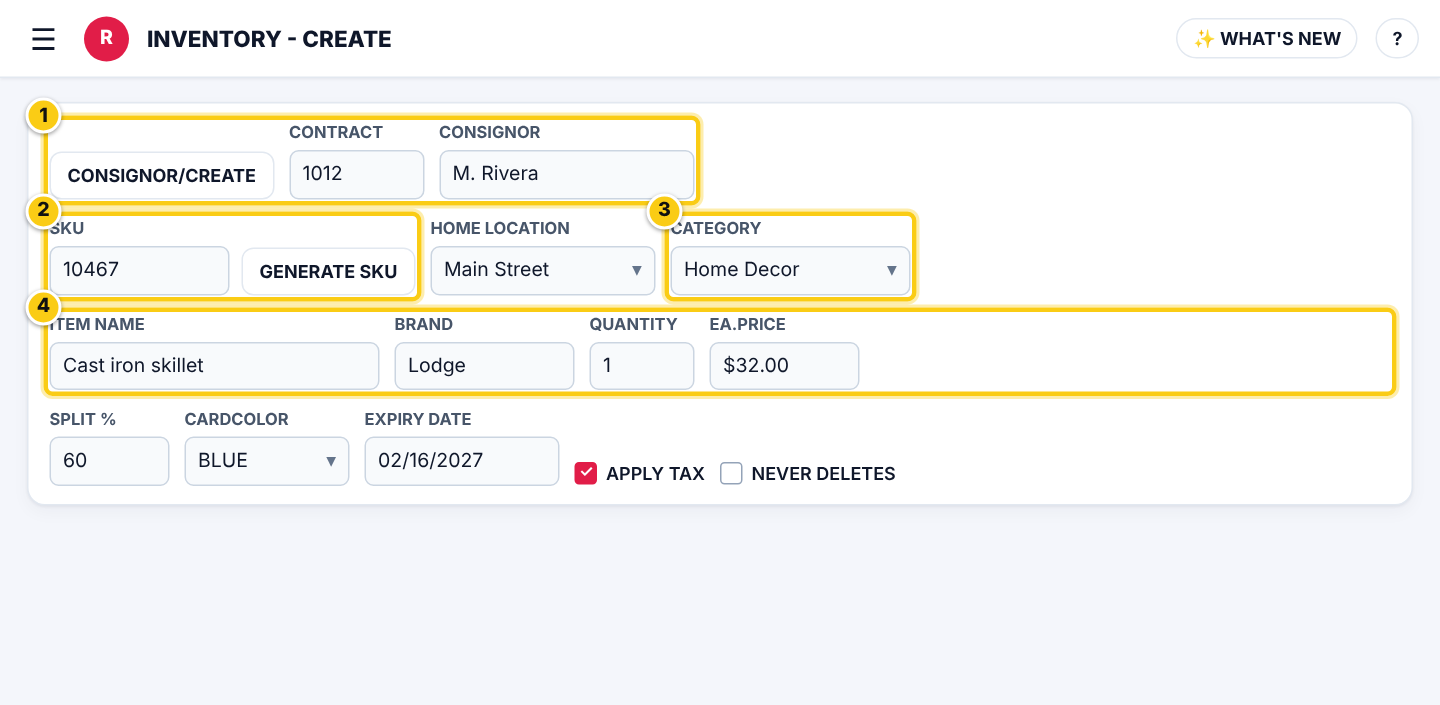
(1) the consignor, (2) the SKU, (3) the category, (4) name and price.
| Field | What it means |
|---|---|
| CONTRACT / CONSIGNOR | Who owns the item. Leave the store account for store-owned stock. |
| SKU | The barcode number on the label. GENERATE SKU makes the next free one; jewelry labels allow 6 characters. |
| HOME LOCATION | The location the item is at. |
| CATEGORY | Sets the starting price, shelf life, fees and taxes. |
| EA.PRICE | The price of one item. |
| EA.COST | What the store paid (for store-owned items and COST-BASED PAYOUT). |
| EA.FEE | An item fee taken from the consignor’s payout when it sells. |
| PRICING TYPE | FIXED, or VARIABLE (the price is typed in at the register; not shown online). |
| SPLIT % | The consignor’s share for this item. Starts with their contract’s split. |
| CARDCOLOR | The colour card for colour-card discounts. |
| SHELF DATE / EXPIRY DATE | When the item went on the floor and when it expires (from the category’s shelf life). |
| NEVER DELETES | The item never expires. |
| NO DISCOUNTING | Markdowns and colour cards never apply. |
| TRACK QUANTITY | Square counts stock for the item. |
| APPLY TAX | Charge sales tax on the item. |
| ONLINE WEBSITE | Show the item in your online store (needs a fixed price). |
Add it (Rose)
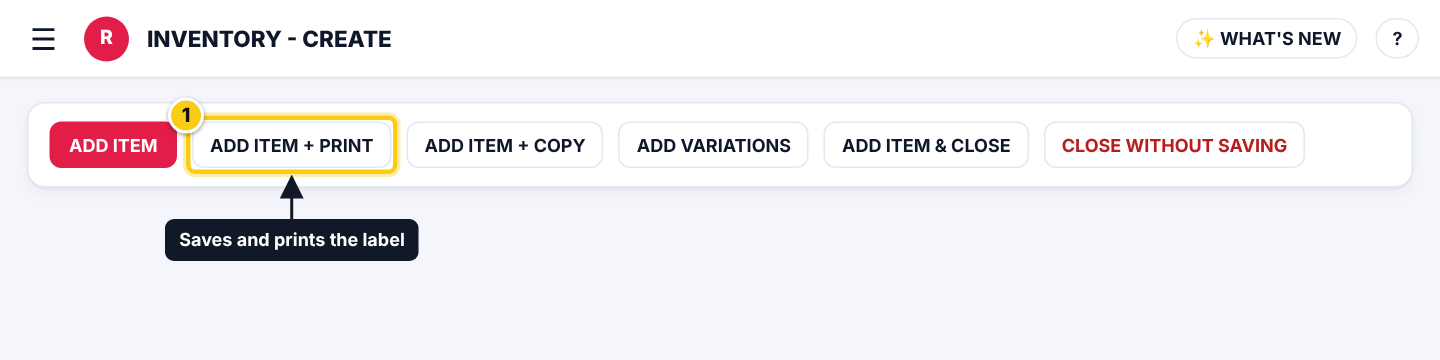
(1) ADD ITEM + PRINT saves and prints the label.
| Field | What it means |
|---|---|
| ADD ITEM | Saves it and opens a new item for the same consignor. |
| ADD ITEM + PRINT | Saves it and prints its label. |
| ADD ITEM + COPY | Saves it and starts the next item with the same details; enter the new SKU. |
| ADD VARIATIONS | Saves it, then add other sizes, colors or prices, each with its own SKU (Rose Pro). |
| ADD ITEM & CLOSE | Saves it and goes back to the list. |
| CLOSE WITHOUT SAVING | Leaves without adding the item. |
- Rose says ITEM ADDED : SKU ... and sends the item to Square.
- Print labels later with PRINT LABELS on the Inventory list.
Change an item later (Rose)
- Search for it on the Inventory list and select it.
- Press ALTER, make the change and press SAVE ITEM CHANGES.
- More on changing items: Altering Existing Inventory.
Who can do this (user rights)
| Right in User Maintenance | What it allows | Who has it at first |
|---|---|---|
| Inventory | Opens Menu → Inventory, CREATE and ALTER. | Users with Inventory ticked |
Questions
Take-in or Inventory - which should I use?
A take-in groups a consignor’s drop-off, gives them a receipt to sign and lets you print all the labels at once. Create in Inventory for single items or store stock.
The item isn't in Square yet.
Rose sends it within a minute or two. If it says the item is updating in Square, try again shortly.
Still stuck? Ask Rosebot (the bubble at the bottom right of Rose and myPortal) or contact Consignor Connect support.